How to install Buzo TV on Android TV / TV Box
Step-by-step guide to install Buzo TV on Android TV with Downloader, code 1844423, and screenshots.
How to install Buzo TV on Android TV
Works on Android TV, Google TV, and compatible TV Boxes. Have a Firestick? Use this guide: How to install Buzo TV on Firestick.
-
Open the app store (Play Store).
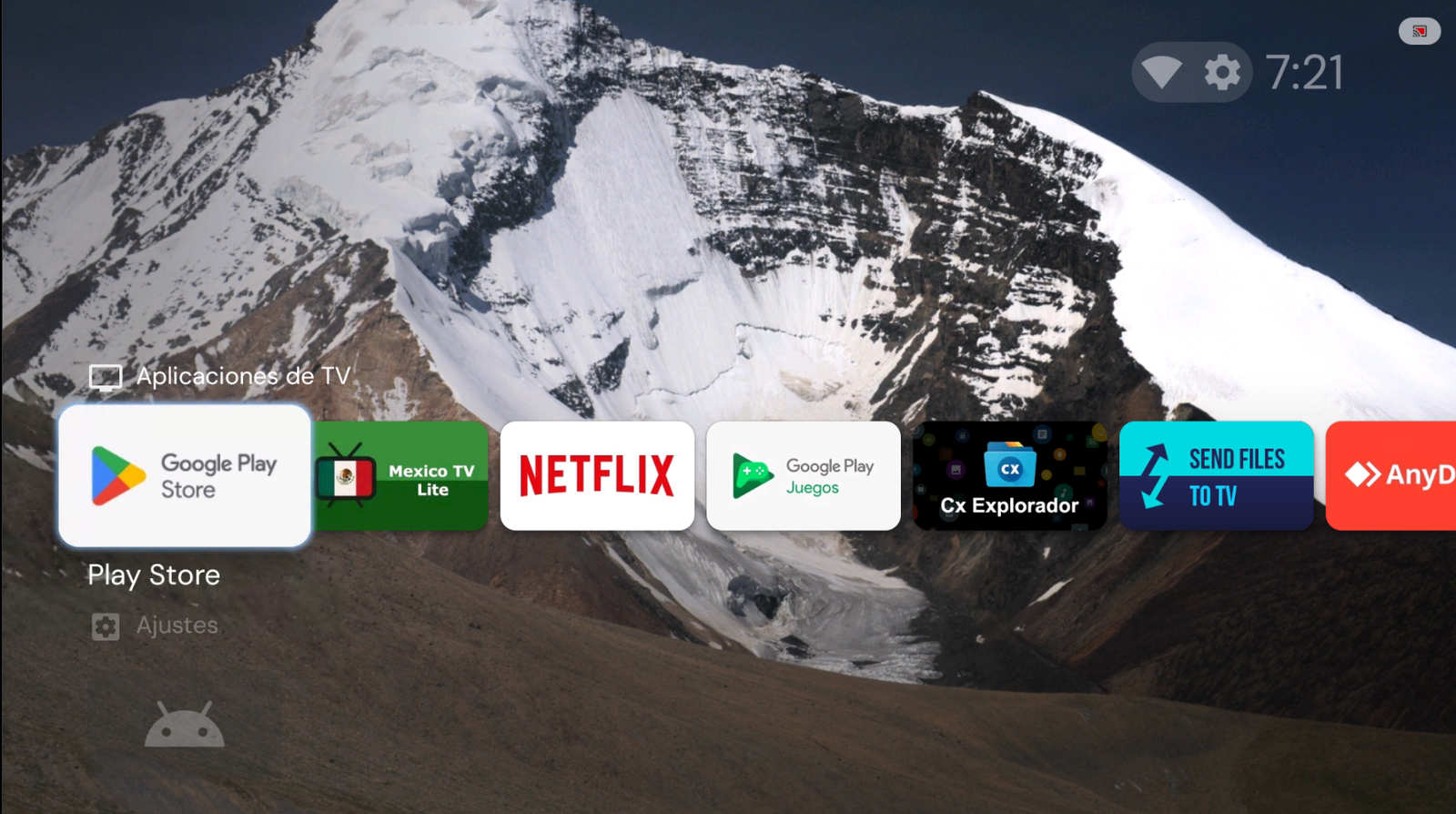
Open Play Store. -
Search for the app Downloader by AFTVnews.
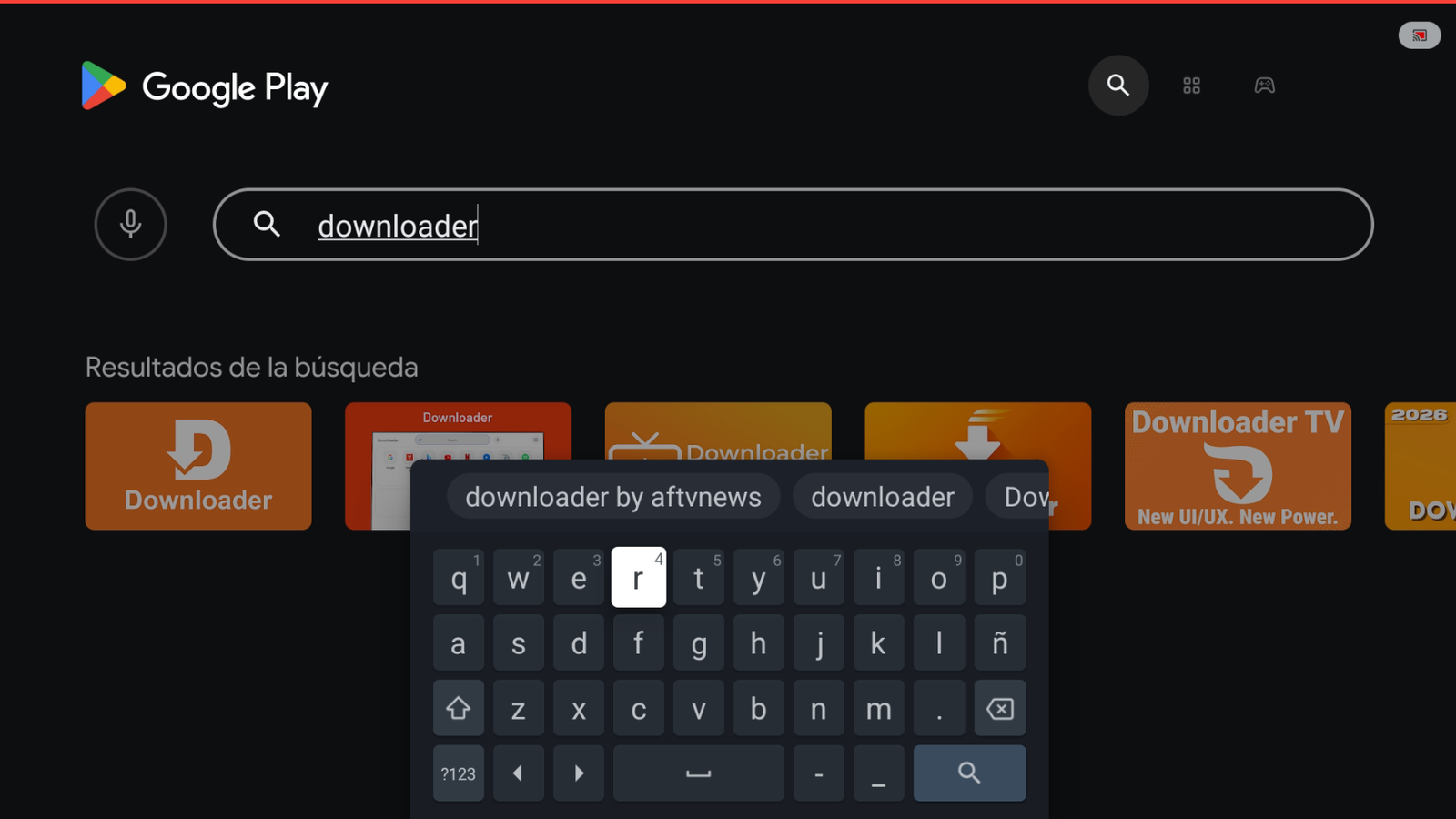
Type “downloader” in search. -
Select and install the app. Make sure the publisher is AFTVnews.
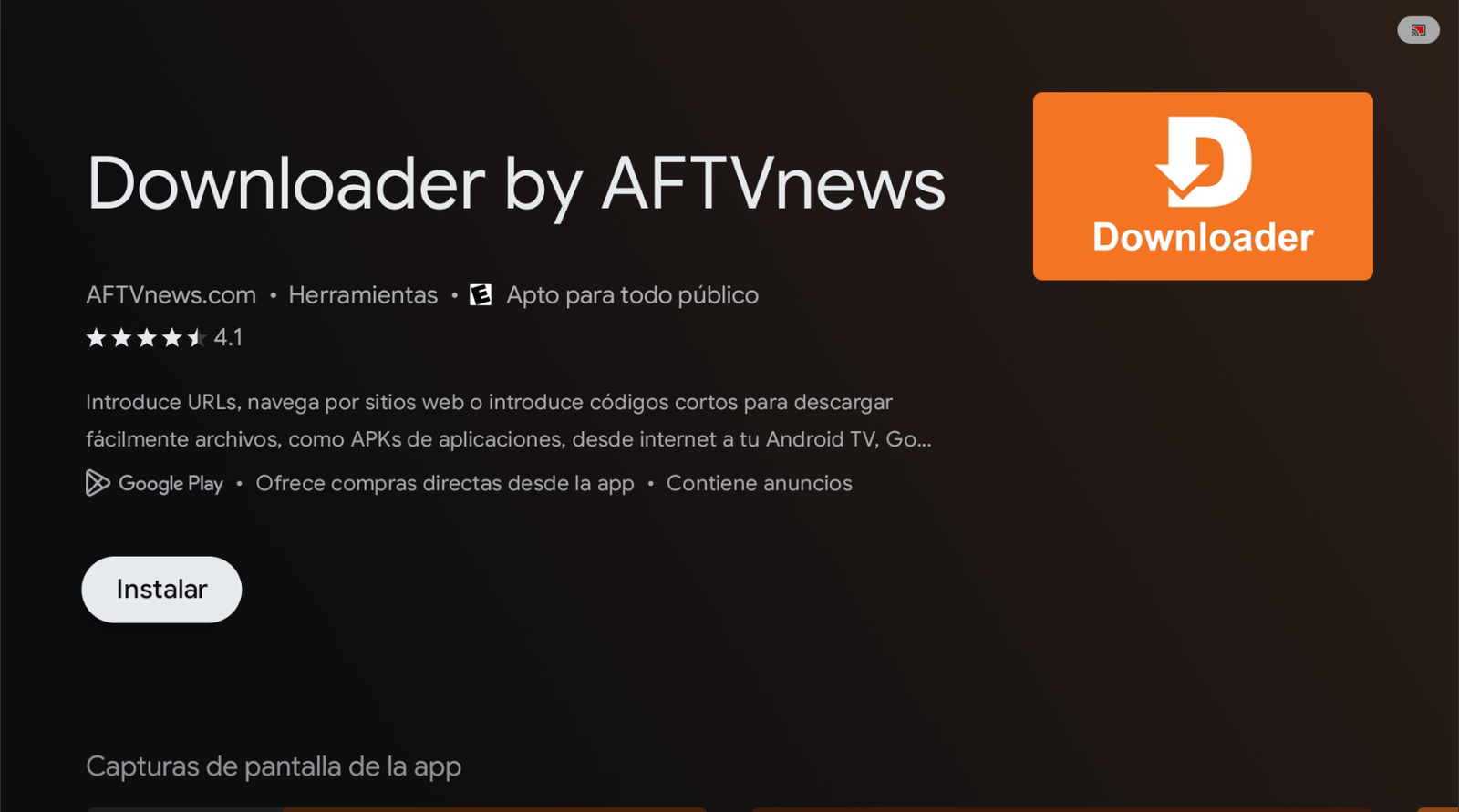
Tap Install. -
Open the app and, in the search bar, type the code 1844423, then press Load.
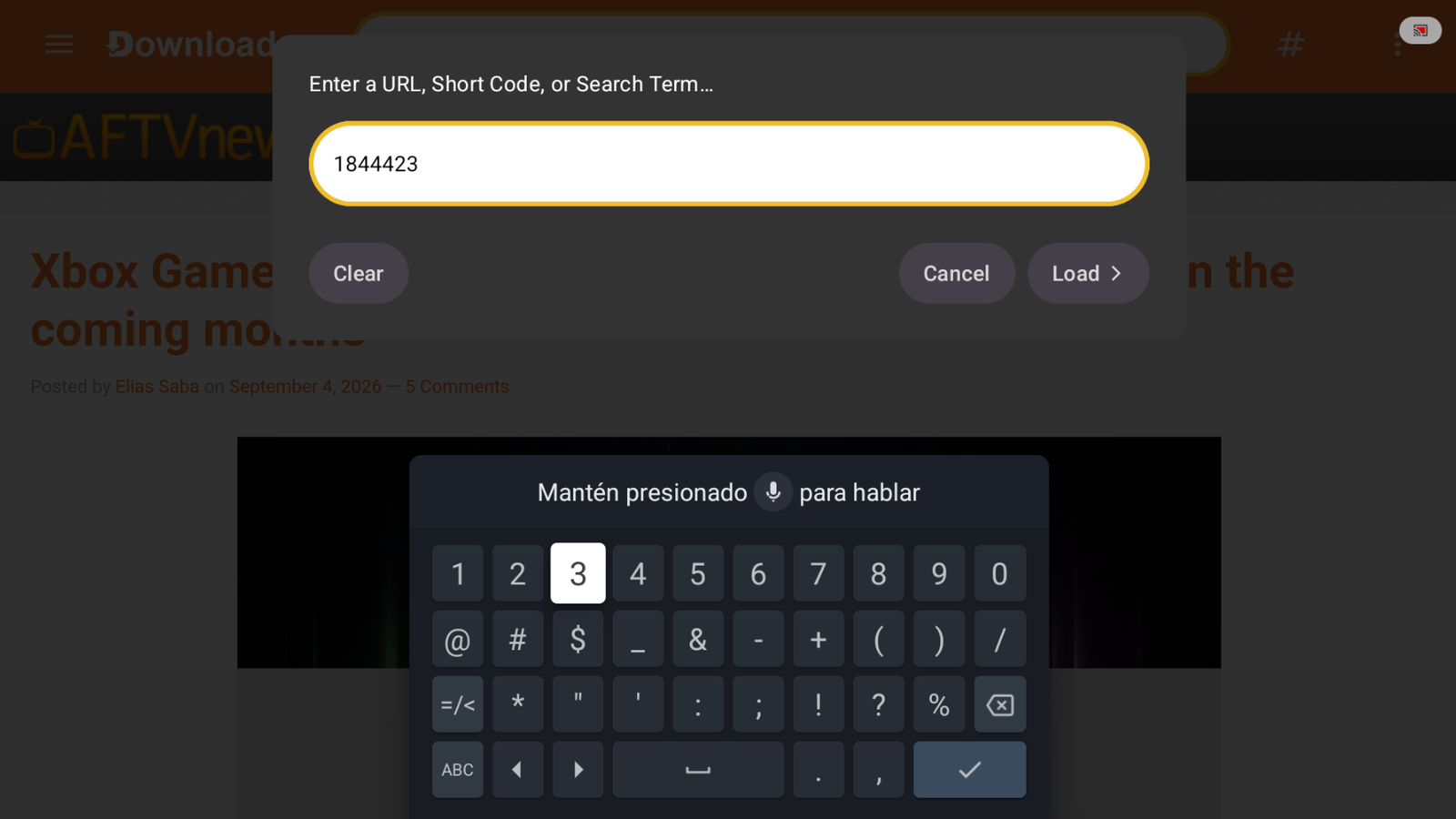
Code: 1844423 → Load. -
After about 10 seconds, the app download will start.
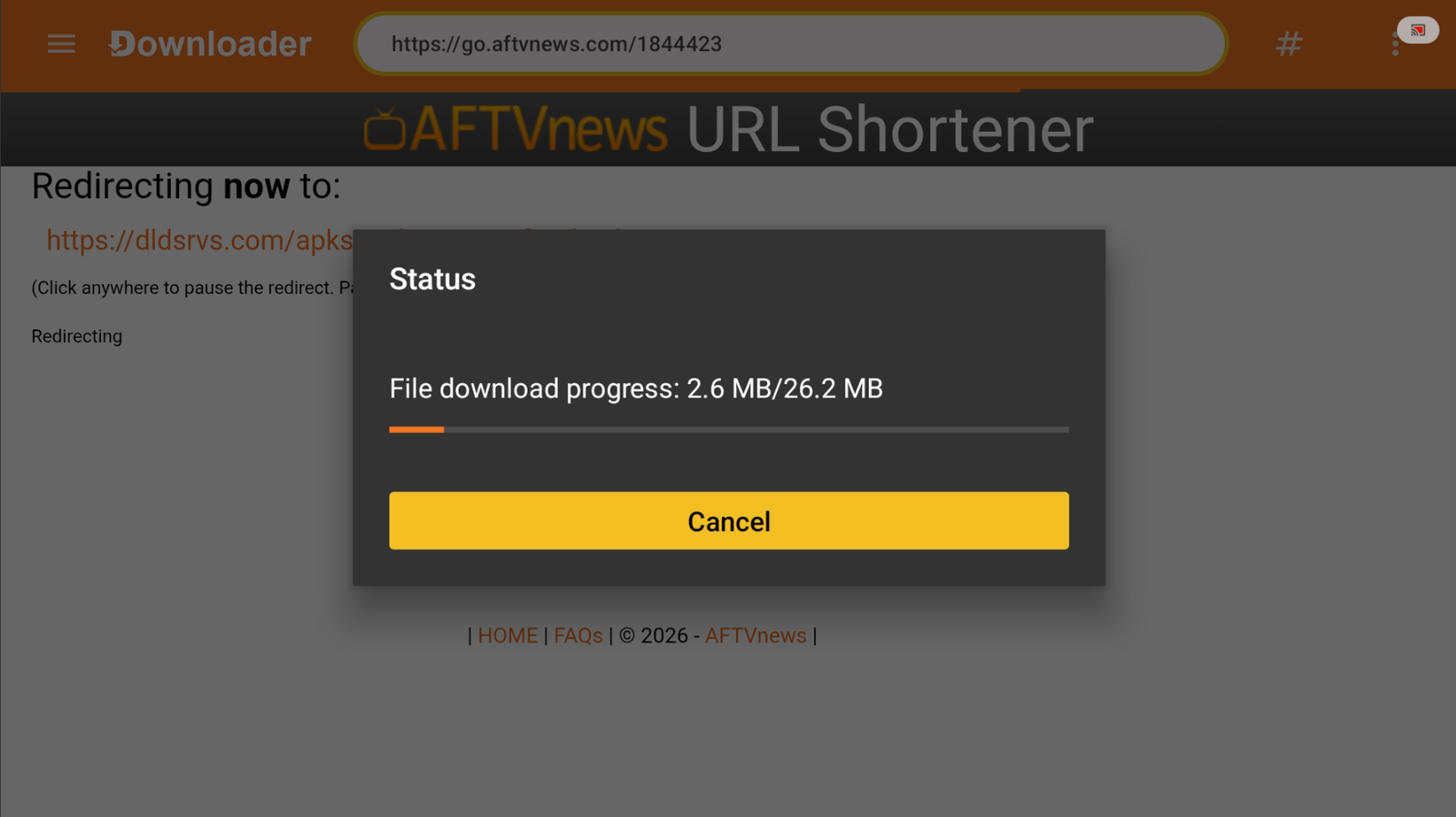
Wait for the download to finish. -
If you see this window, you need to allow Downloader to install apps. Tap Settings (Configuración).
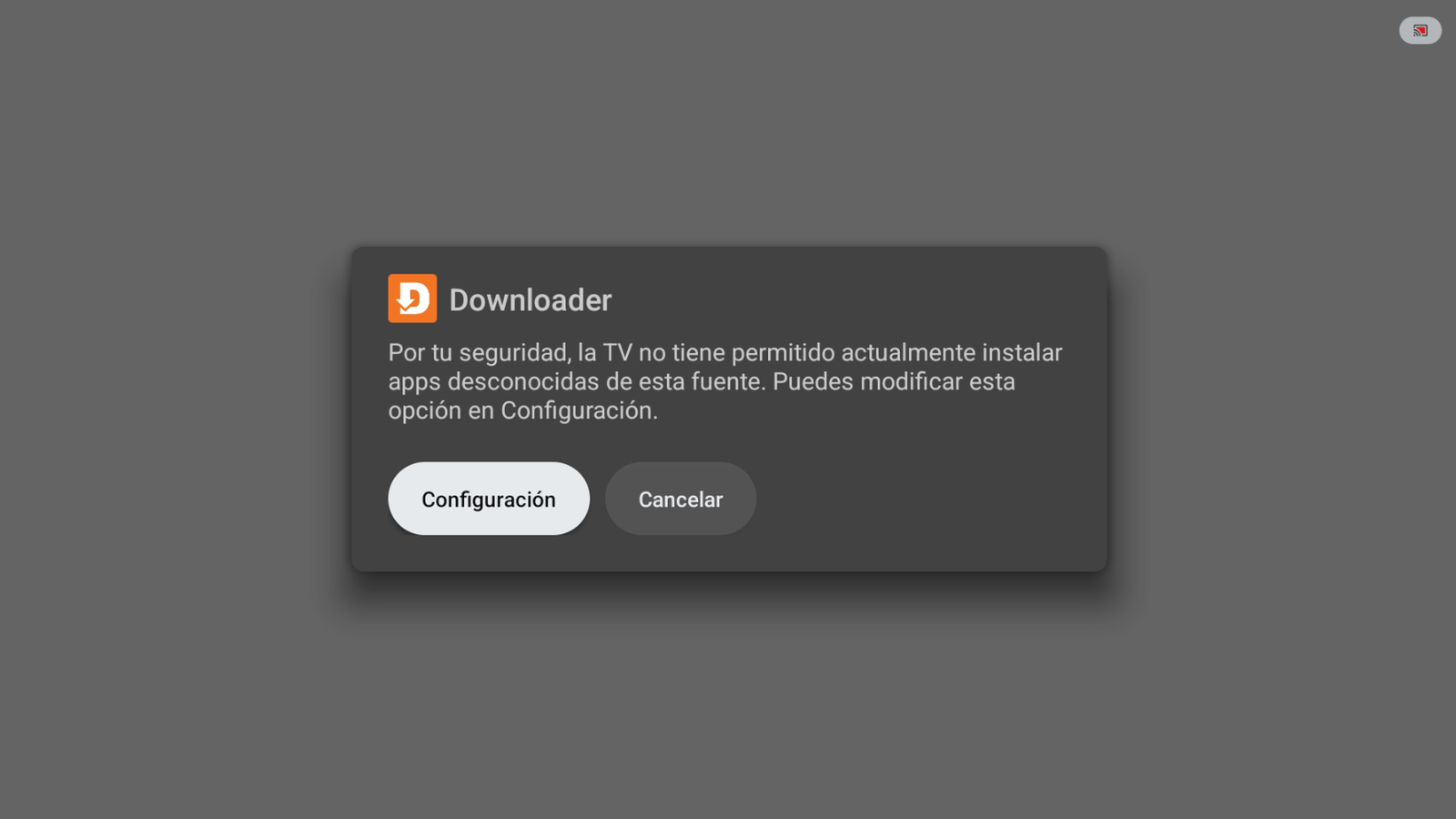
Tap Settings. -
Allow Downloader to install unknown apps (turn the permission on).
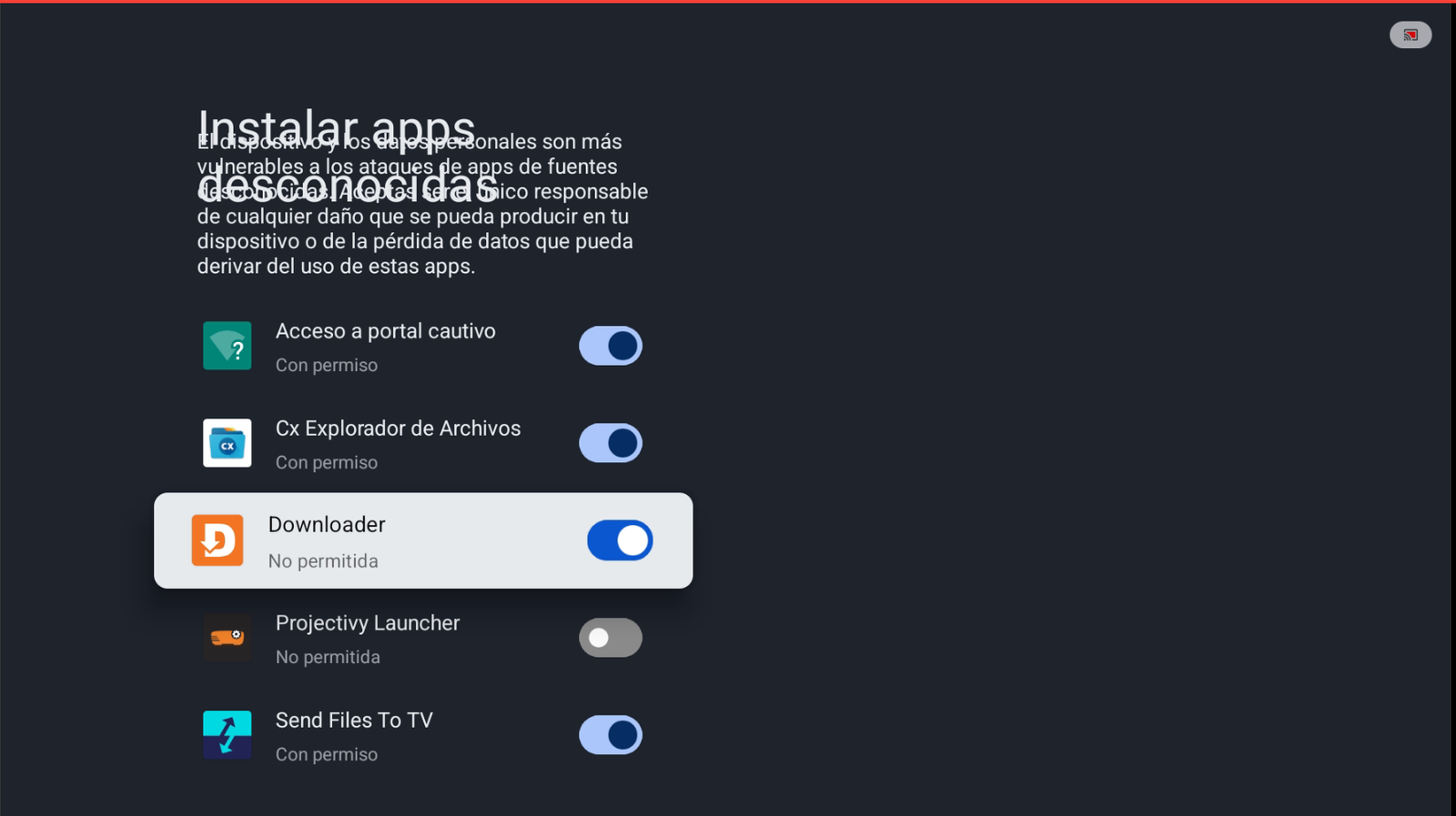
Enable permission for Downloader. -
You’ll see the install window for Buzo TV. Tap Install.
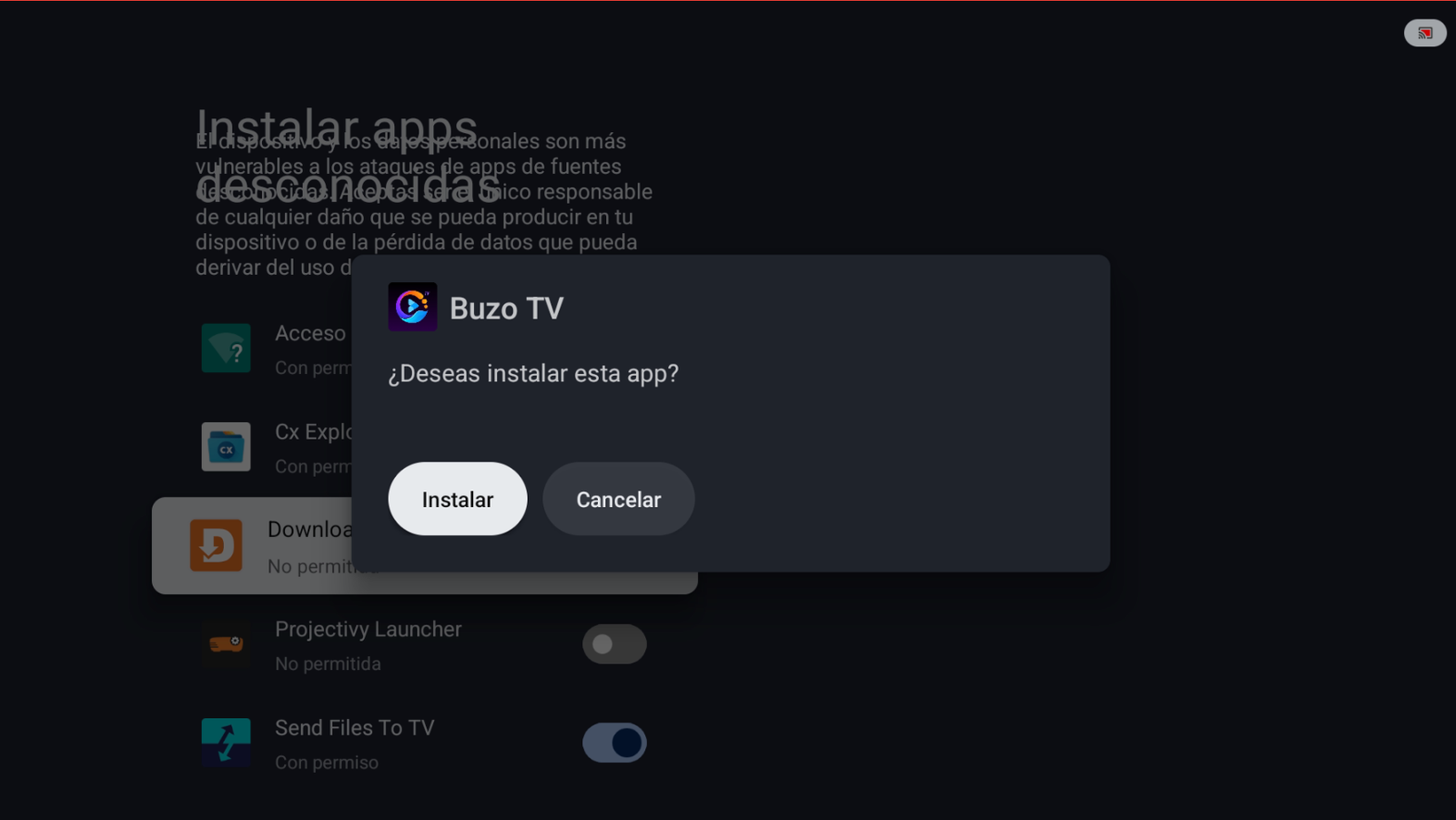
Tap Install. -
If Google Play Protect shows a warning, tap More details, then Install anyway.
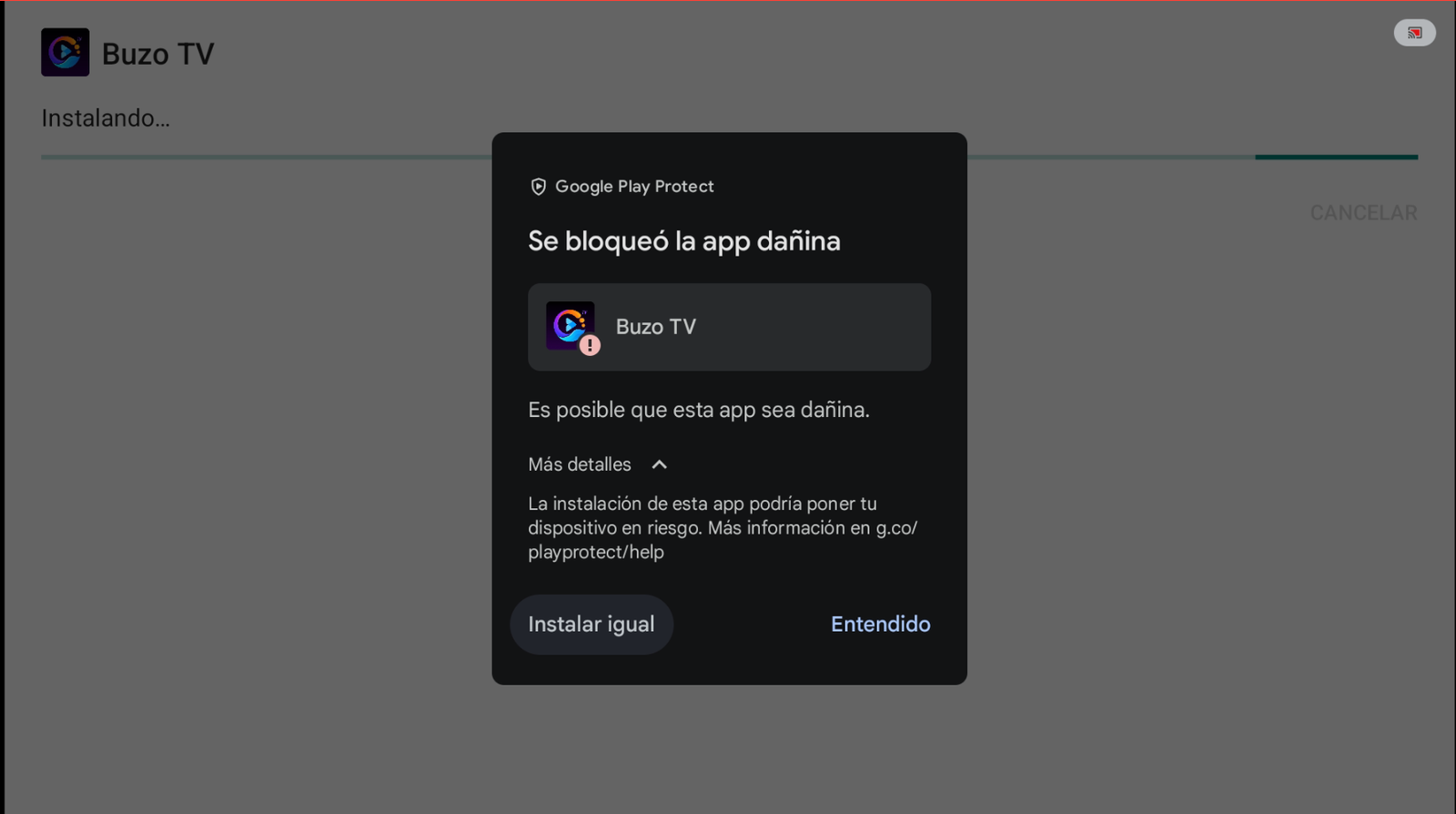
More details → Install anyway. -
When it finishes, tap Open (or Done).
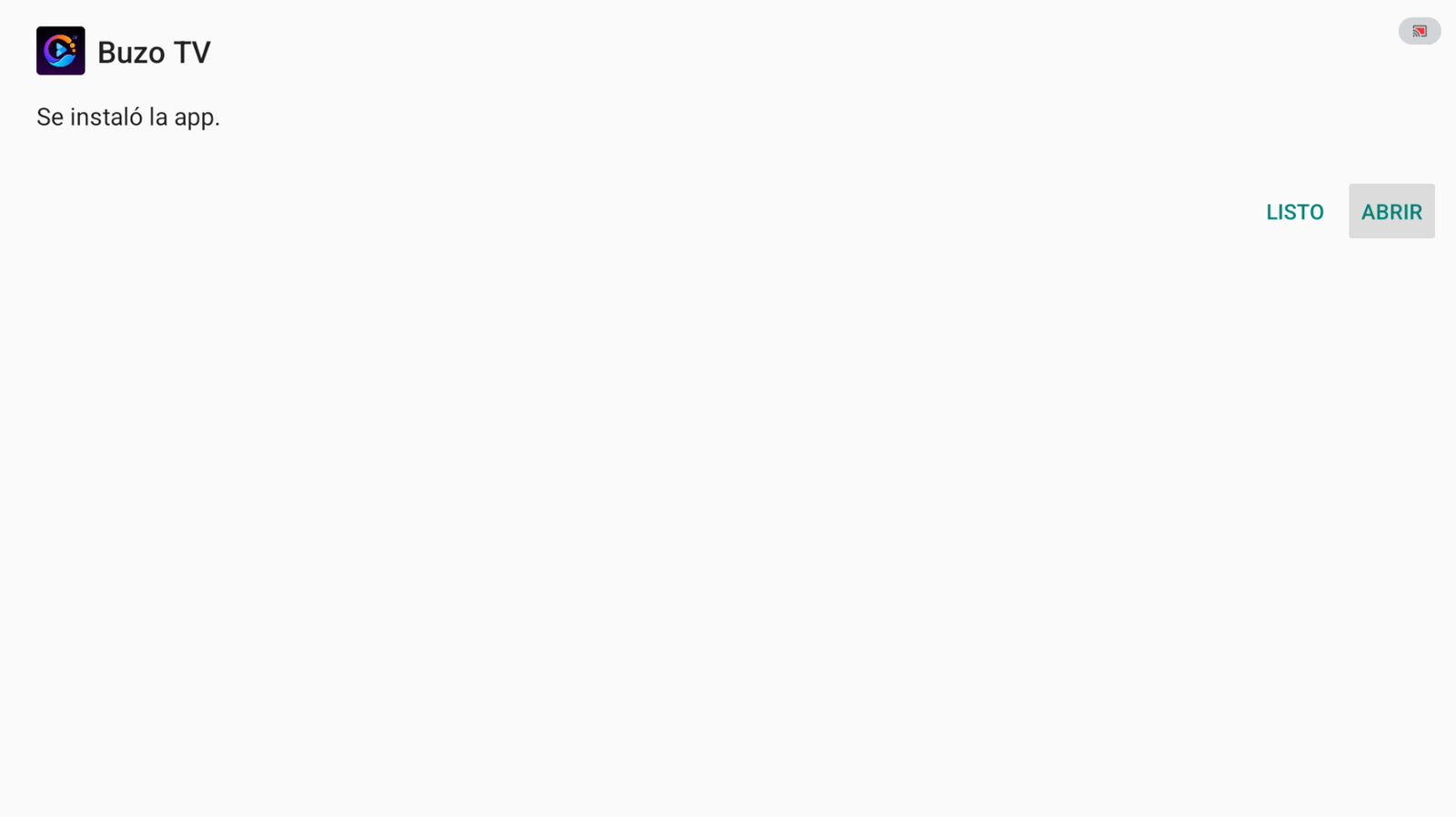
The app was installed. -
Open the app and sign in with your account details. If you don’t have an account yet, contact: +52 55 2707 7840.
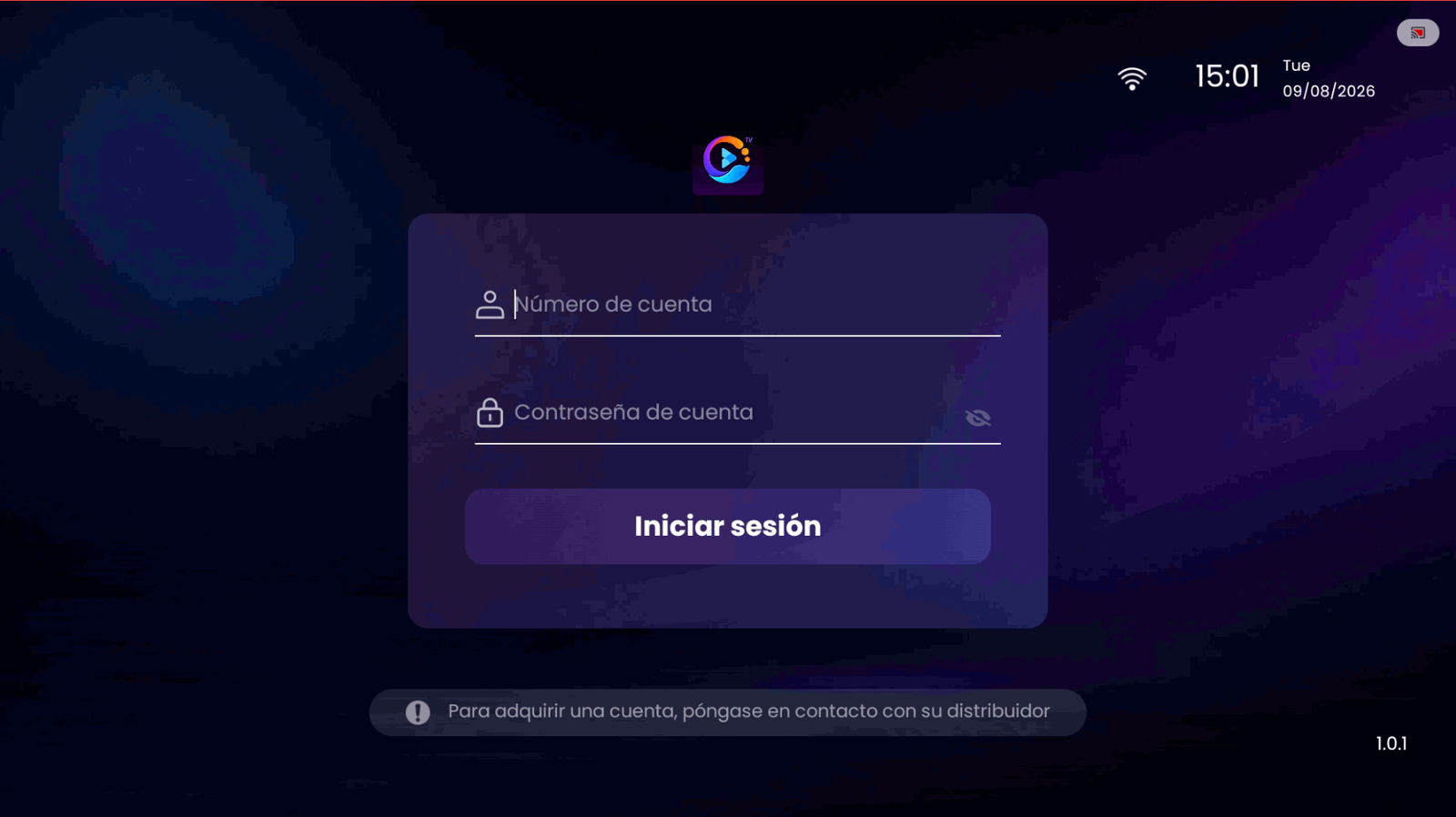
Enter your account number and password.
Conclusion
With Downloader and code 1844423, you can install Buzo TV on Android TV in minutes.
Buy Buzo TV
To buy a Buzo TV account, contact us on WhatsApp: +52 55 2707 7840.
Comments
Comments will appear once Disqus is configured.