How to install Buzo TV on Firestick
Step-by-step guide to install Buzo TV on Fire TV Stick with Downloader, code 1844423, and screenshots.
How to install Buzo TV on Firestick
Enable Developer Options before installing external apps. If you haven’t: Activate Developer Options on Firestick.
Using Android TV / Google TV? See: How to install Buzo TV on Android TV.
-
On your Firestick home screen, go left to Search (Buscar).
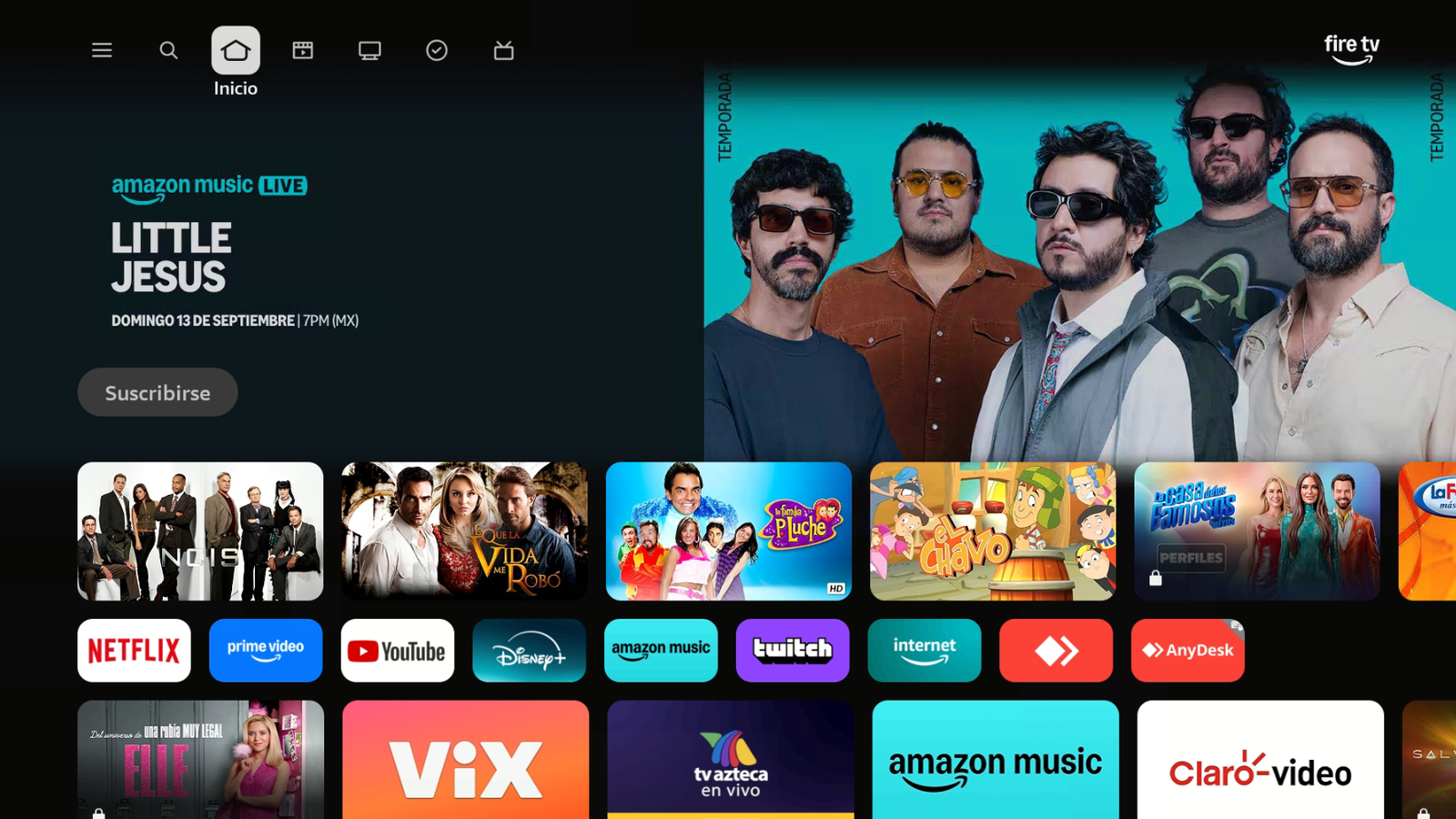
From Home, go to Search. -
Open Search to type the app name.
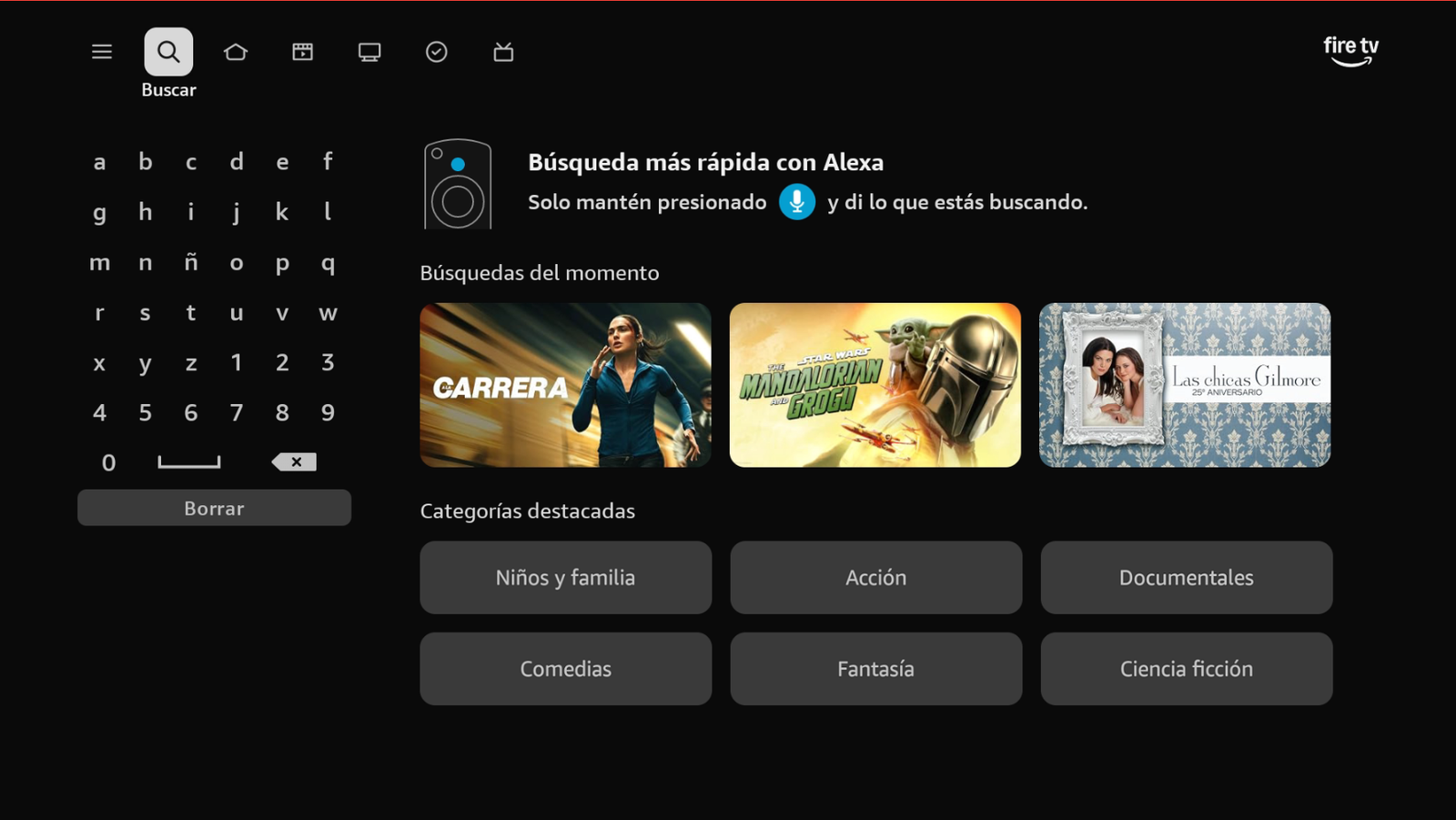
Open Search. -
Search for Downloader by AFTVnews.
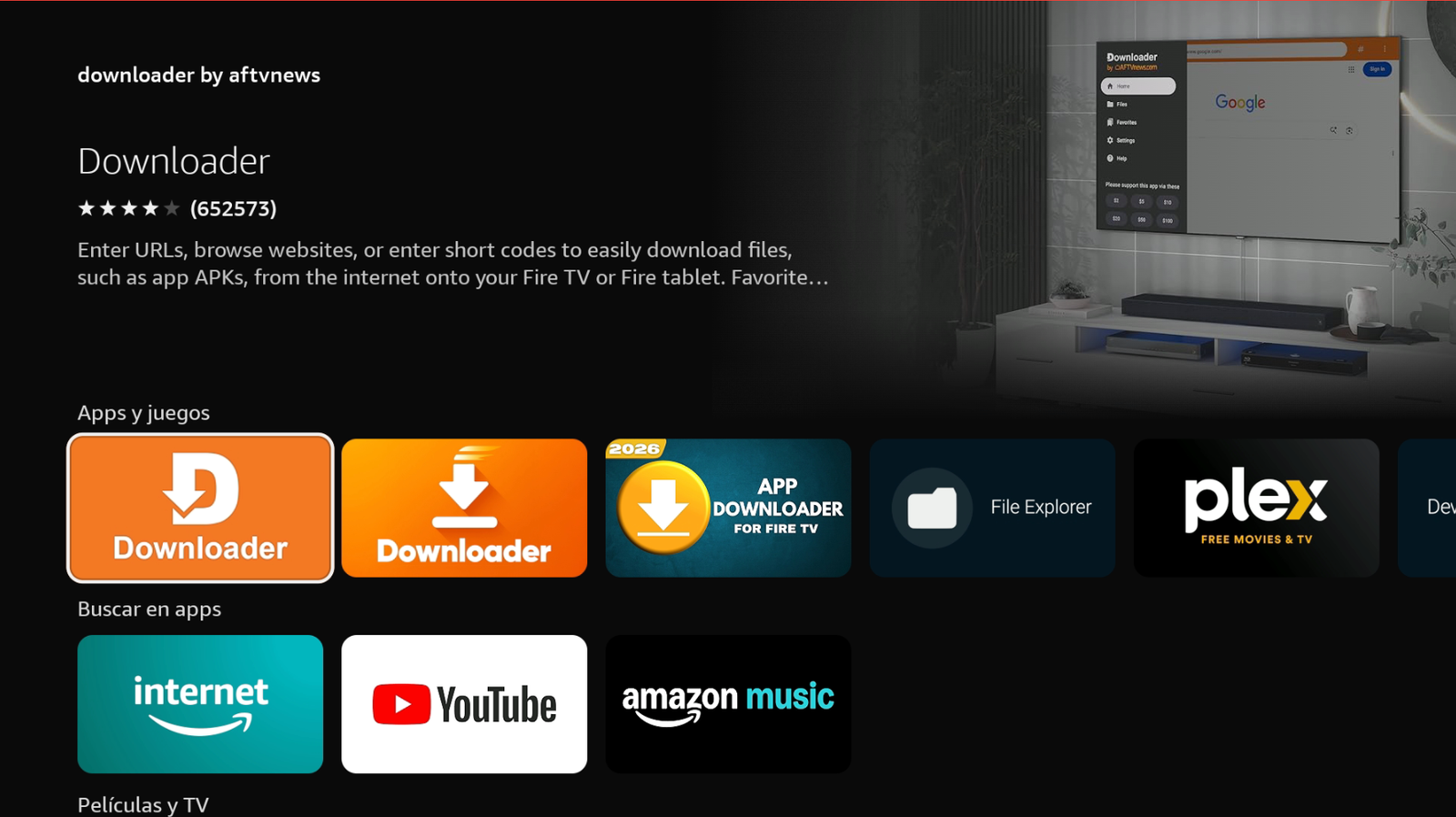
Search for Downloader. -
Download and install the app. Make sure the developer is AFTVnews.com.
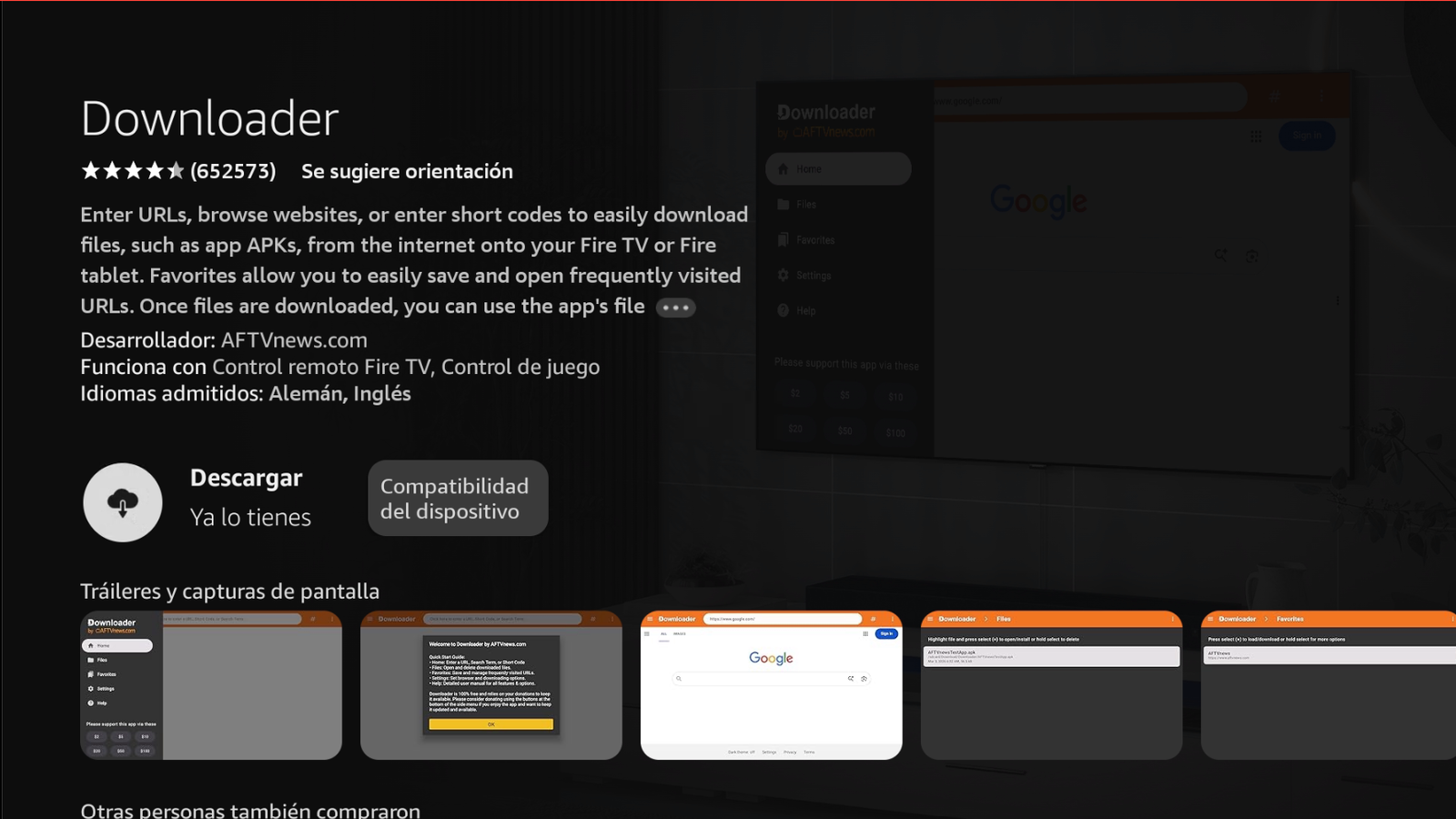
Download and install Downloader. -
Go to Home → Settings → My Fire TV → Developer options → Install unknown apps and enable Downloader.
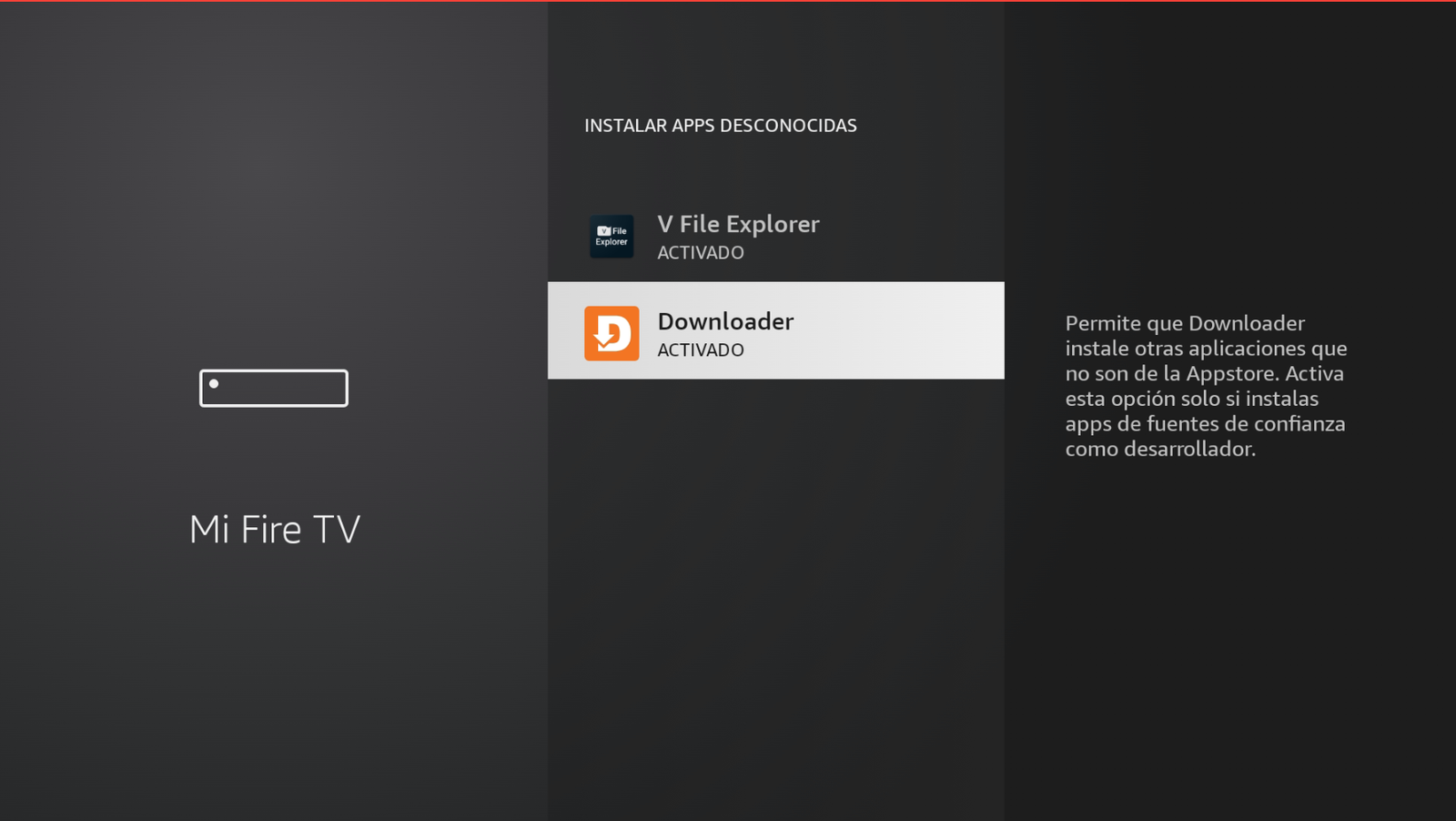
Downloader → ON / ACTIVADO. -
Open Downloader by AFTVnews.
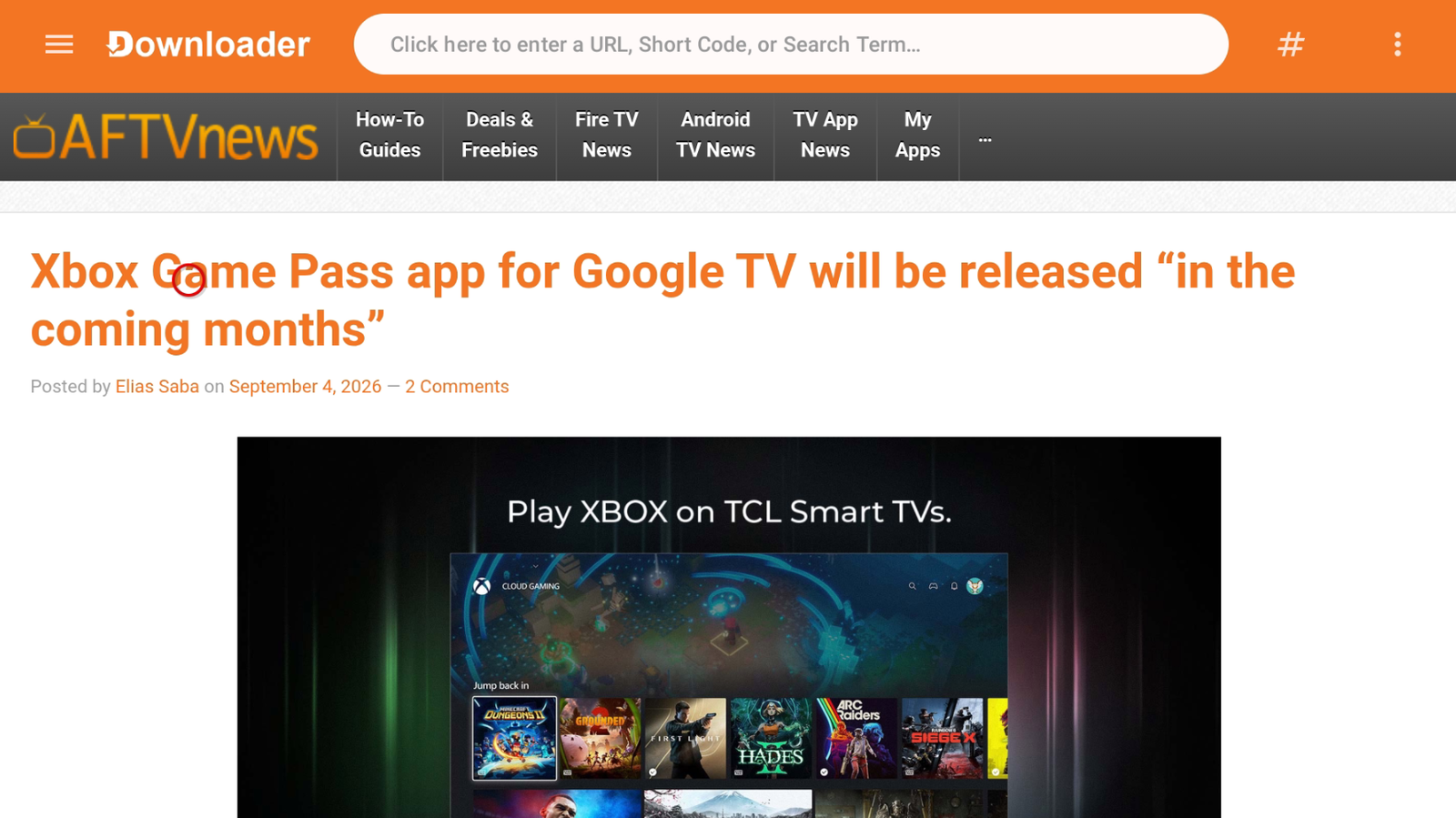
Open Downloader. -
In the address bar, enter the code 1844423 and tap Next (Siguiente).
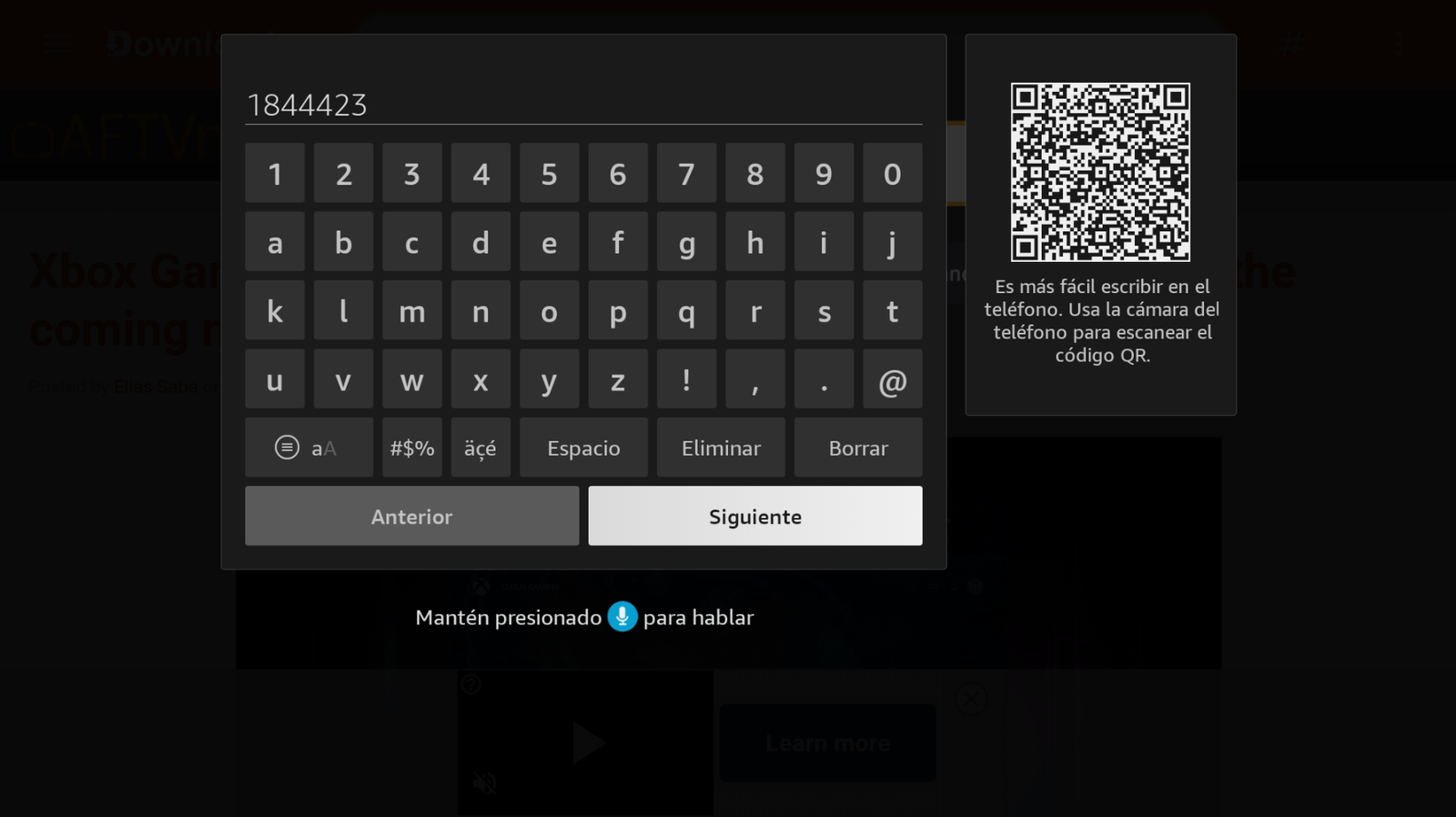
Code: 1844423 → Next. -
Wait a few seconds; the app will start downloading.
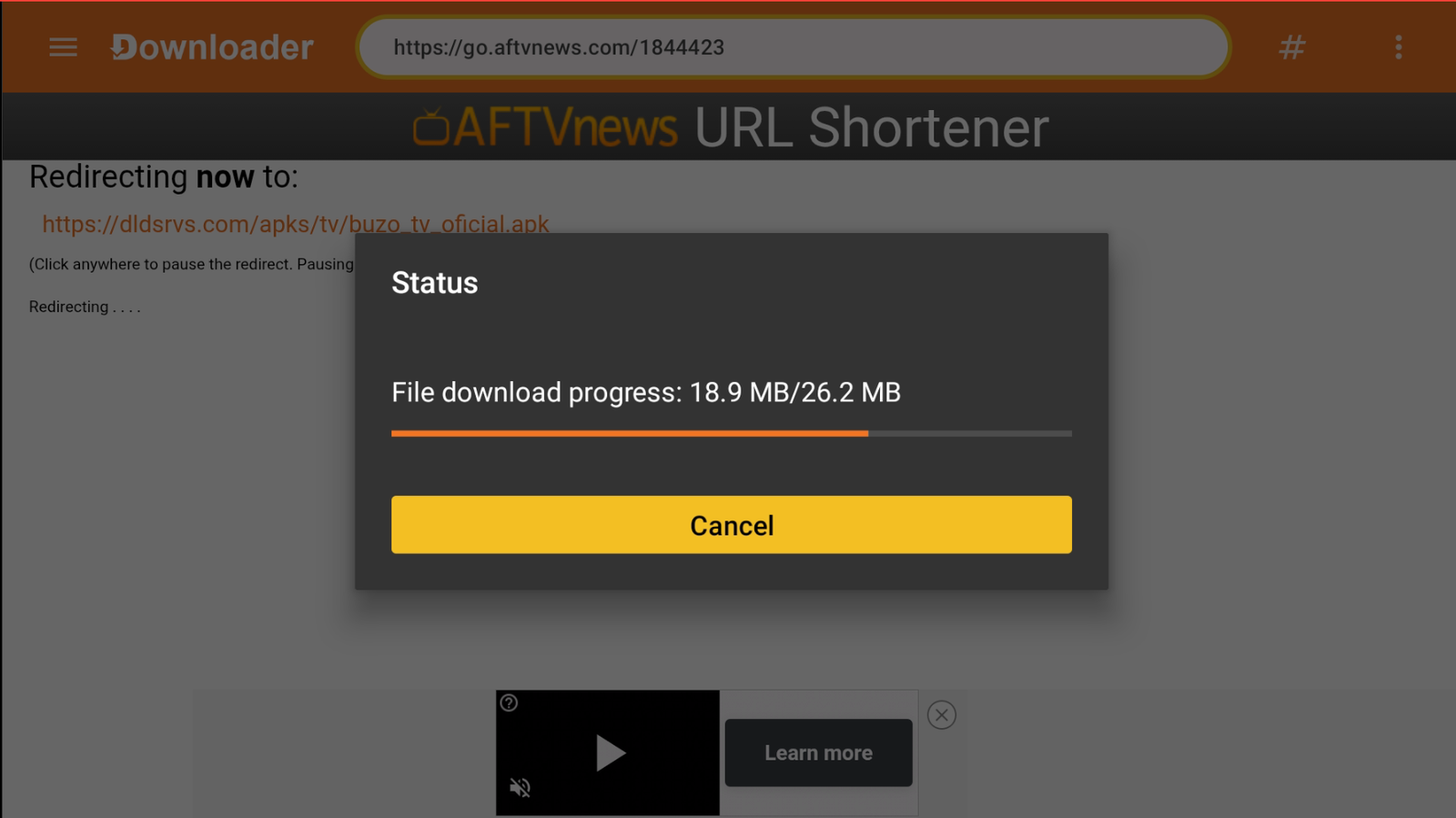
Wait for the download to finish. -
Tap Install when prompted.
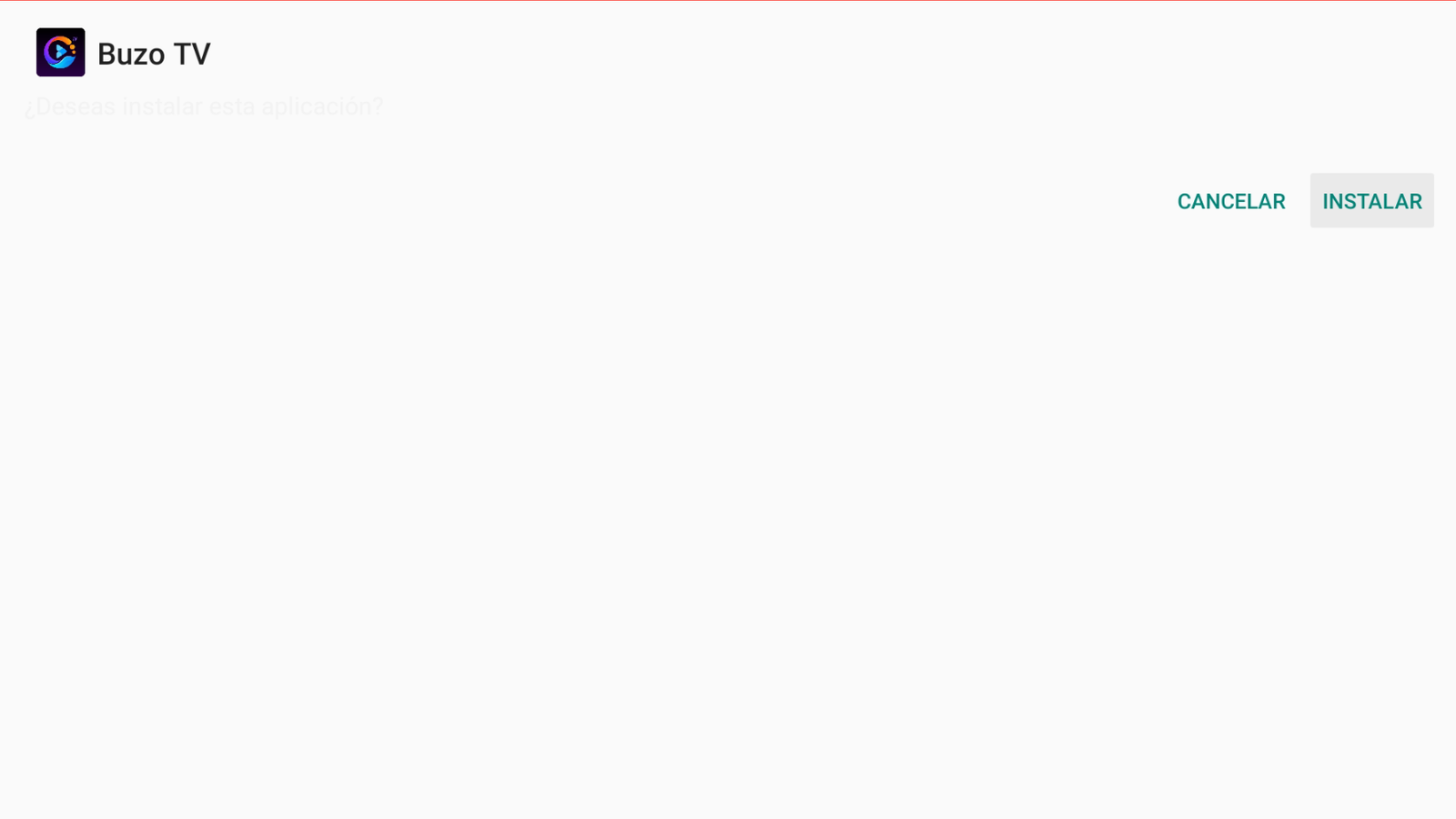
Tap Install. -
Open the app and enter your username and password. If you don’t have a Buzo TV account yet, contact: +52 55 2707 7840.
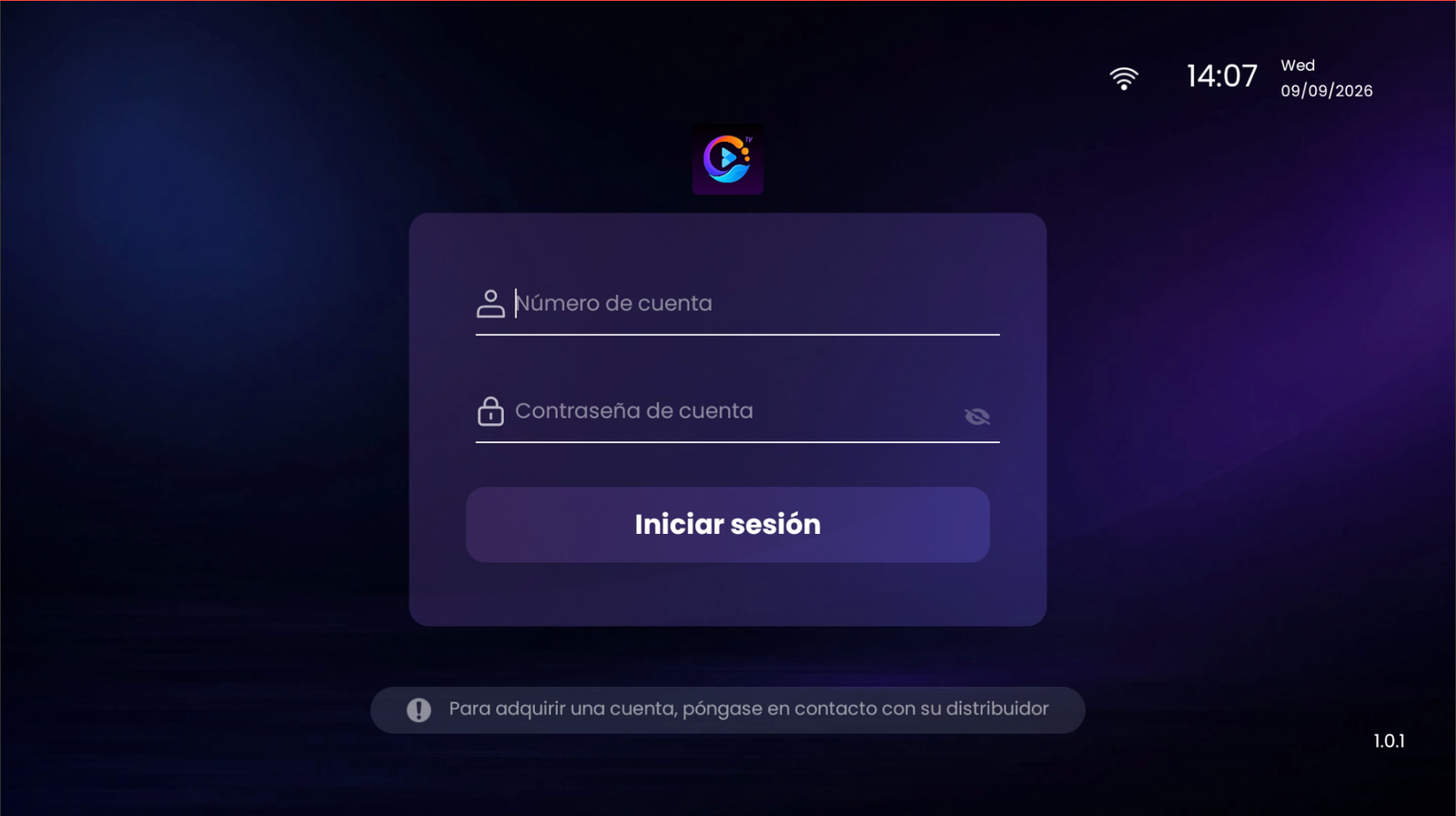
Sign in or request your account.
Conclusion
With Downloader and code 1844423, you can install Buzo TV on your Firestick in minutes.
Buy Buzo TV
To buy a Buzo TV account, contact us on WhatsApp: +52 55 2707 7840.
Comments
Comments will appear once Disqus is configured.