UPDATE ERROR: How to update OleadaTV to the latest version
Step-by-step guide to update OleadaTV with screenshots and the correct install flow.
Downloader code 9387291
How to update OleadaTV
Works on Fire TV Stick 4K, 4K Max, Lite, Google TV, Android TV, and compatible streaming devices.
-
Open the Oleada app on your device.
Open Oleada on your device. -
When it launches, you should see the Version update window — tap the blue link. If you get “You don’t have an app to do this,” make sure Downloader by AFTVnews is installed.
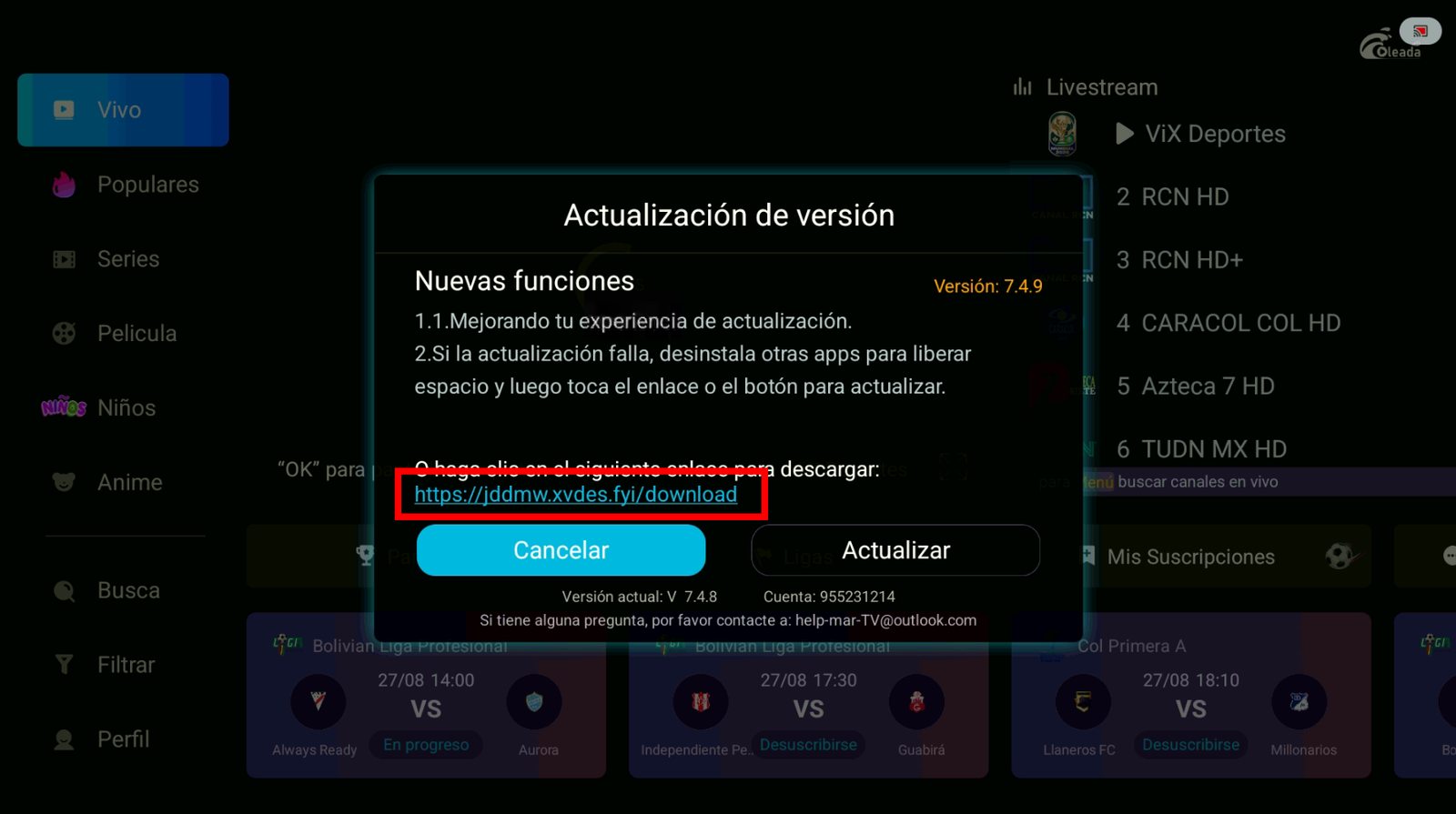
Tap the blue link. -
Downloader will open and the download will start automatically.
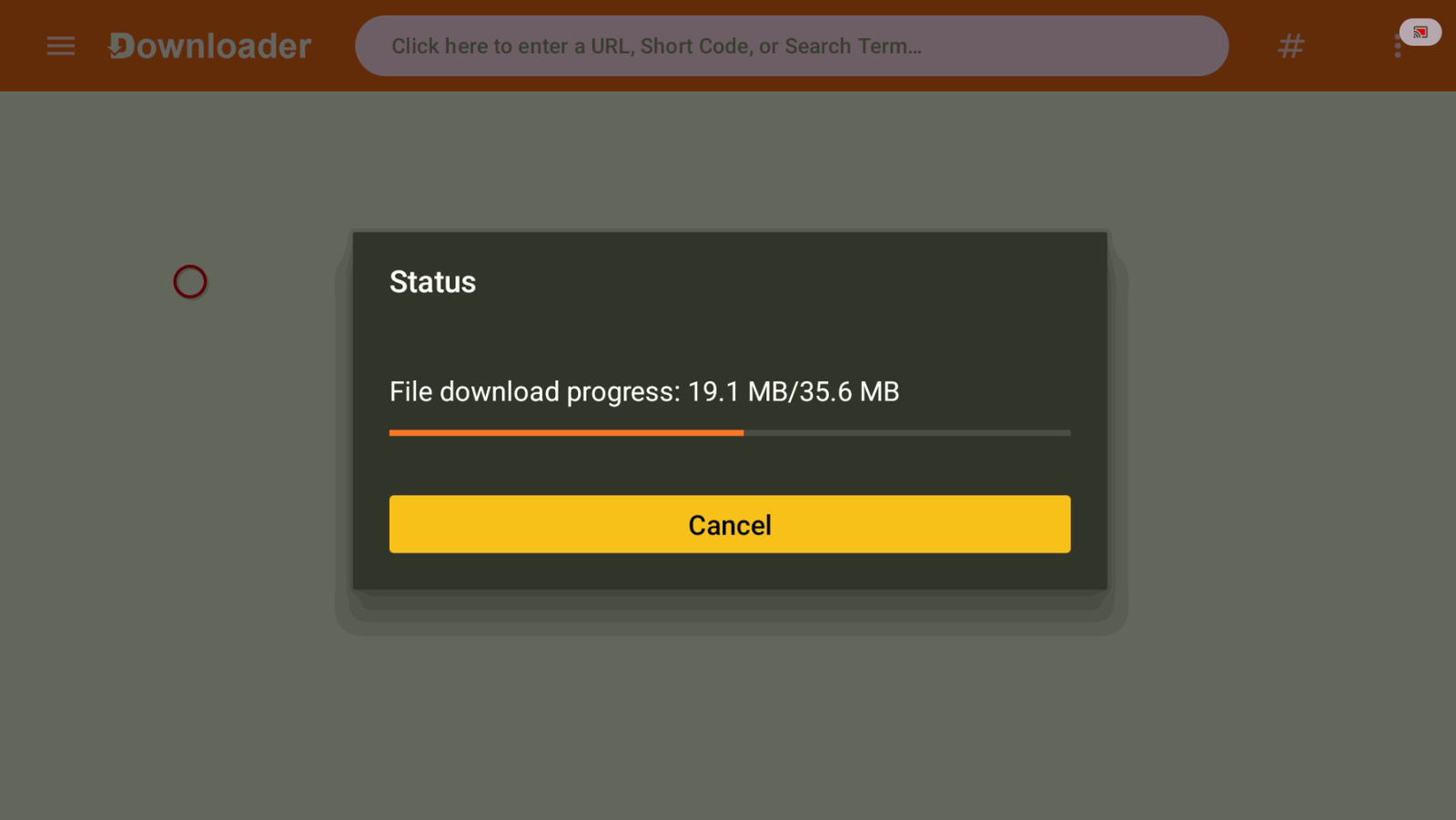
Wait for Downloader to finish the download. -
Tap Update and wait until it finishes.
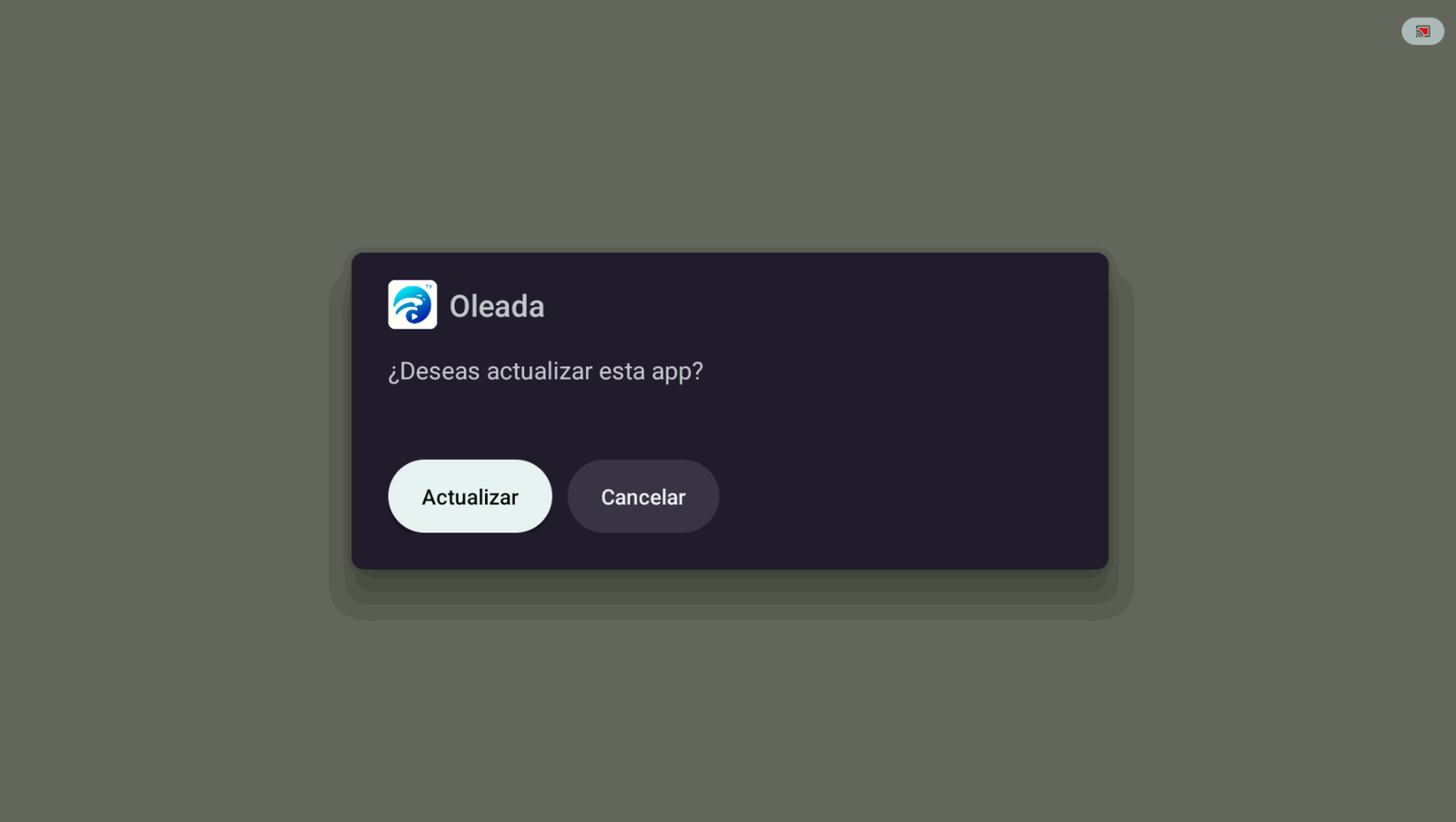
Tap Update. -
Open the Oleada app again and confirm you have the latest version.
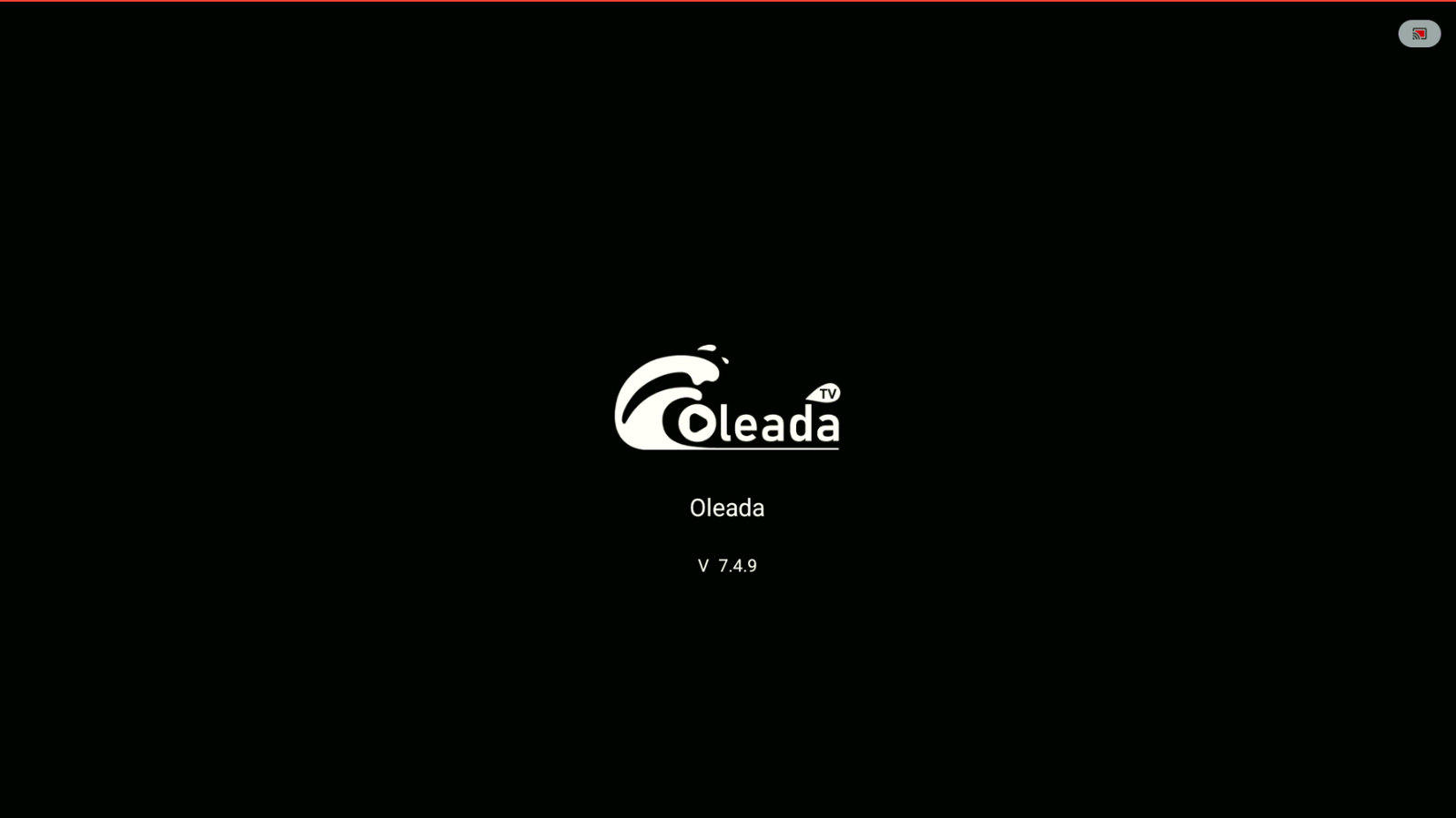
Open OleadaTV and confirm the version.
If you run into an error, try this
- Make sure your device is set to the correct date and time.
- Confirm that Downloader by AFTVnews is installed.
- Check that you have a working internet connection.
Want to buy an Oleada account?
Only buy from official providers. Contact Elara on WhatsApp to purchase an account: +52 55 2707 7840.
Buy Oleada TV
To buy a Oleada TV account, contact us on WhatsApp: +52 55 2707 7840.
Comments
Comments will appear once Disqus is configured.