How to install Telelatino on Firestick
Step-by-step guide to install Telelatino on Fire TV Stick with Downloader, code 8015359, and screenshots.
How to install Telelatino on Firestick
Enable Developer Options first. If needed: Activate Developer Options on Firestick.
Using Android TV? See: How to install Telelatino on Android TV.
-
On the home screen, go left to Search.
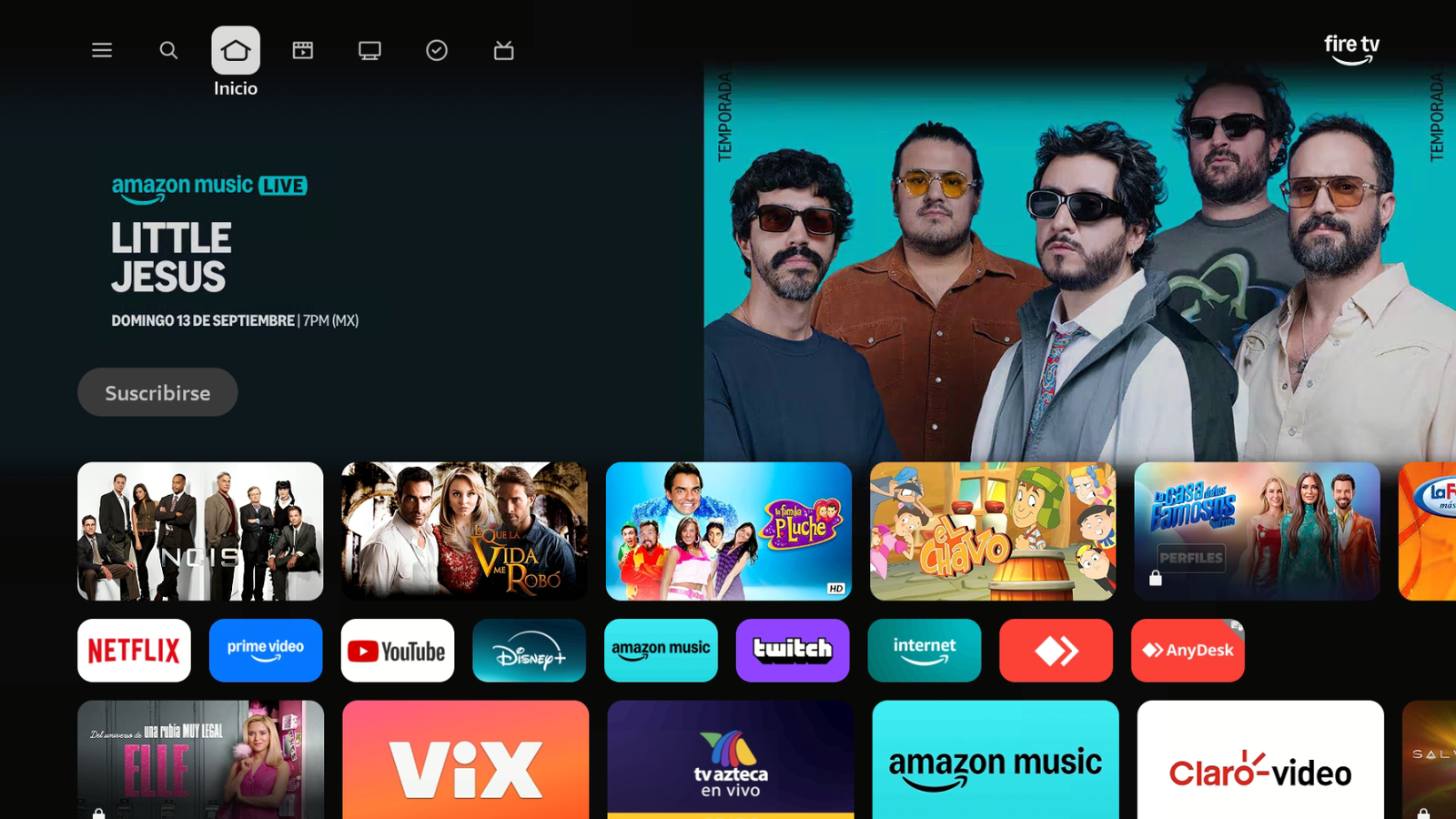
From Home, go to Search. -
Open Search.
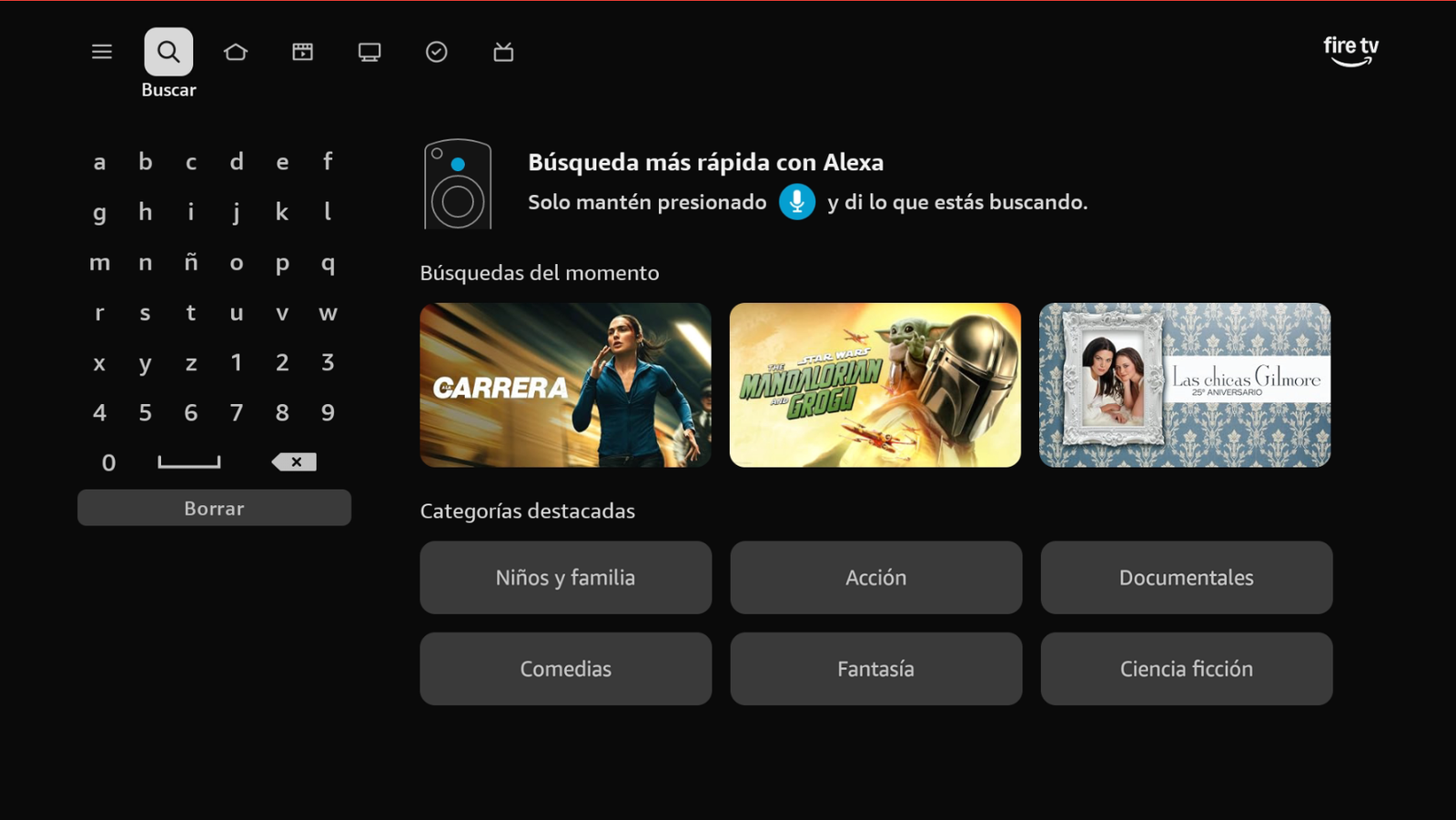
Open Search. -
Search for Downloader by AFTVnews.
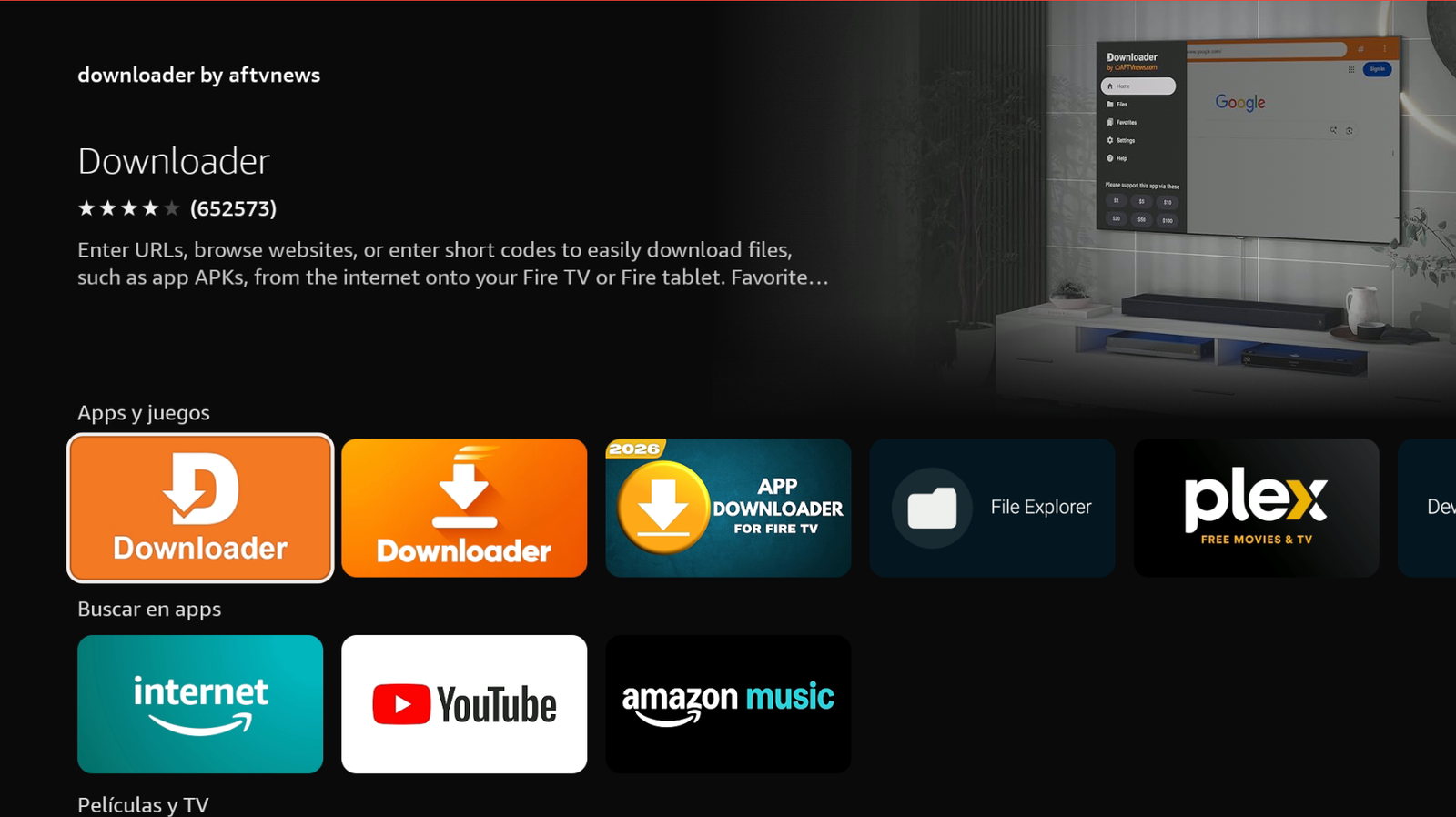
Search for Downloader. -
Download and install it. Make sure the developer is AFTVnews.com.
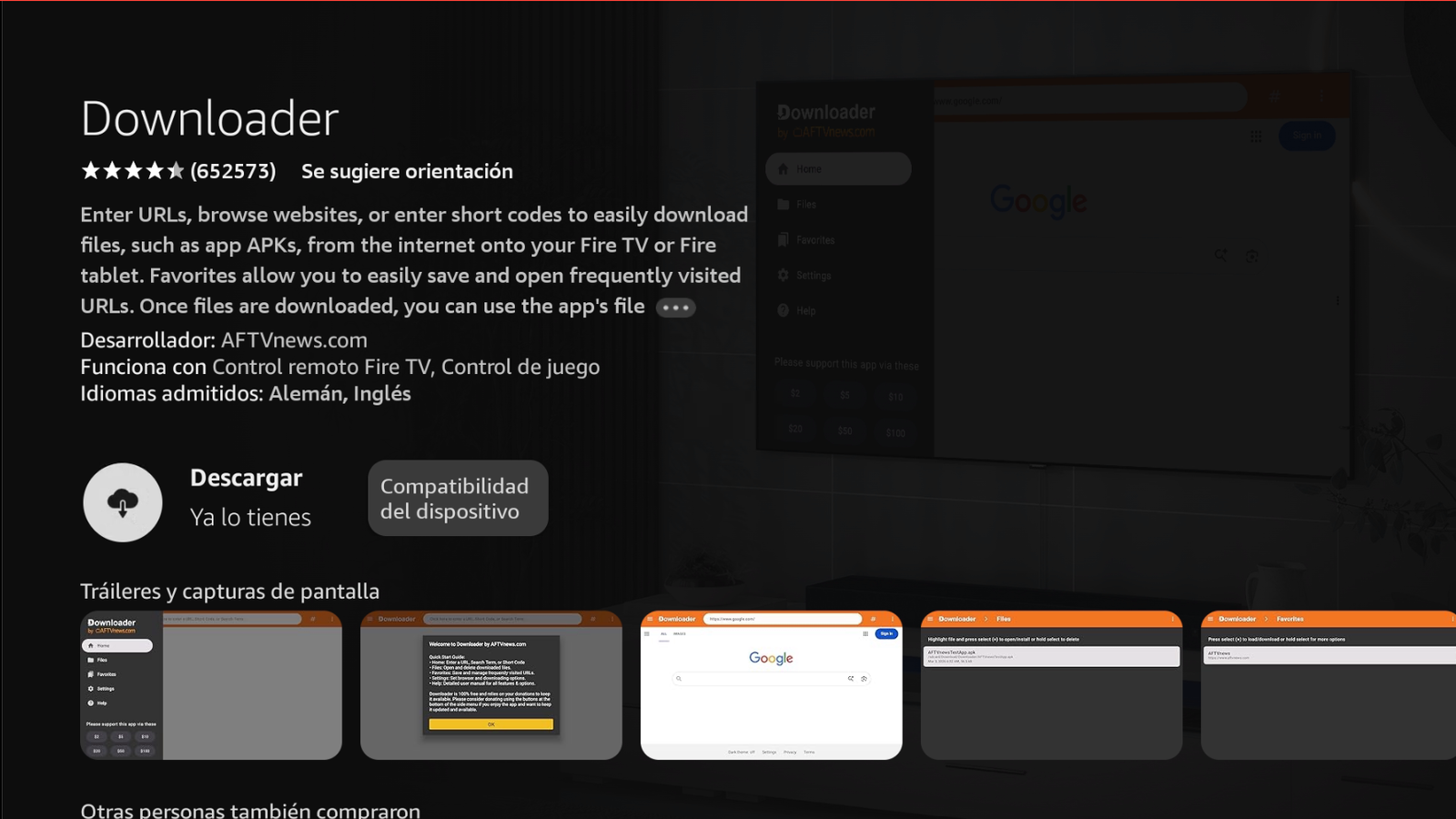
Download and install Downloader. -
Go to Home → Settings → My Fire TV → Developer options → Install unknown apps and enable Downloader.
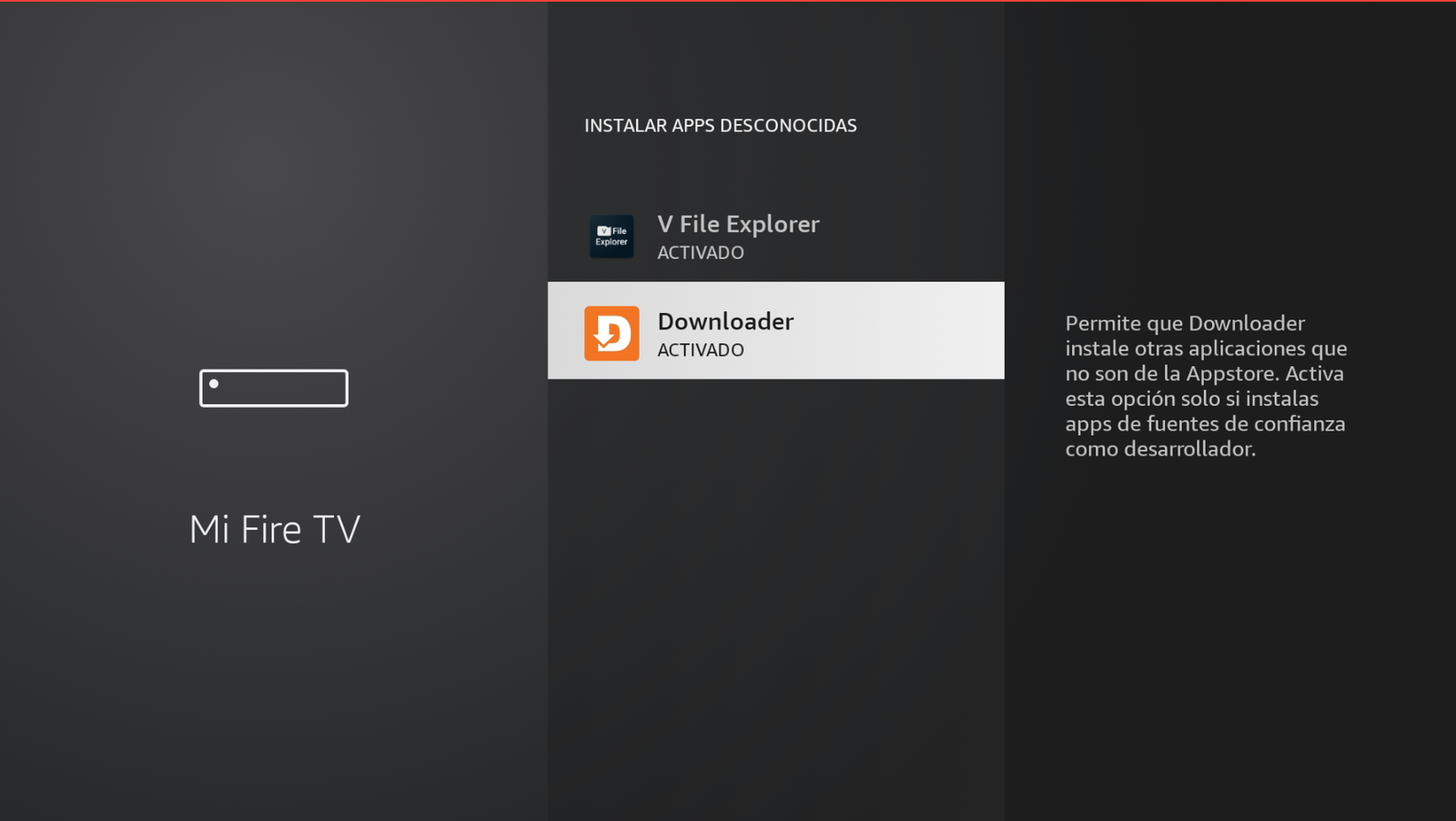
Downloader → ON. -
Open Downloader by AFTVnews.

Open Downloader. -
Enter code 8015359 and tap Next.
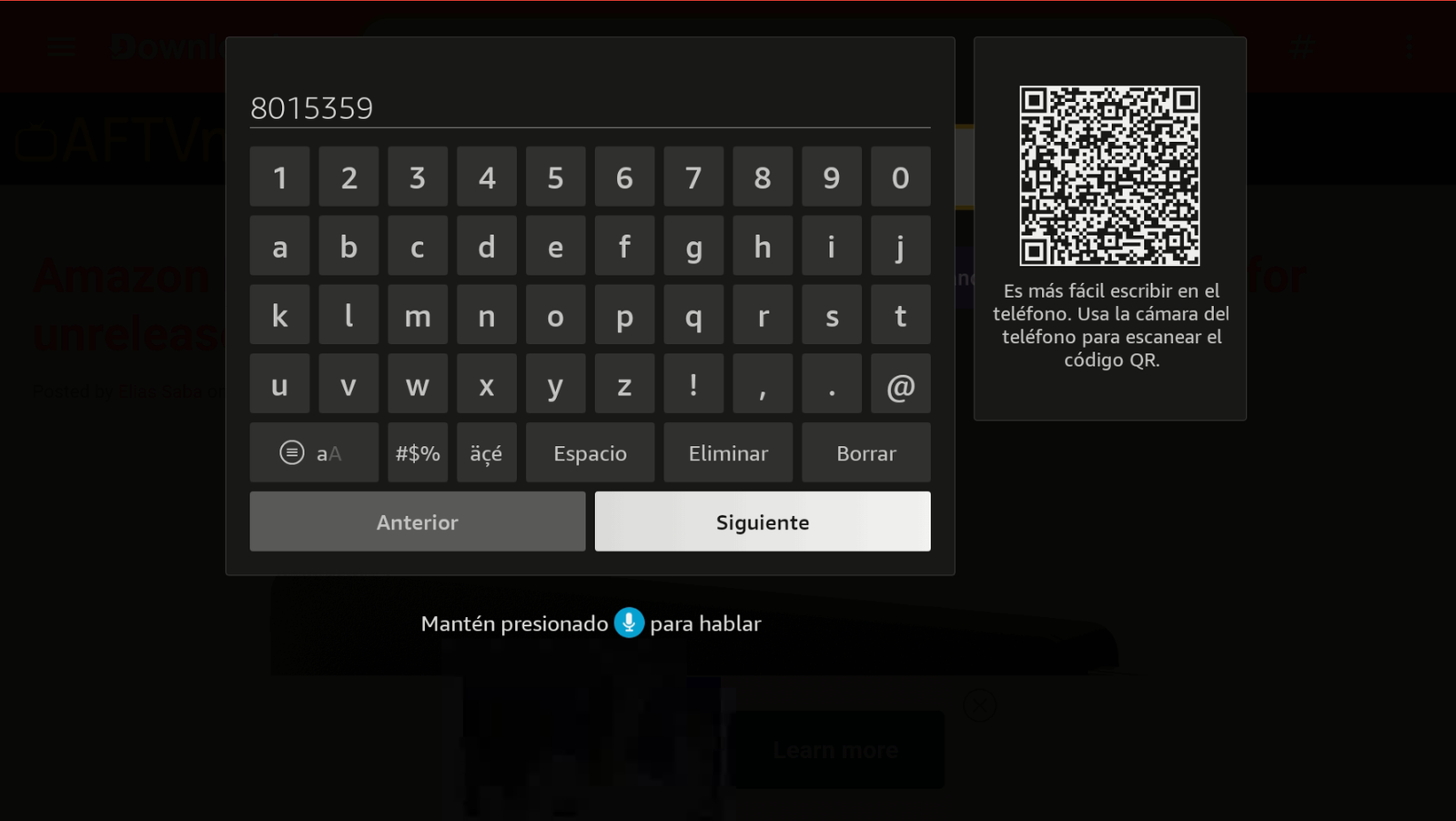
Code: 8015359. -
Wait a few seconds for the download.
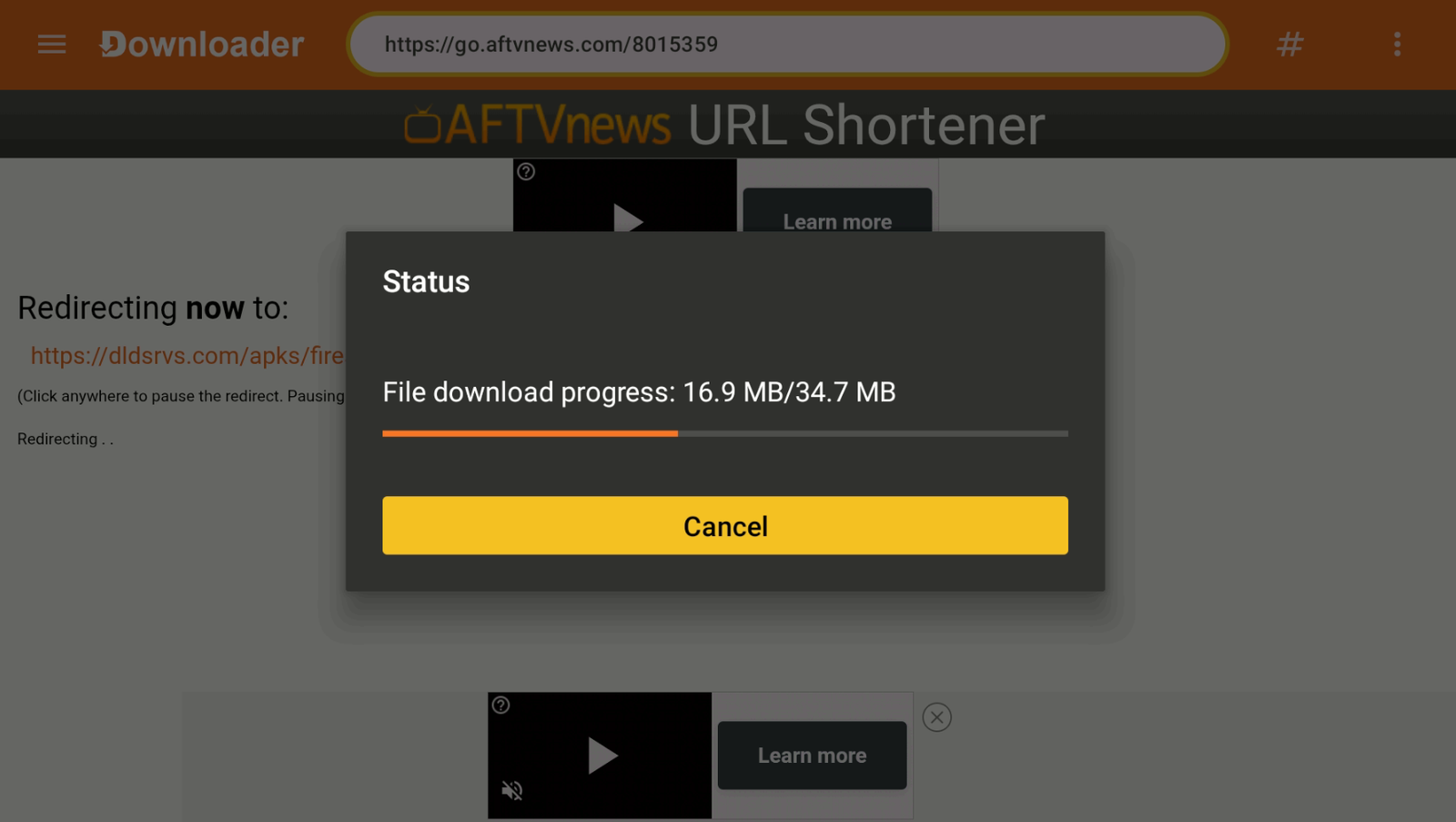
Wait for the download. -
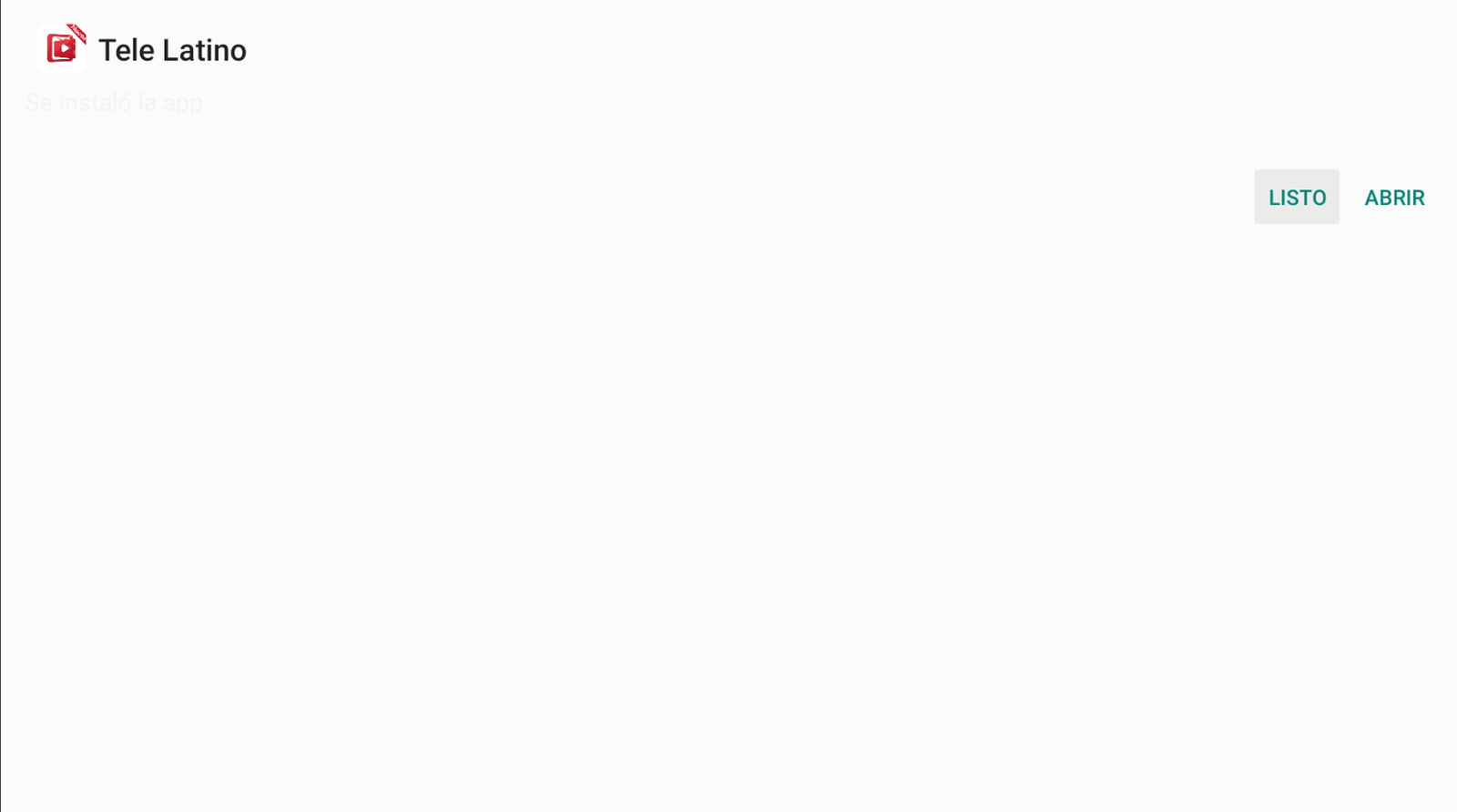
Tap Install. Do not open the app — tap Done.
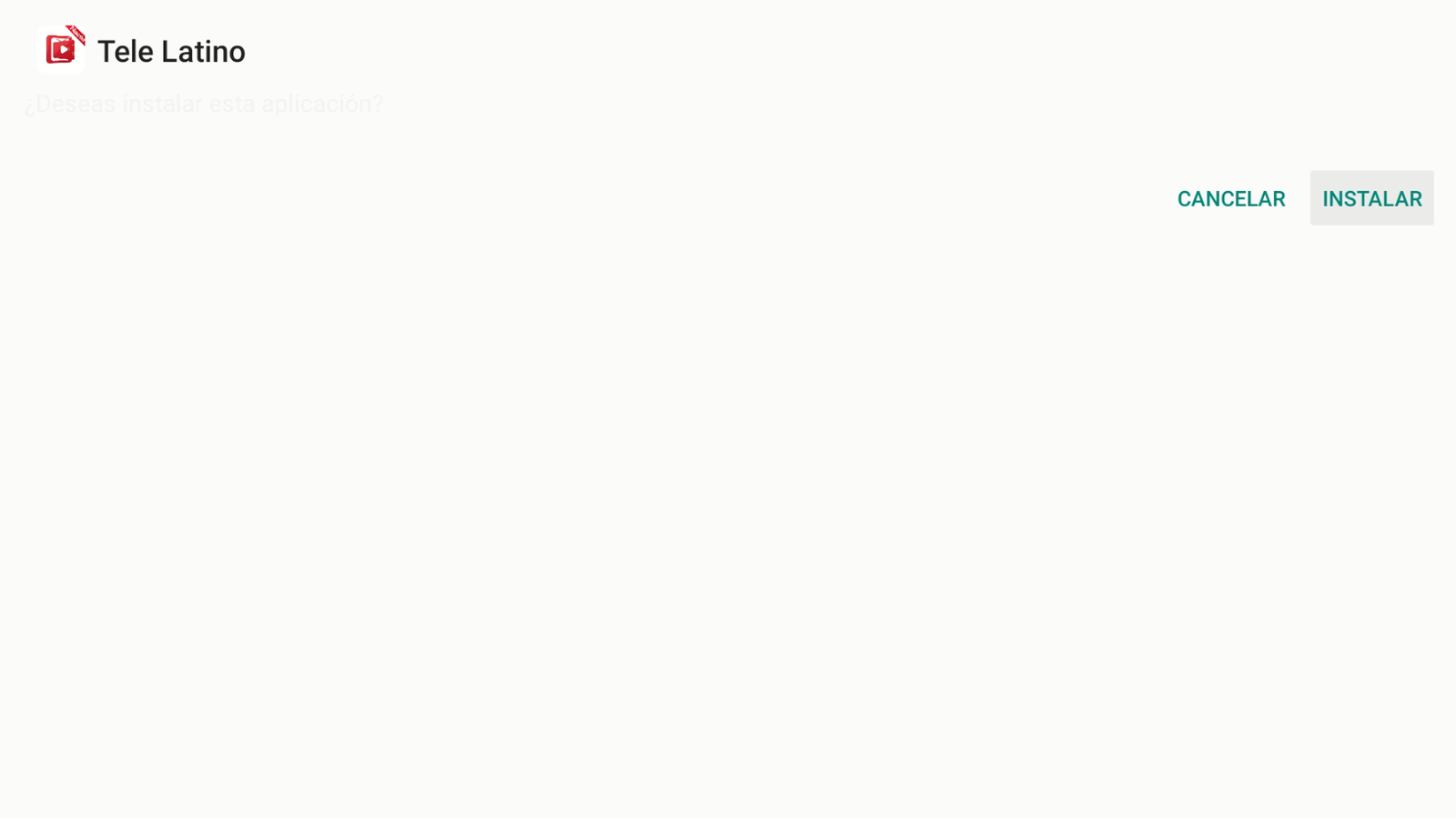
Install → Done (not Open). -
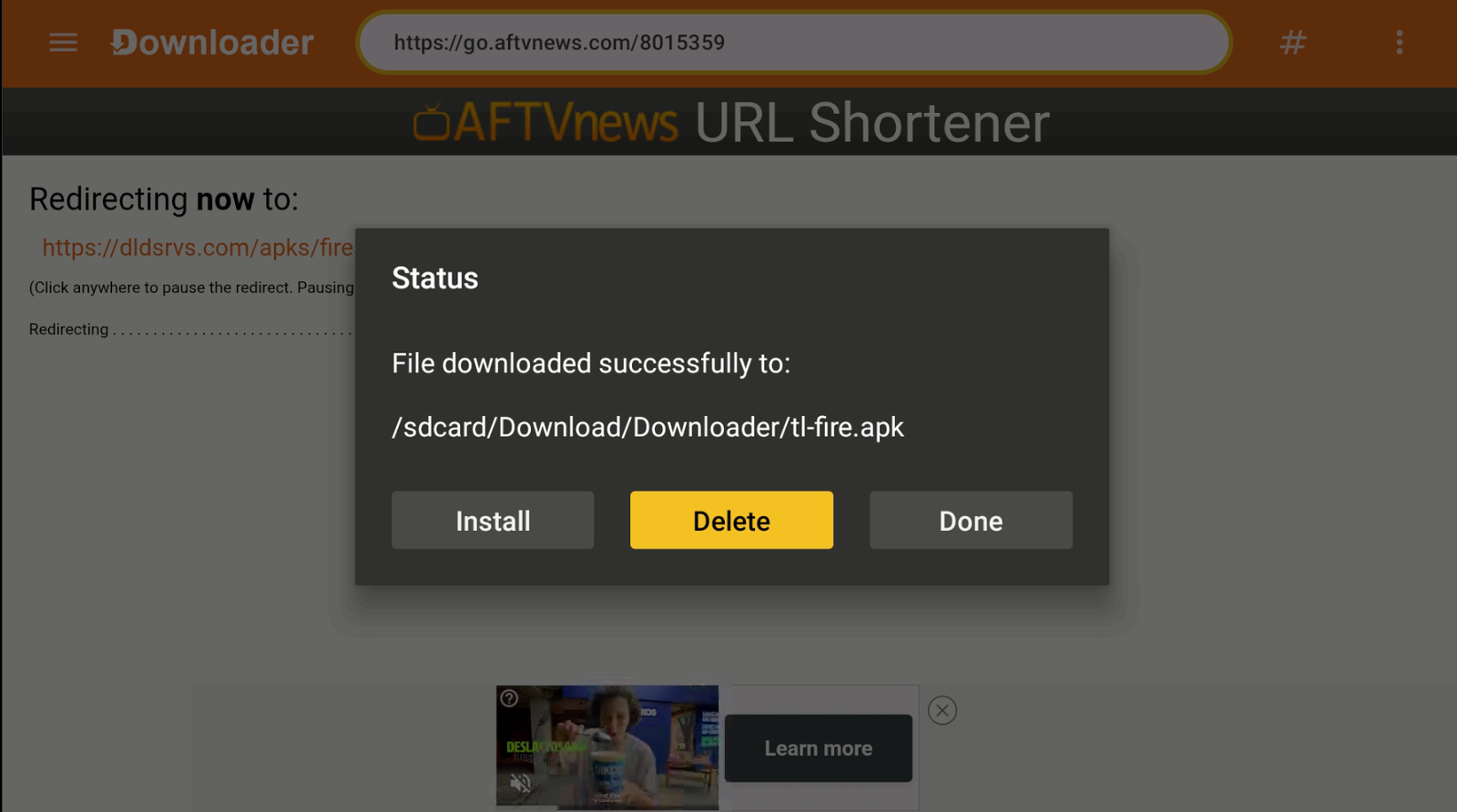
Delete the file to keep the device clean and optimized.
Delete the downloaded file. -
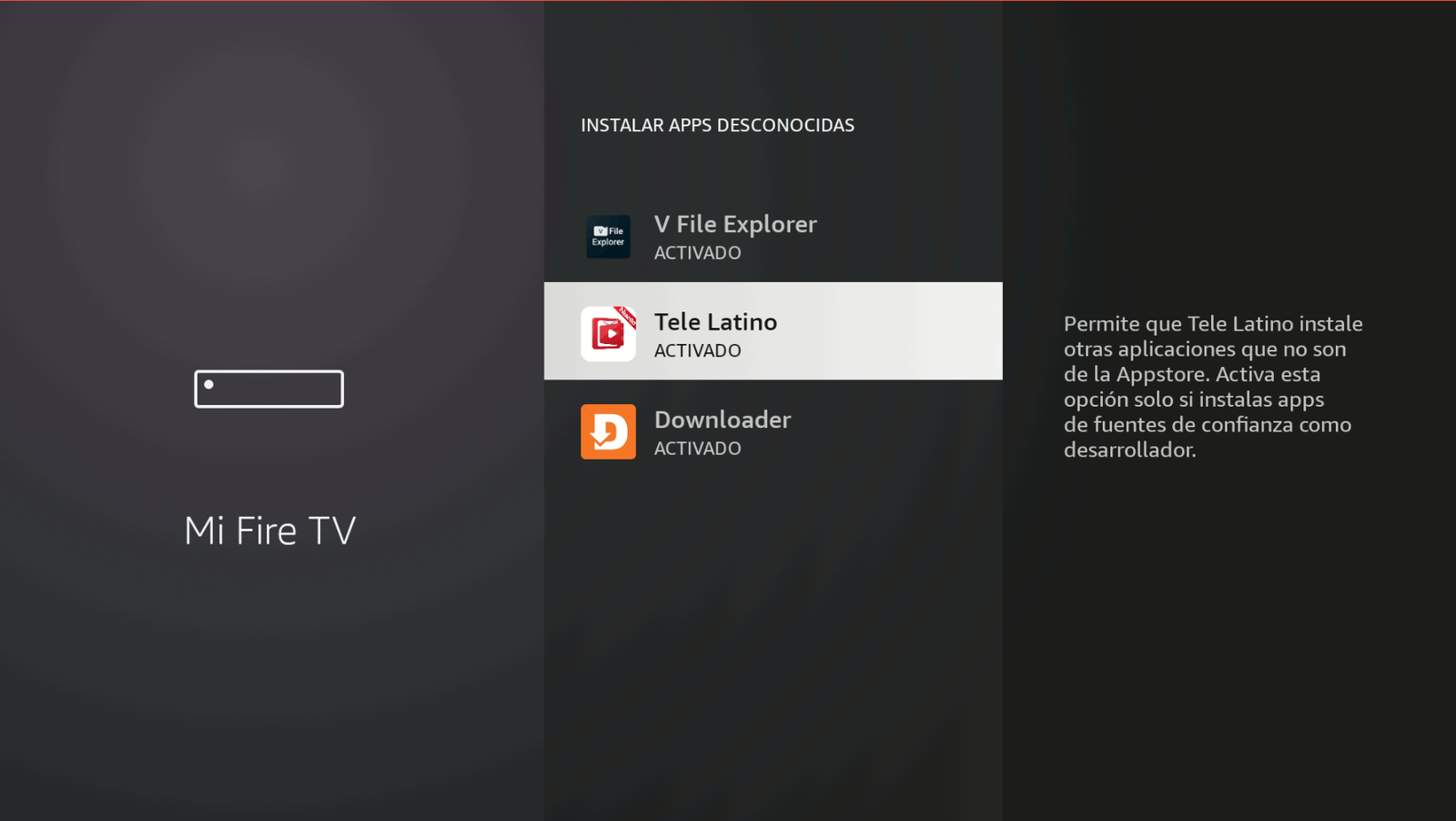
Go back to Home → Settings → My Fire TV → Developer options → Install unknown apps and enable Telelatino if it appears in the list.
Check Install unknown apps. -
Return to Home, open Telelatino, accept permissions, and update the app.
Open Telelatino and accept permissions. -
When the update window appears, tap Update.
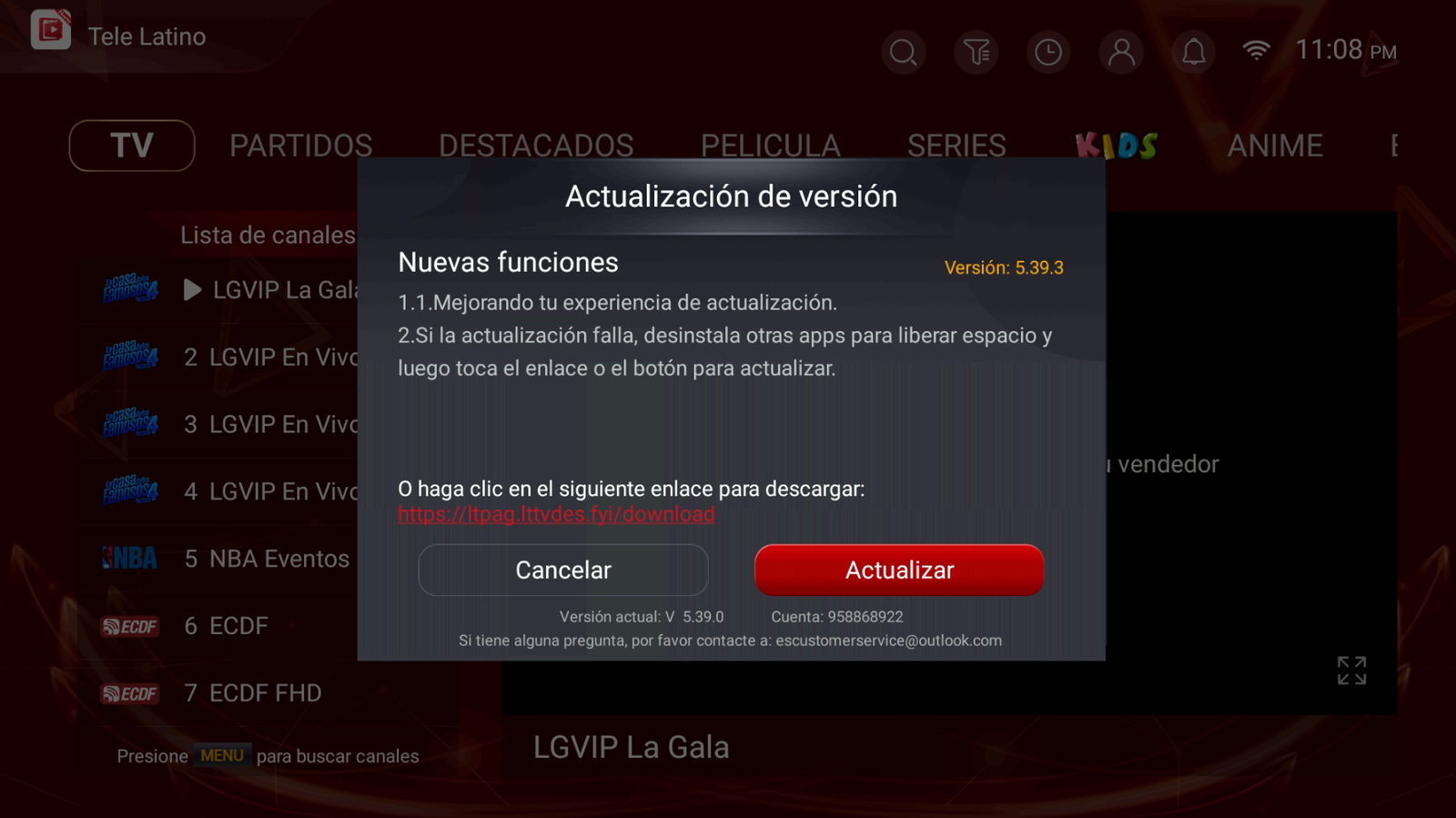
Tap Update. -
Tap Install.
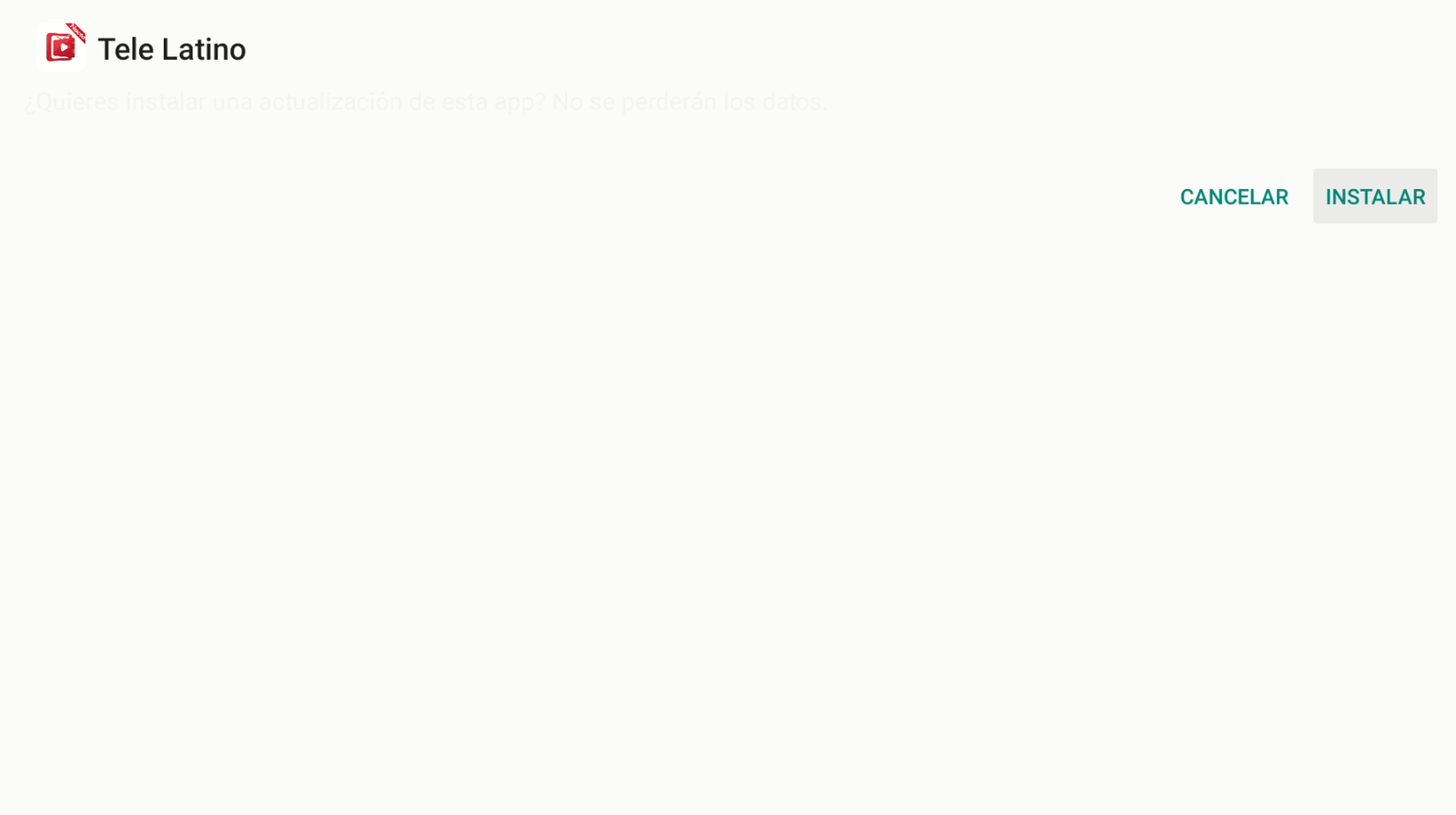
Tap Install. -
Open the Telelatino app.
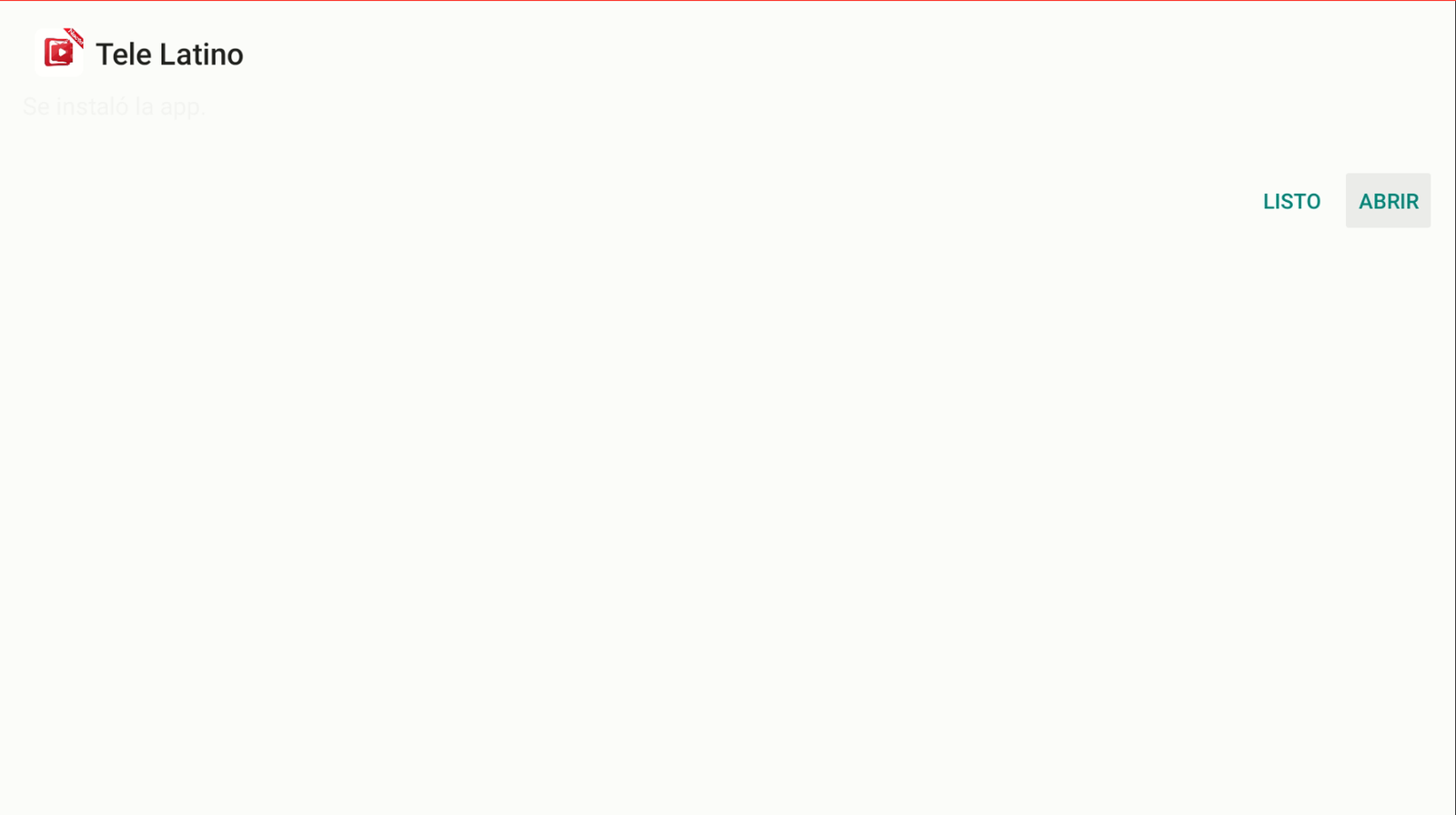
Open Telelatino.
Buy Telelatino
To buy a Telelatino account, contact us on WhatsApp: +52 55 2707 7840.
Comments
Comments will appear once Disqus is configured.