How to set up your ONN TV Box for the first time
Complete guide: connect your ONN Google TV, set up Wi‑Fi, sign in to Oleada, and learn how to use channels, matches, movies, and more.
Set up your ONN TV Box (Google TV) from scratch: TV connection, Wi‑Fi, Oleada TV sign-in, and how to use channels, matches, movies, and apps.
-
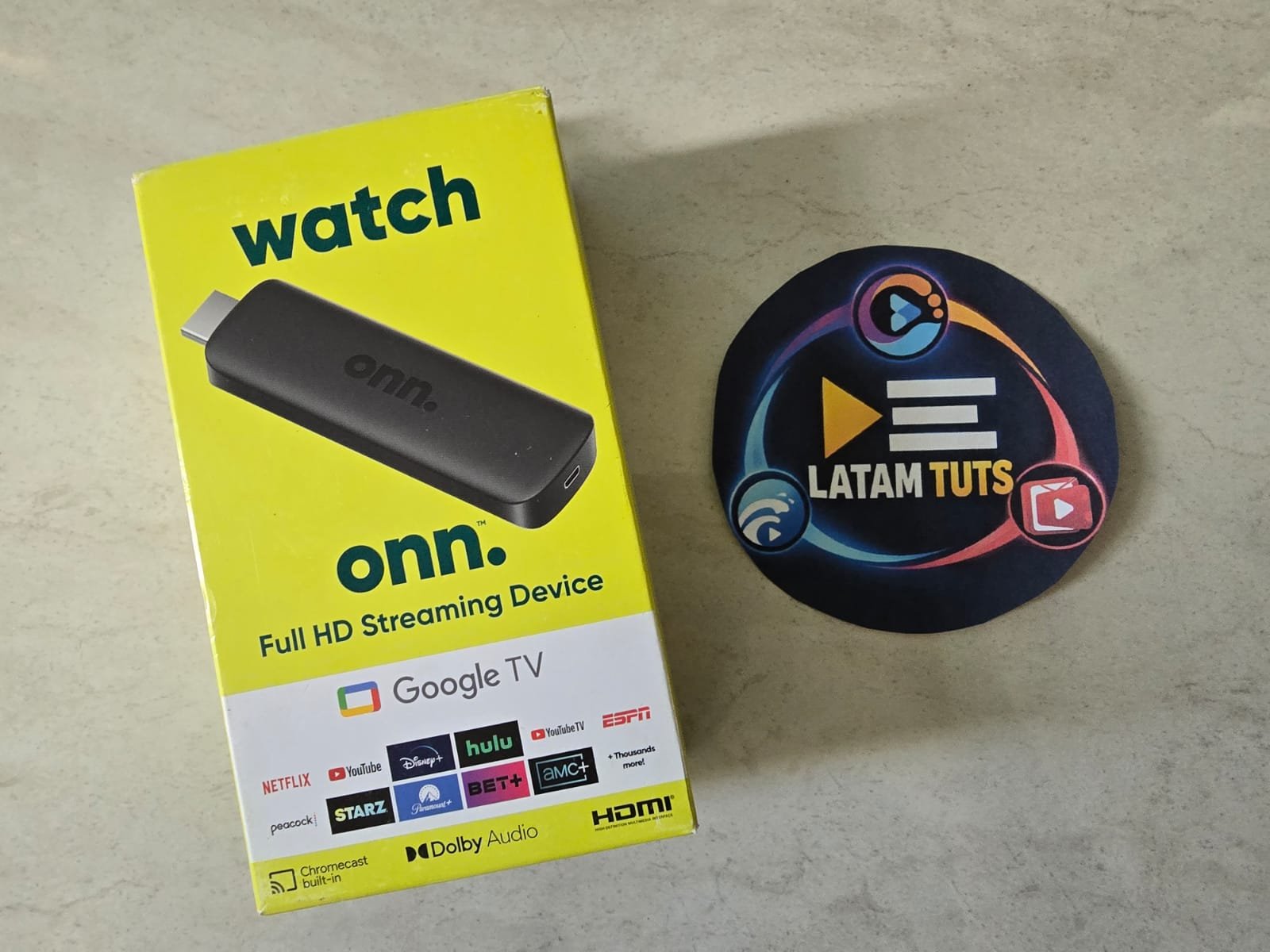
Unbox your ONN Full HD Streaming Device. Inside you’ll find the device, remote, USB power cable, and power adapter.
Your ONN TV Box with Google TV. -
Check that you have every accessory: the onn. remote, short USB cable, power brick, and streaming stick.
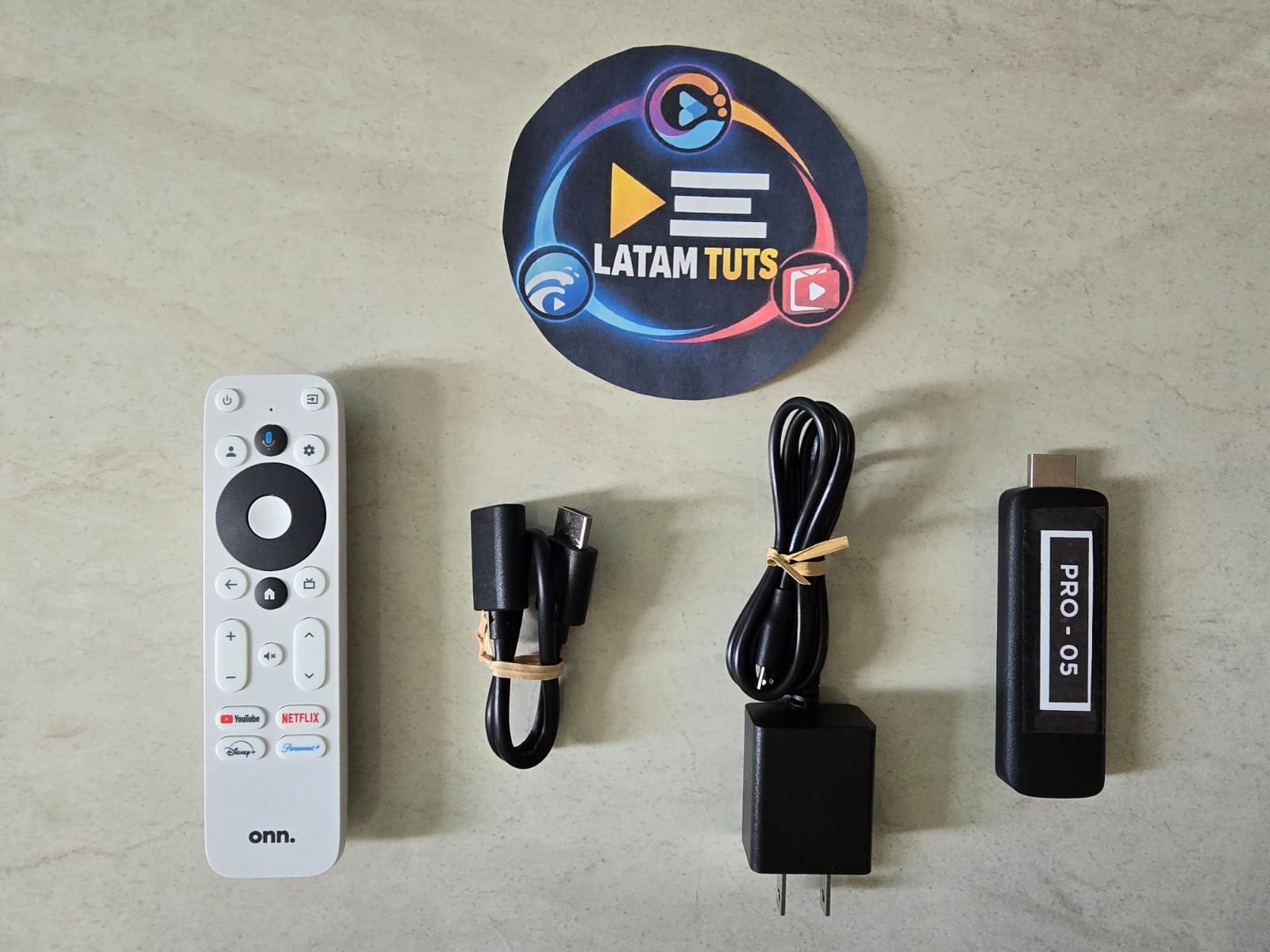
What’s in the box. -
Plug the power cable into the ONN device port.
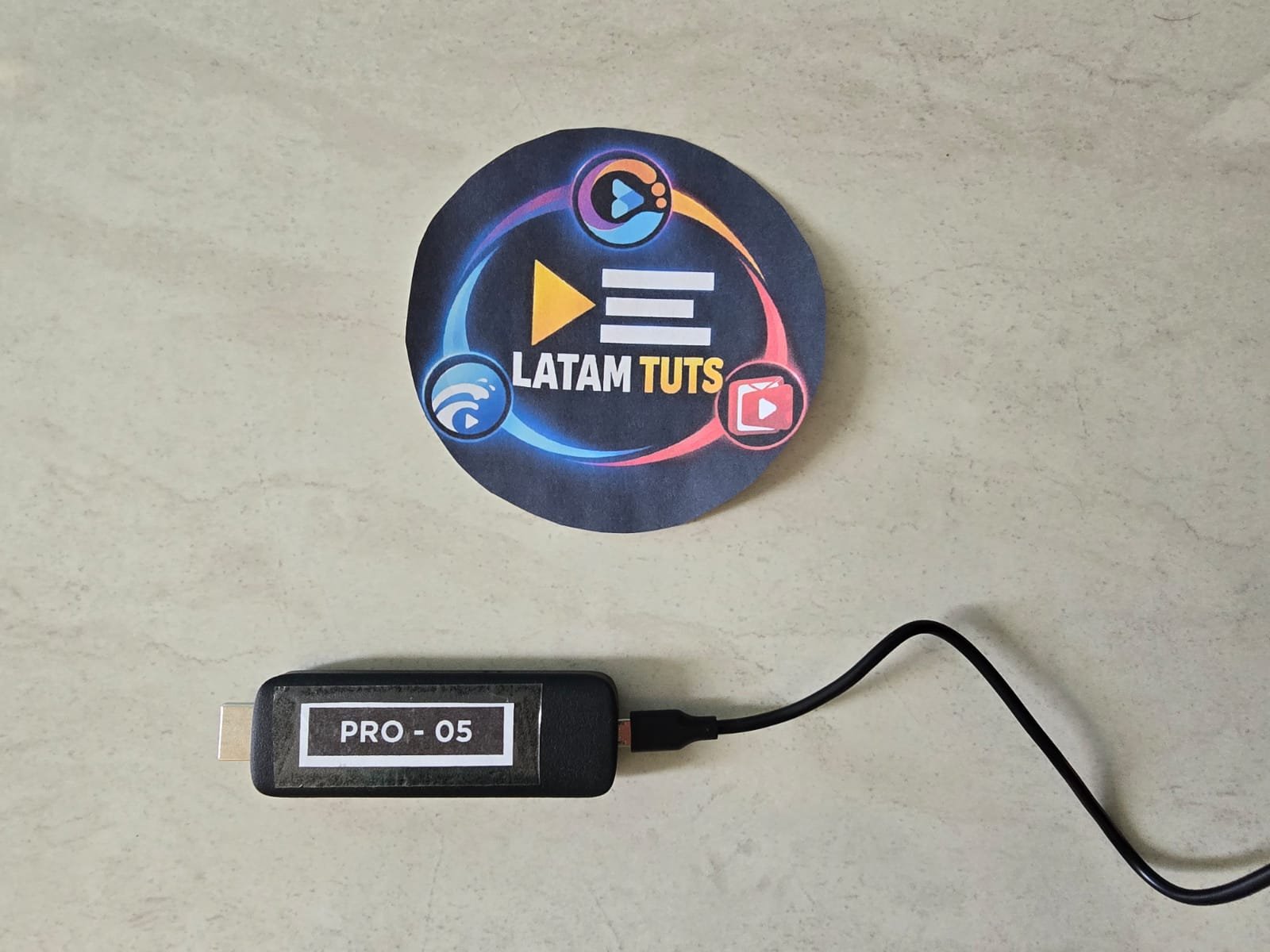
Connect power to the stick. -
If you use an HDMI extension, attach it to the device. Then plug the HDMI end into a free port on your TV.
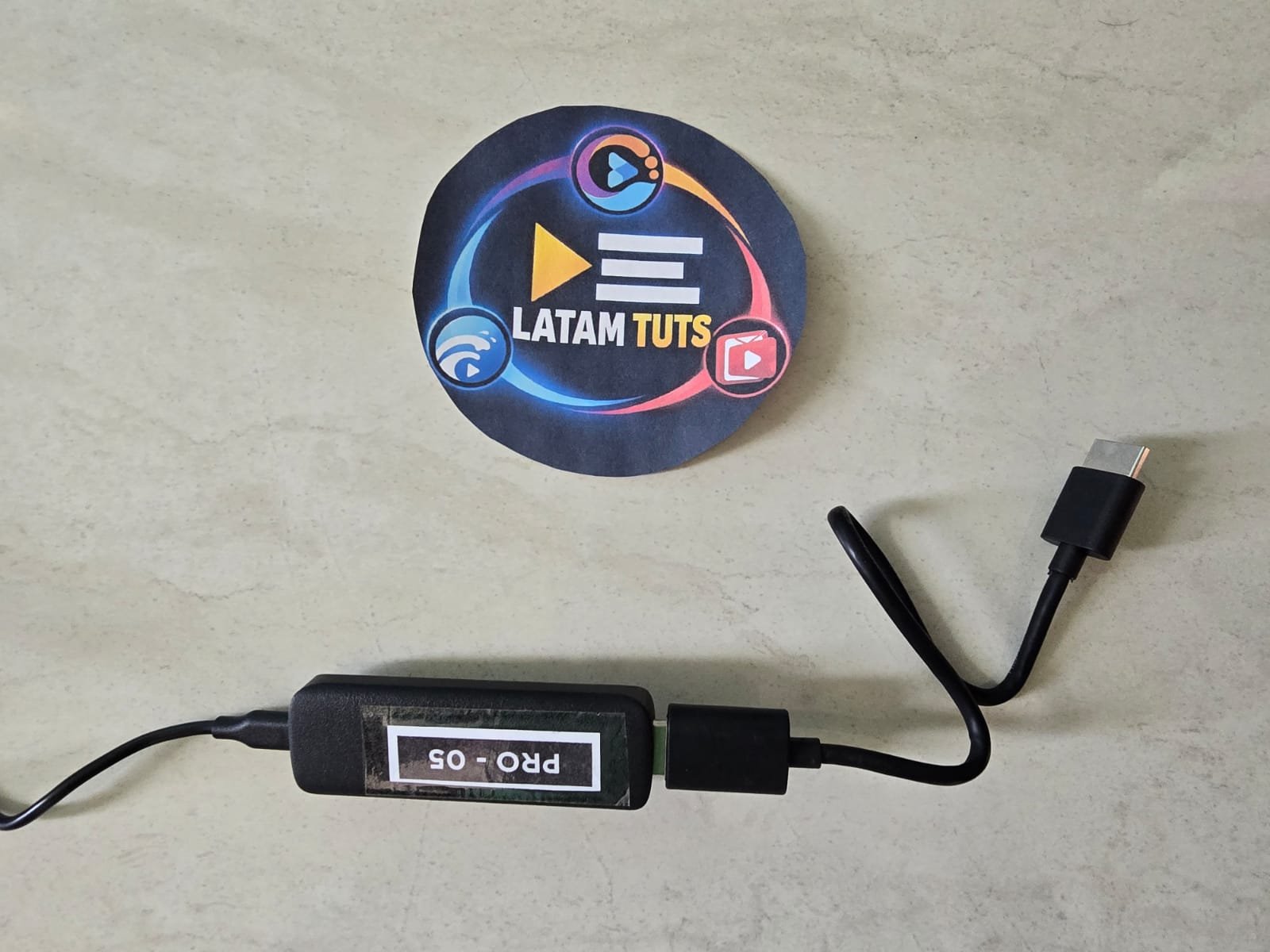
Power + HDMI ready. -
Connect HDMI to an available TV port (HDMI 1, 2, 3, or 4).
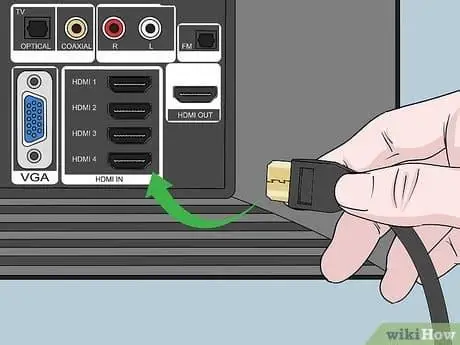
Plug HDMI into the TV. -
Plug the power adapter into a wall outlet.
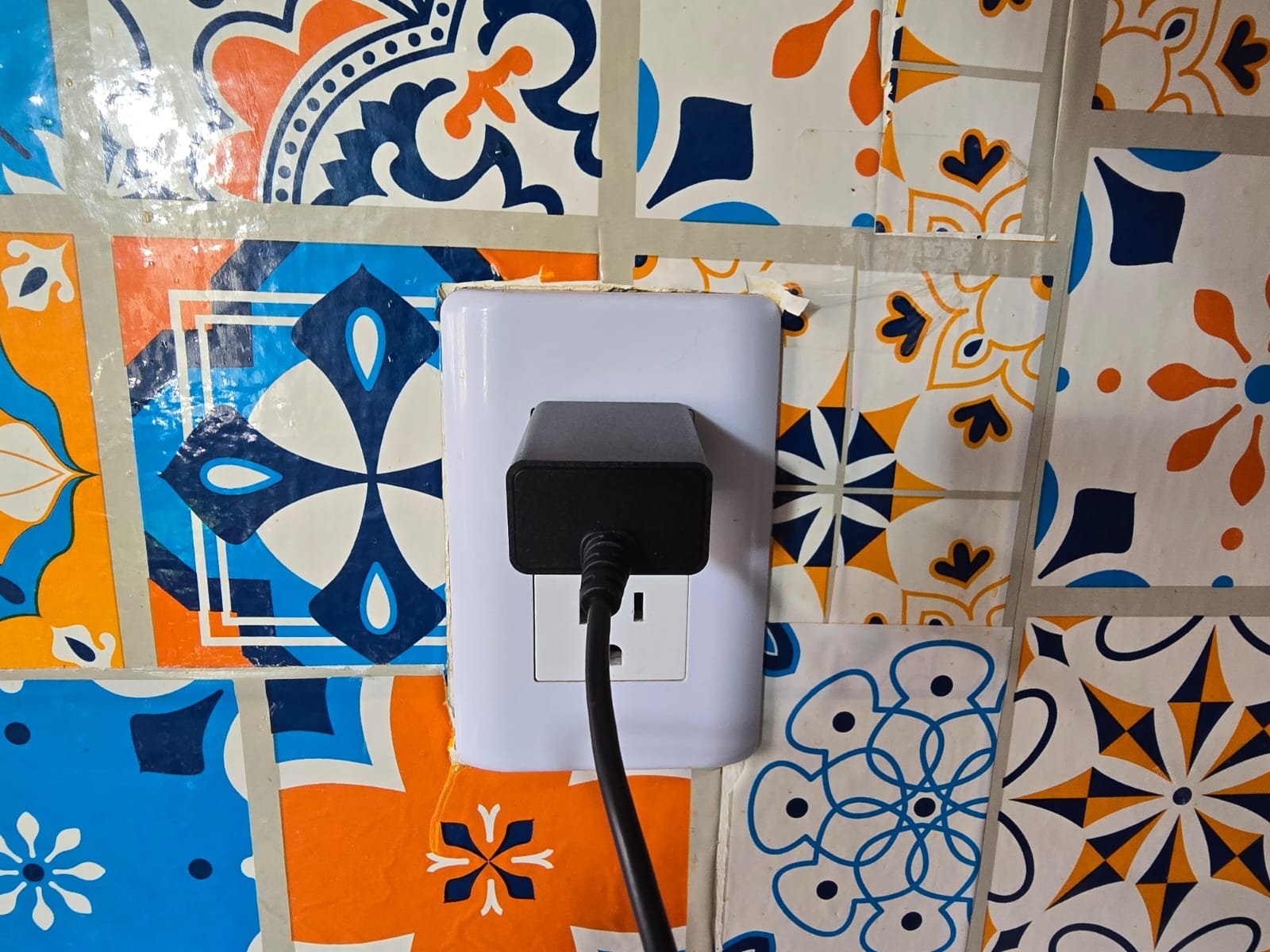
Connect the adapter to power. -
On your TV remote, open Input / Source and select the HDMI port where you connected the ONN.
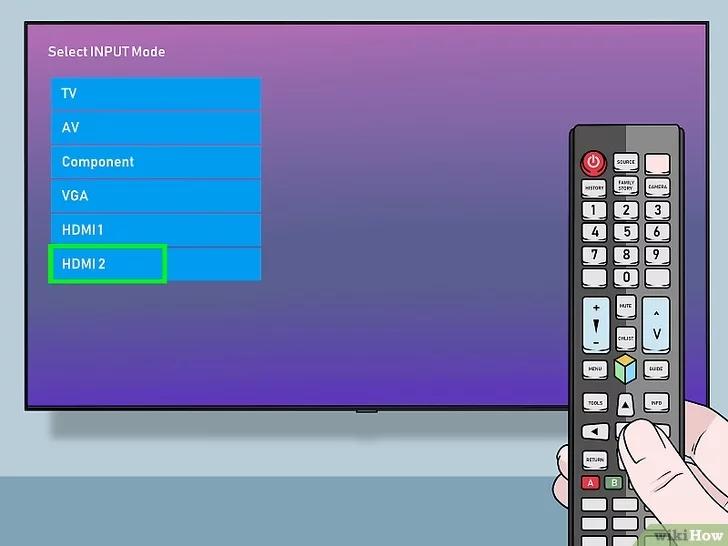
Switch to the correct HDMI input. -
When you see the apps menu, open Android Settings to configure the network.
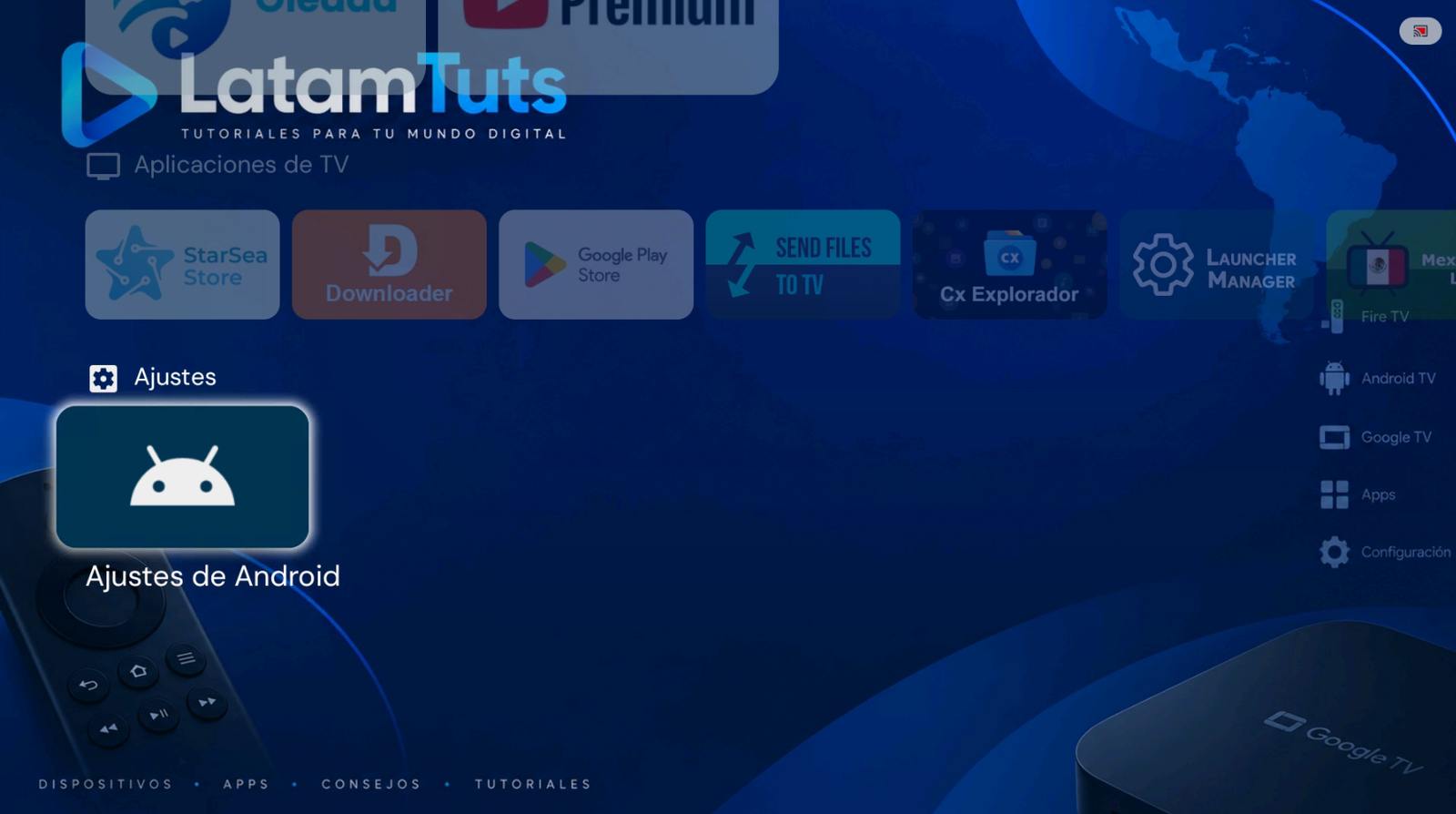
Open Android Settings. -
In Settings, select Internet y red (Network & Internet). Make sure Wi‑Fi is turned on.
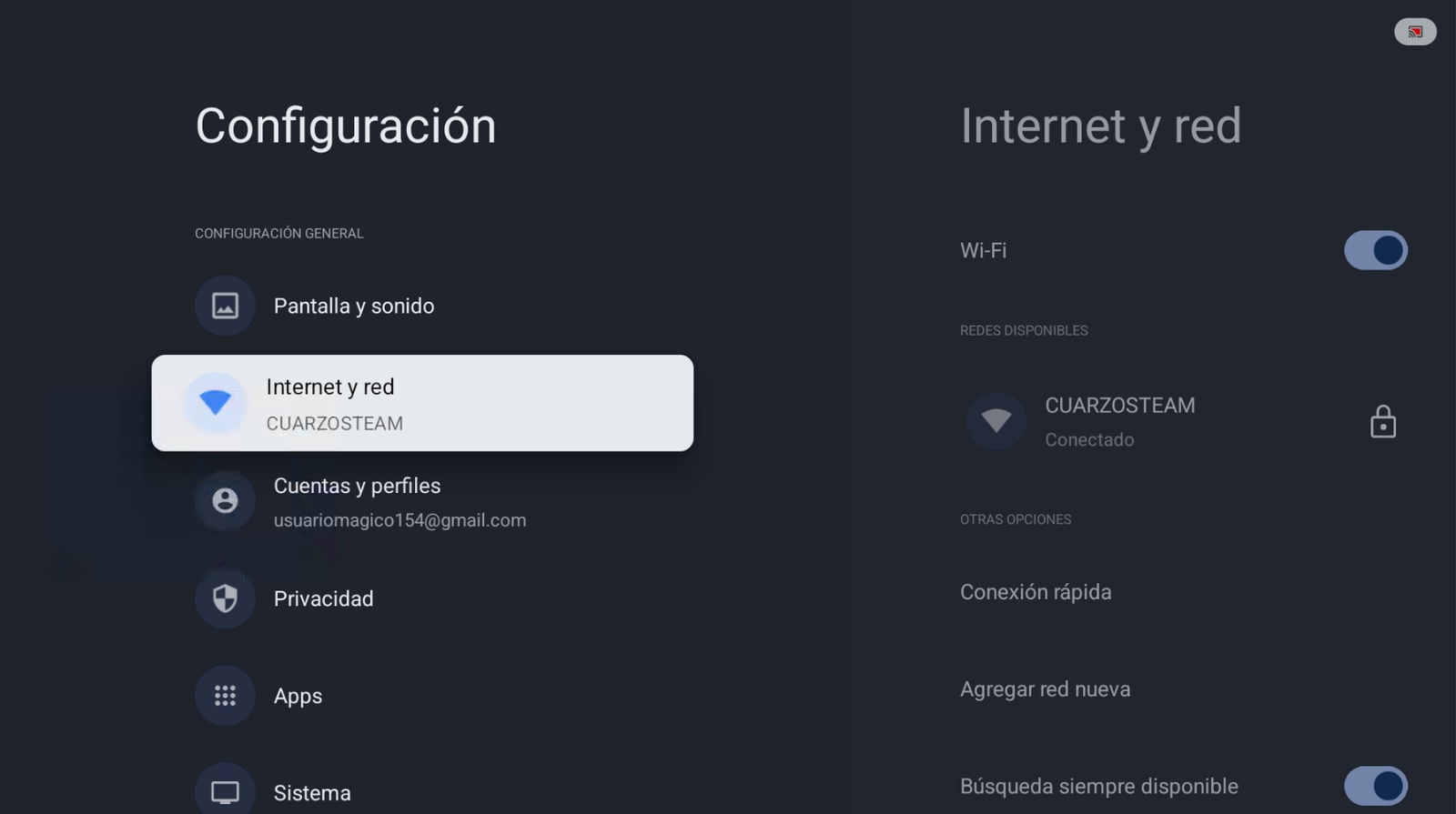
Go to Network & Internet. -
Choose your Wi‑Fi network from the available list.
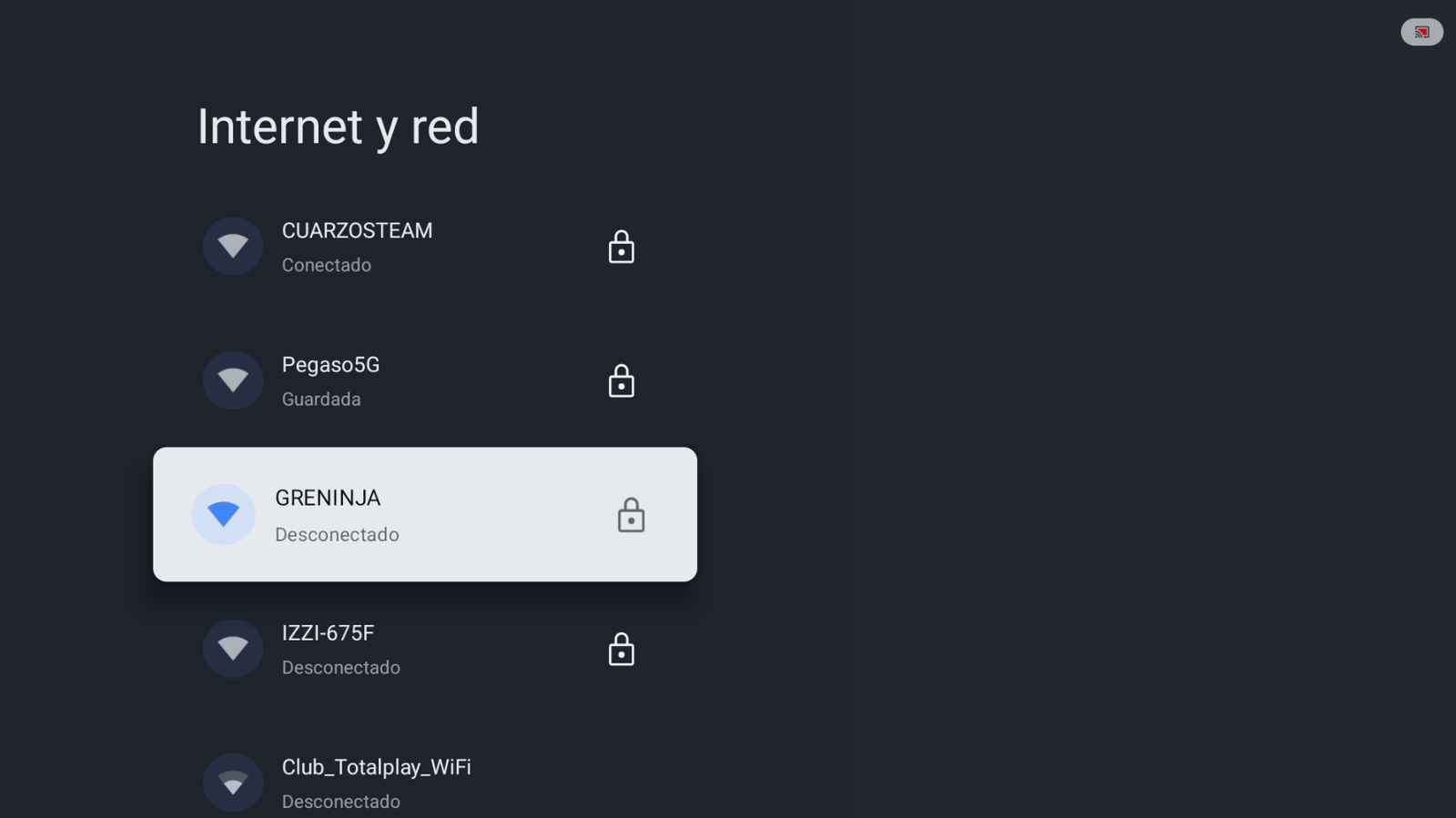
Select your Wi‑Fi network. -
Enter the password with the on-screen keyboard and confirm with ✓ to connect.
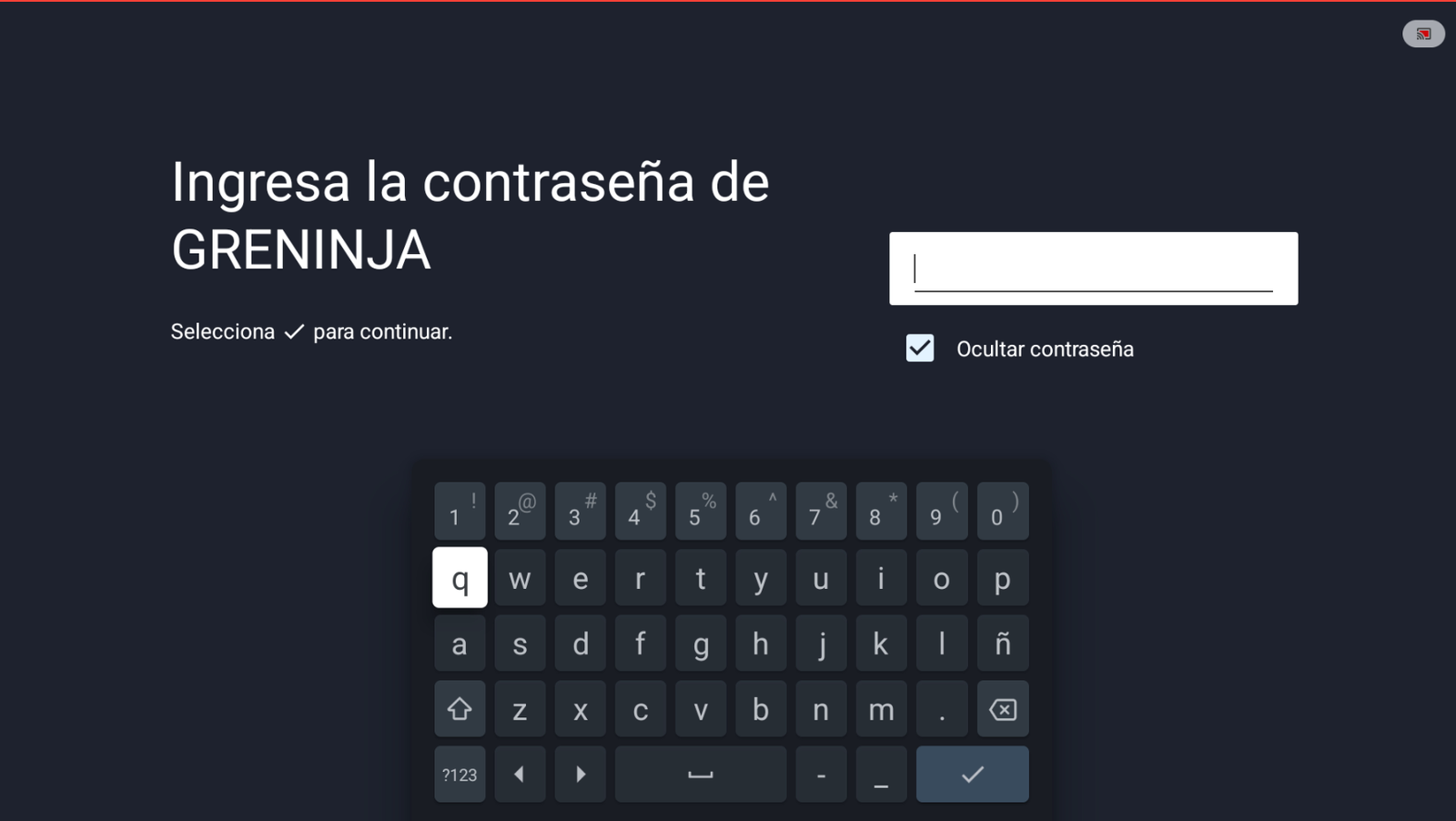
Enter the password and confirm. -
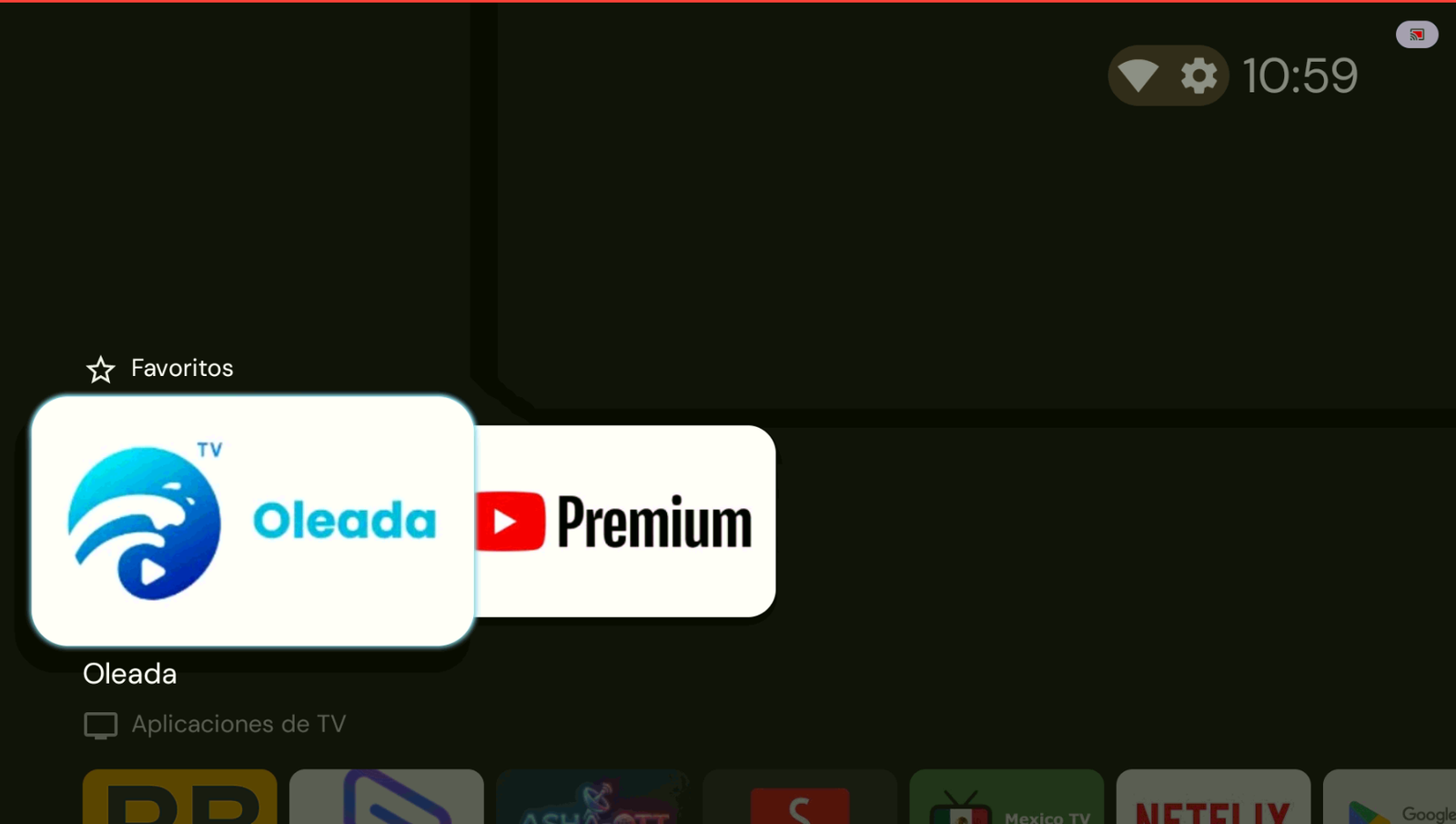
Return to the main menu. In Favoritos (Favorites), open the Oleada TV app.
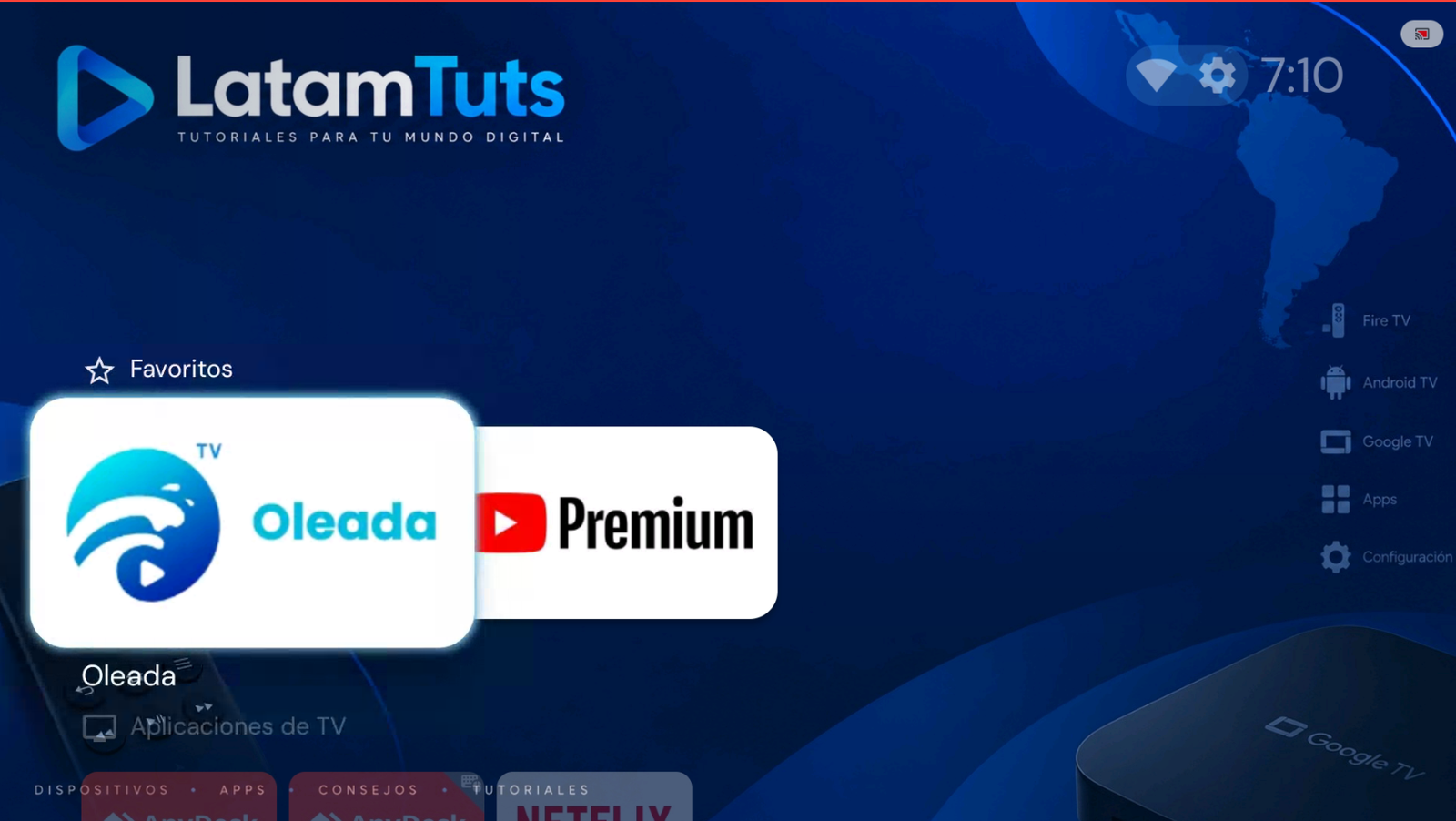
Select Oleada TV. -
If the 1-day free trial appears, tap ¡Pruébala ahora! (Try it now!).
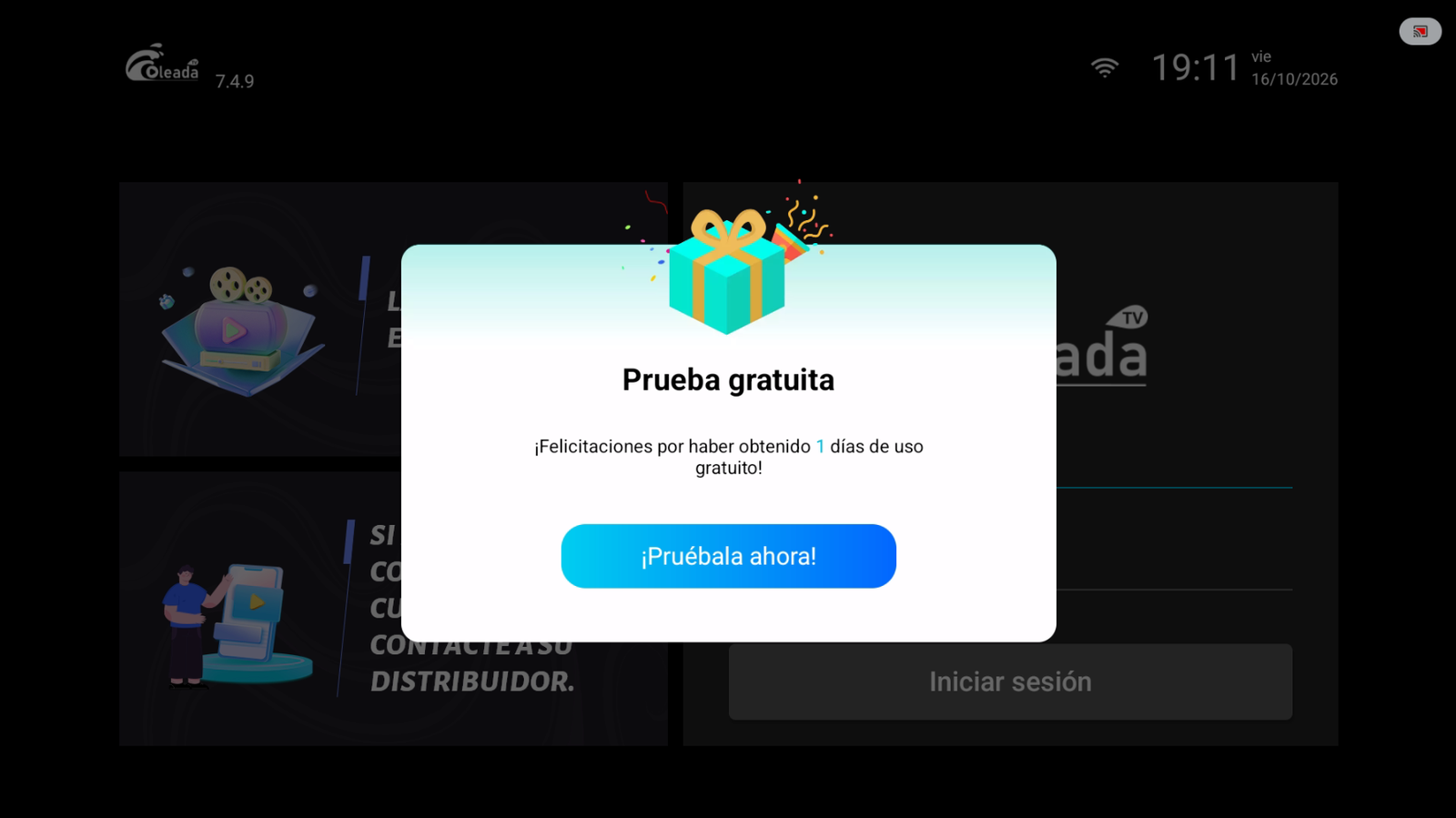
Start the free trial. -
Find your username and password on the label inside the device box.
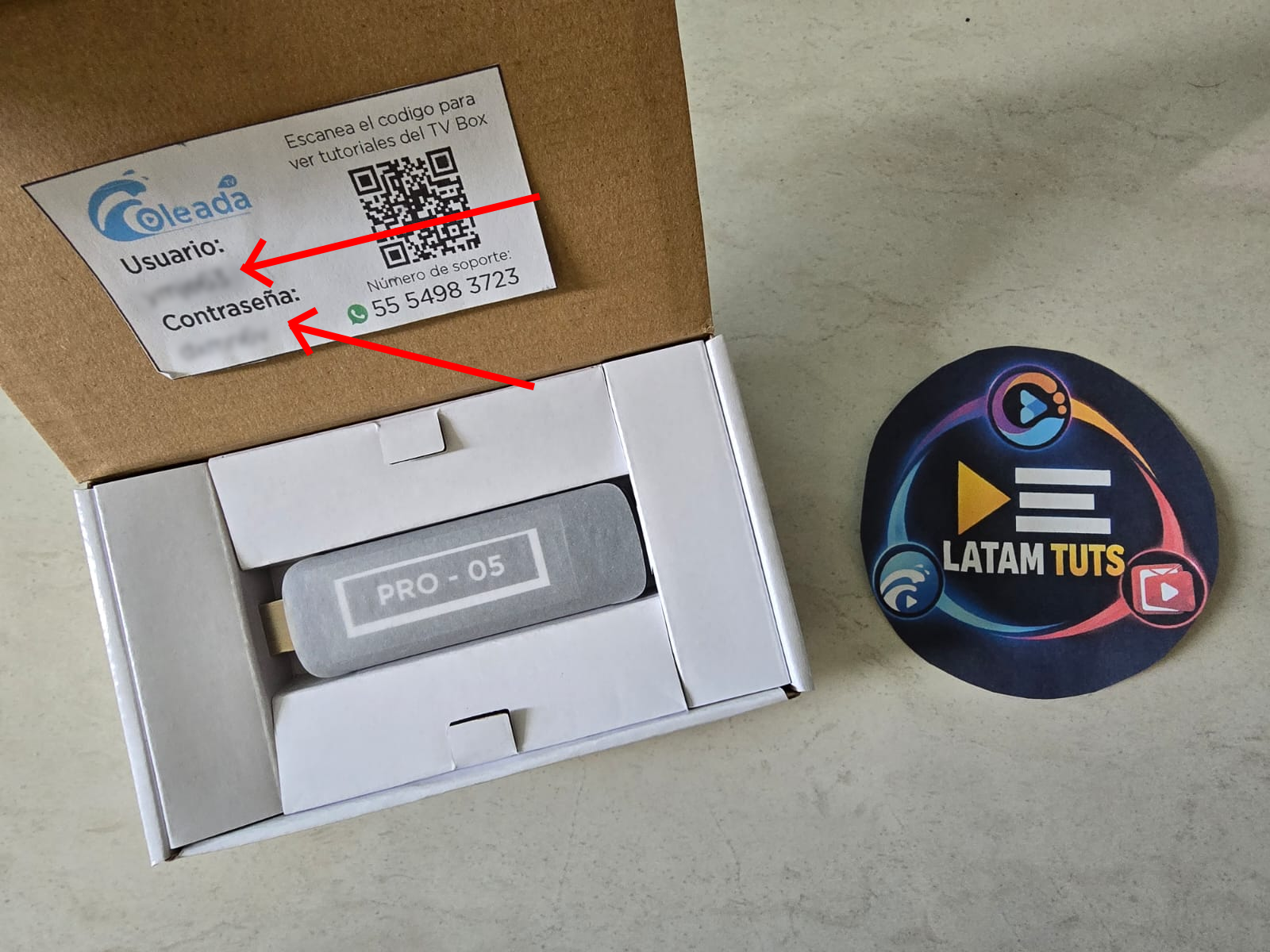
Username and password in the box. -
Enter your account and password, then tap Iniciar sesión (Log in).
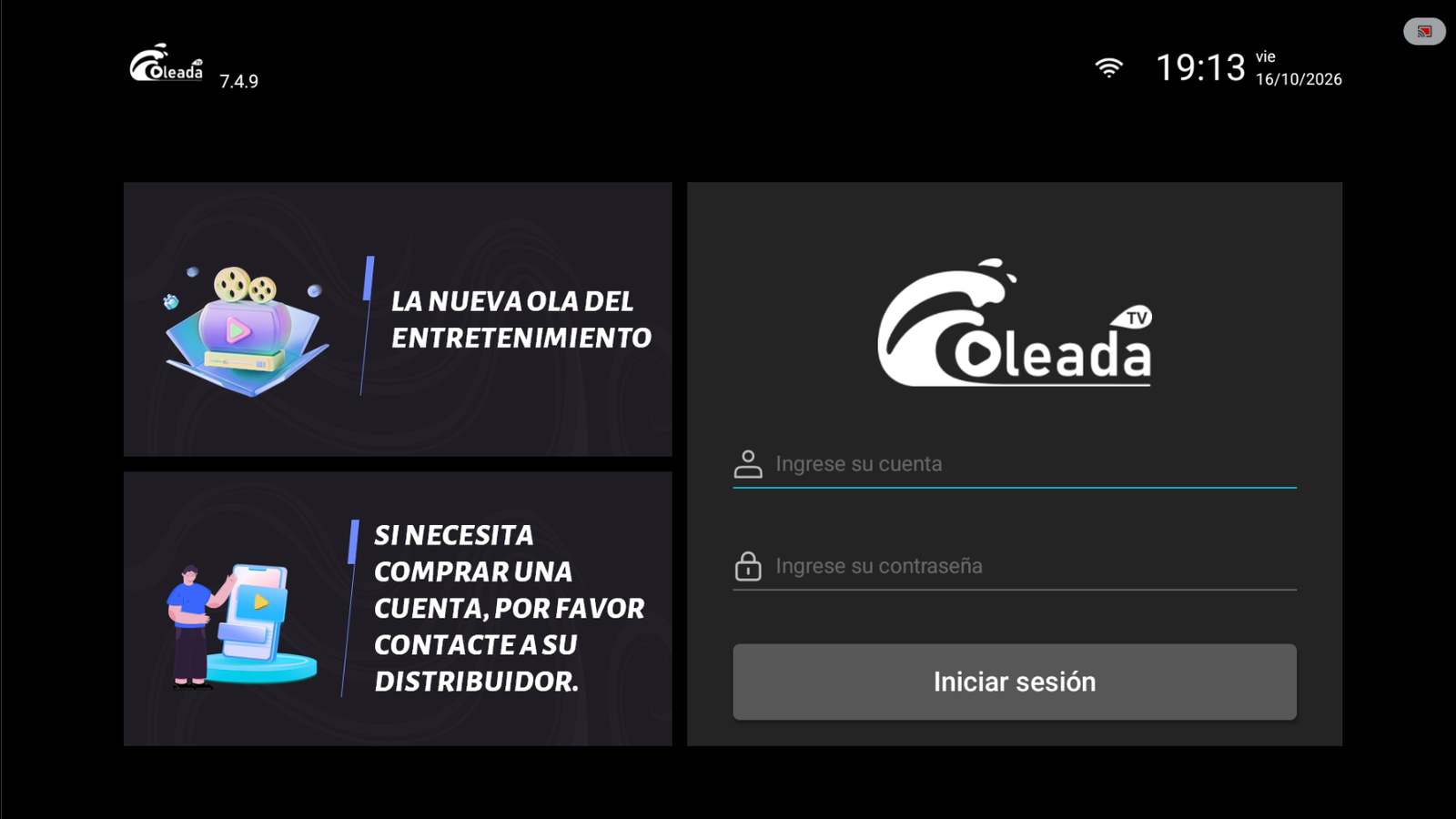
Sign in to Oleada. -
Inside Oleada you’ll find more than 1,100 TV channels, series, movies, and new releases from major platforms.
Oleada ready to use. -
In the Vivo (Live) section you’ll find live channels and soccer league matches.
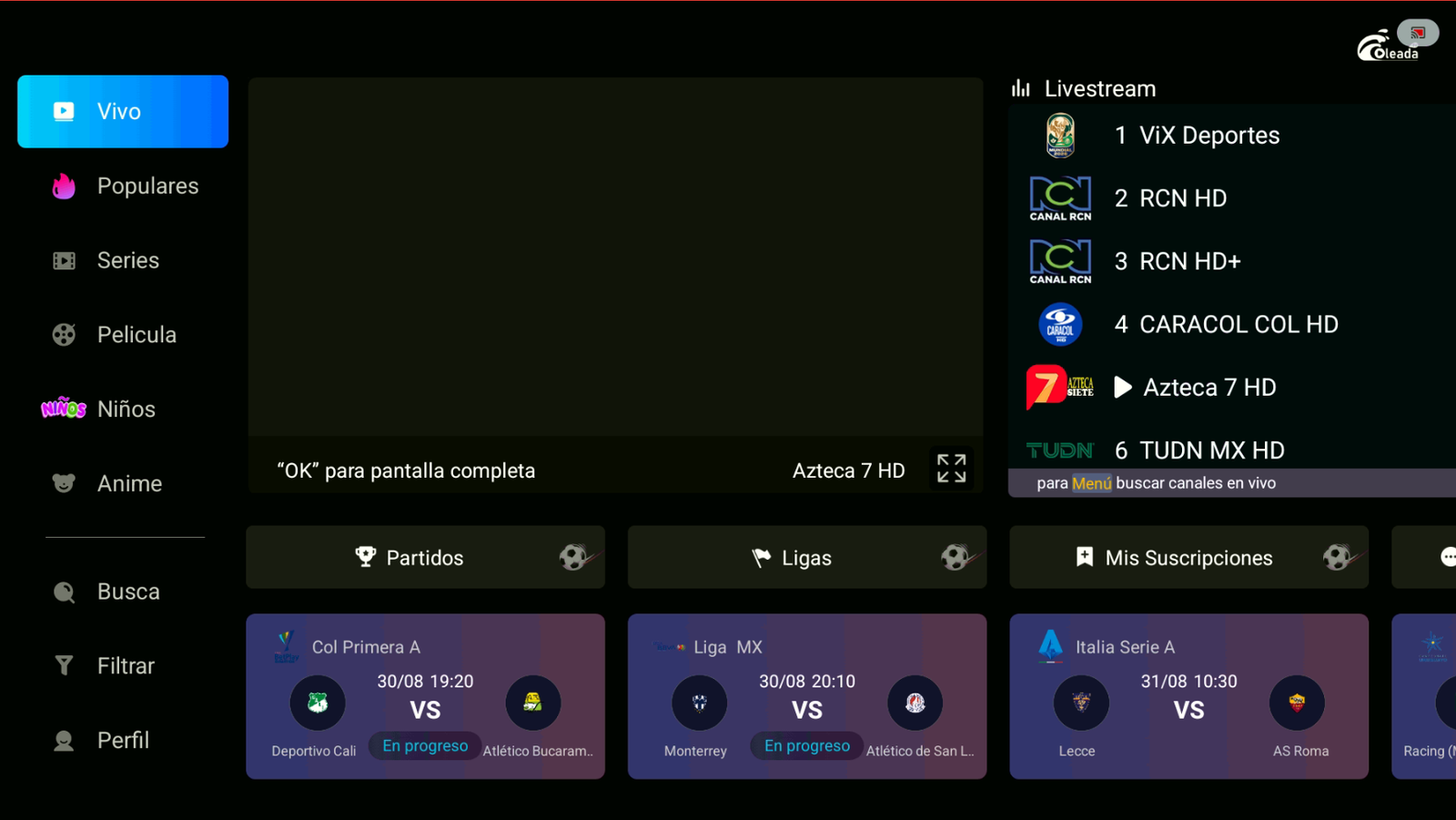
Open Live for TV and sports. -
Select the channel viewer to see the available TV list.
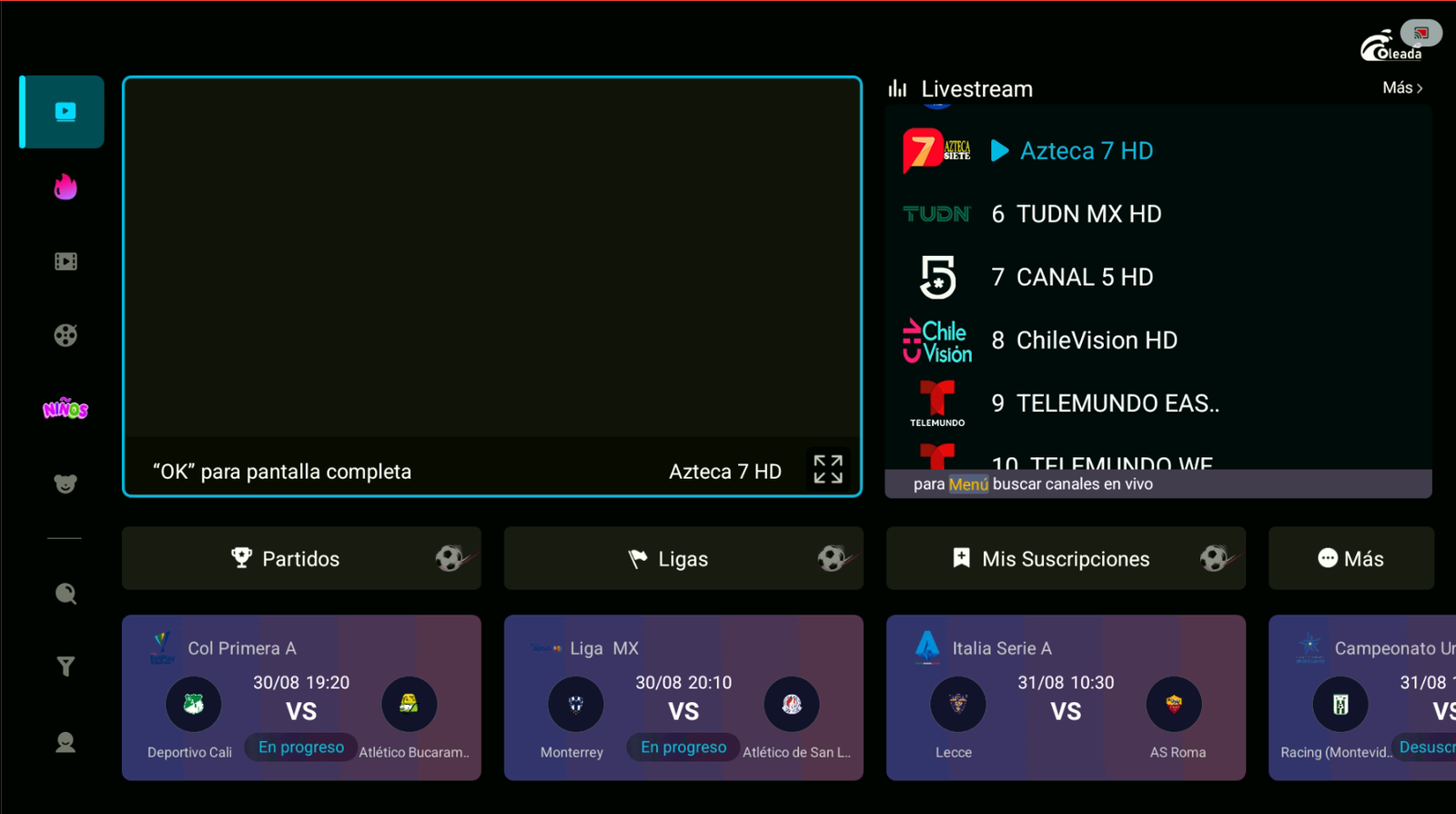
Choose the channel you want. -
With a channel selected, press OK on the remote for full screen.

Press OK for full screen. -
Press OK again to open the channel list. Move left to browse categories.
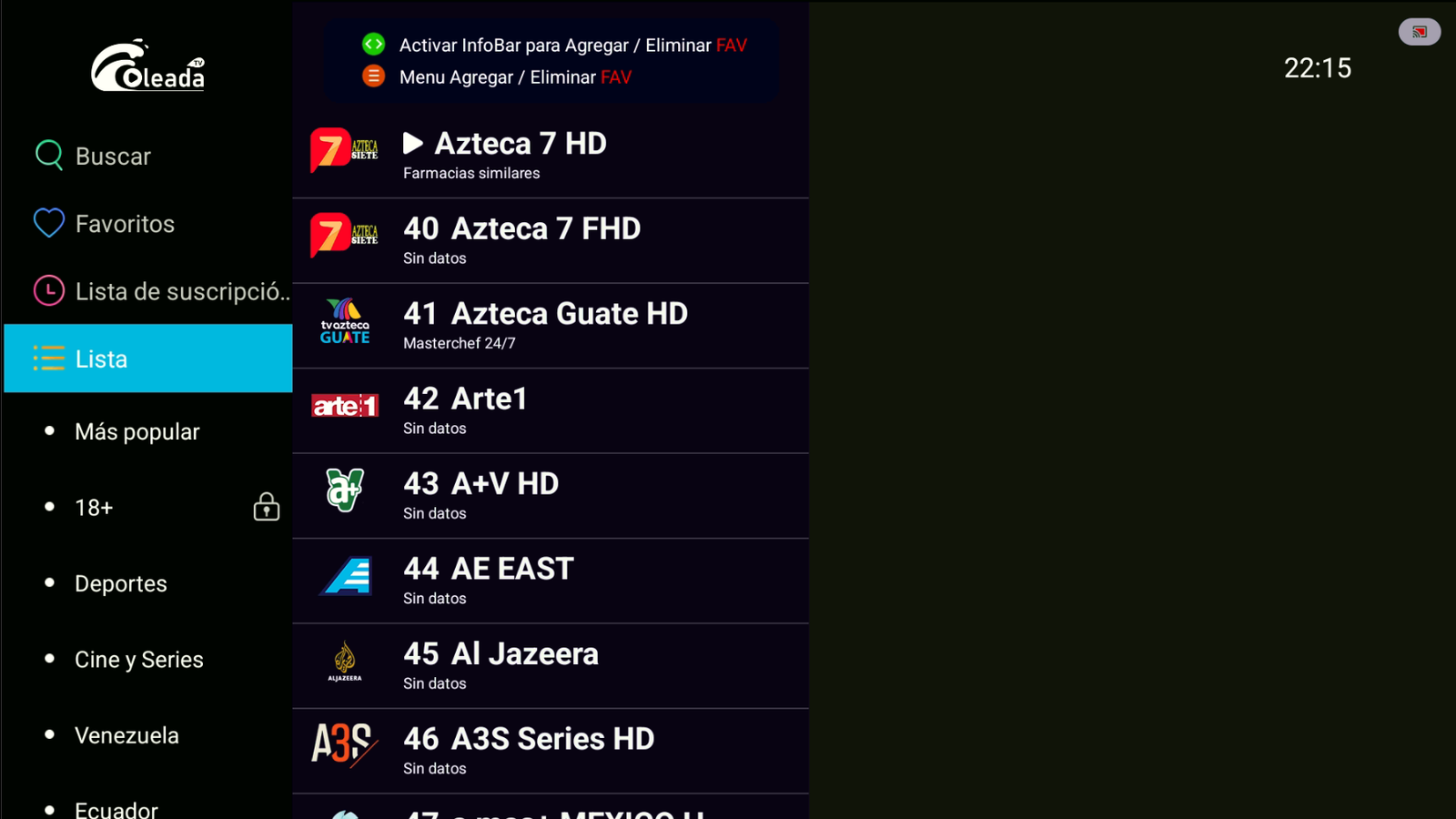
Browse categories from the list. -
To watch matches, go to the main menu and select Partidos (Matches).
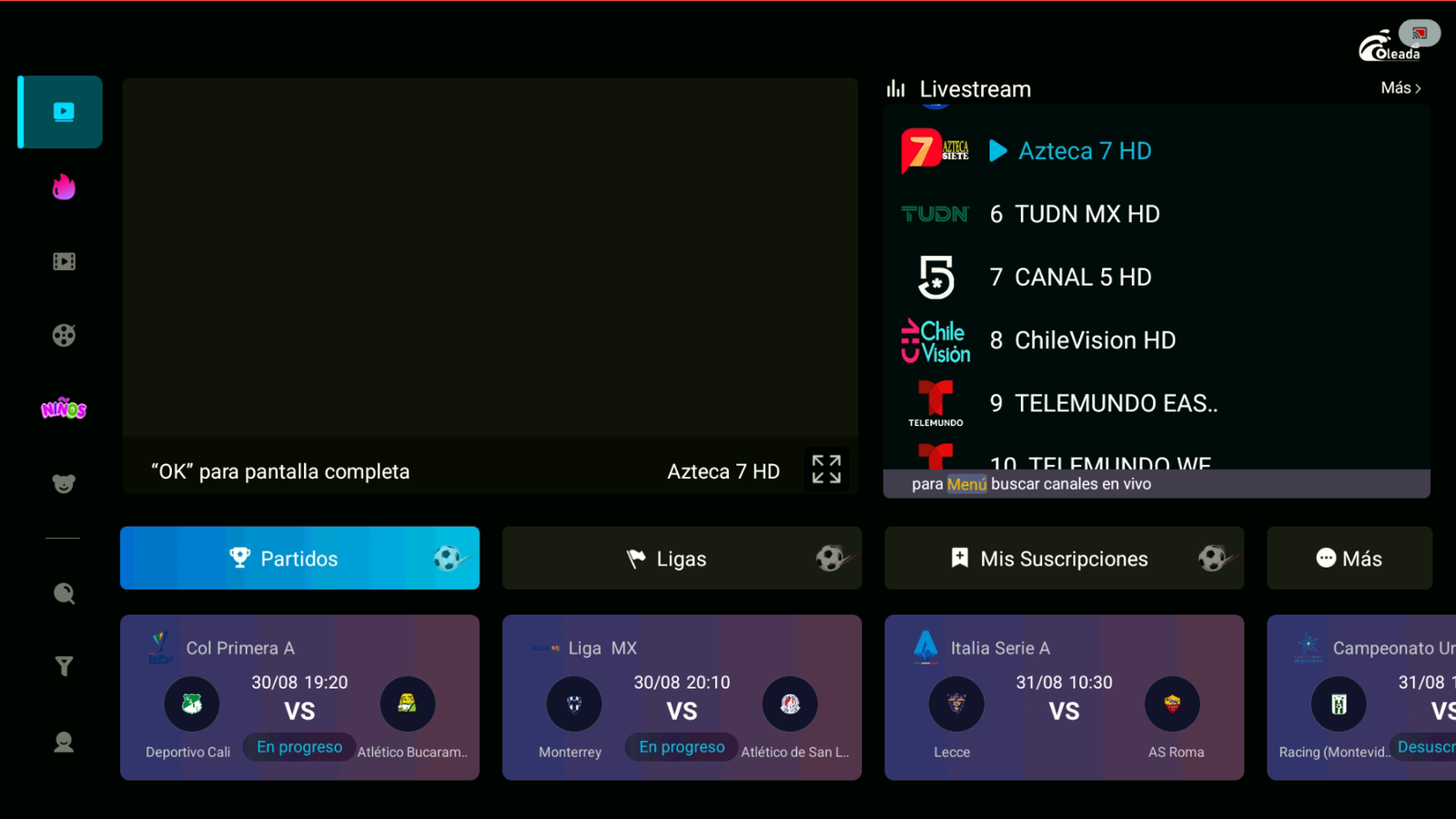
Select Matches. -
On the left you’ll see dates; on the right, match times.
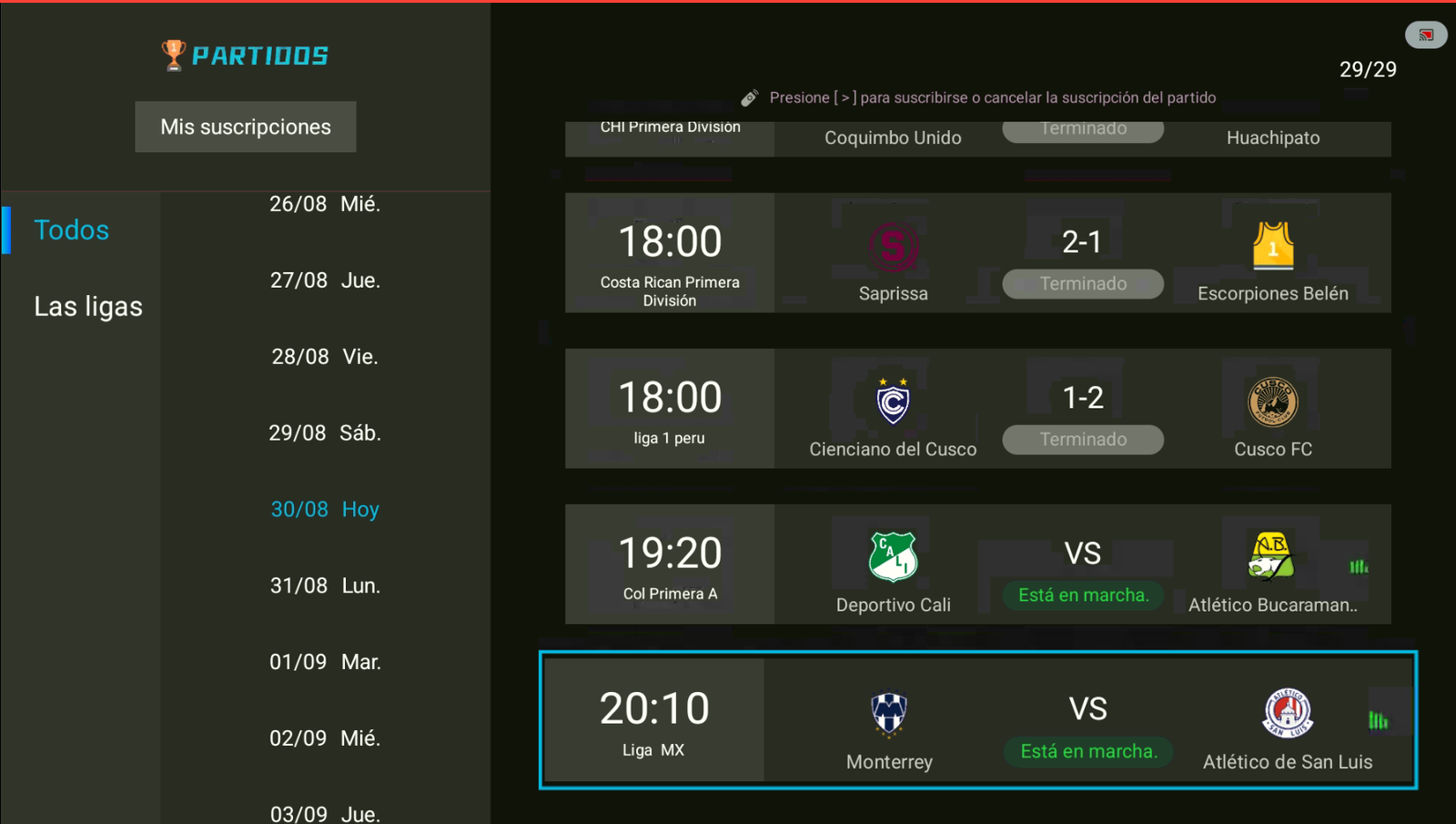
Pick a date and time. -
Select the match. You can go full screen, switch channels, and view details, lineups, stats, and standings.
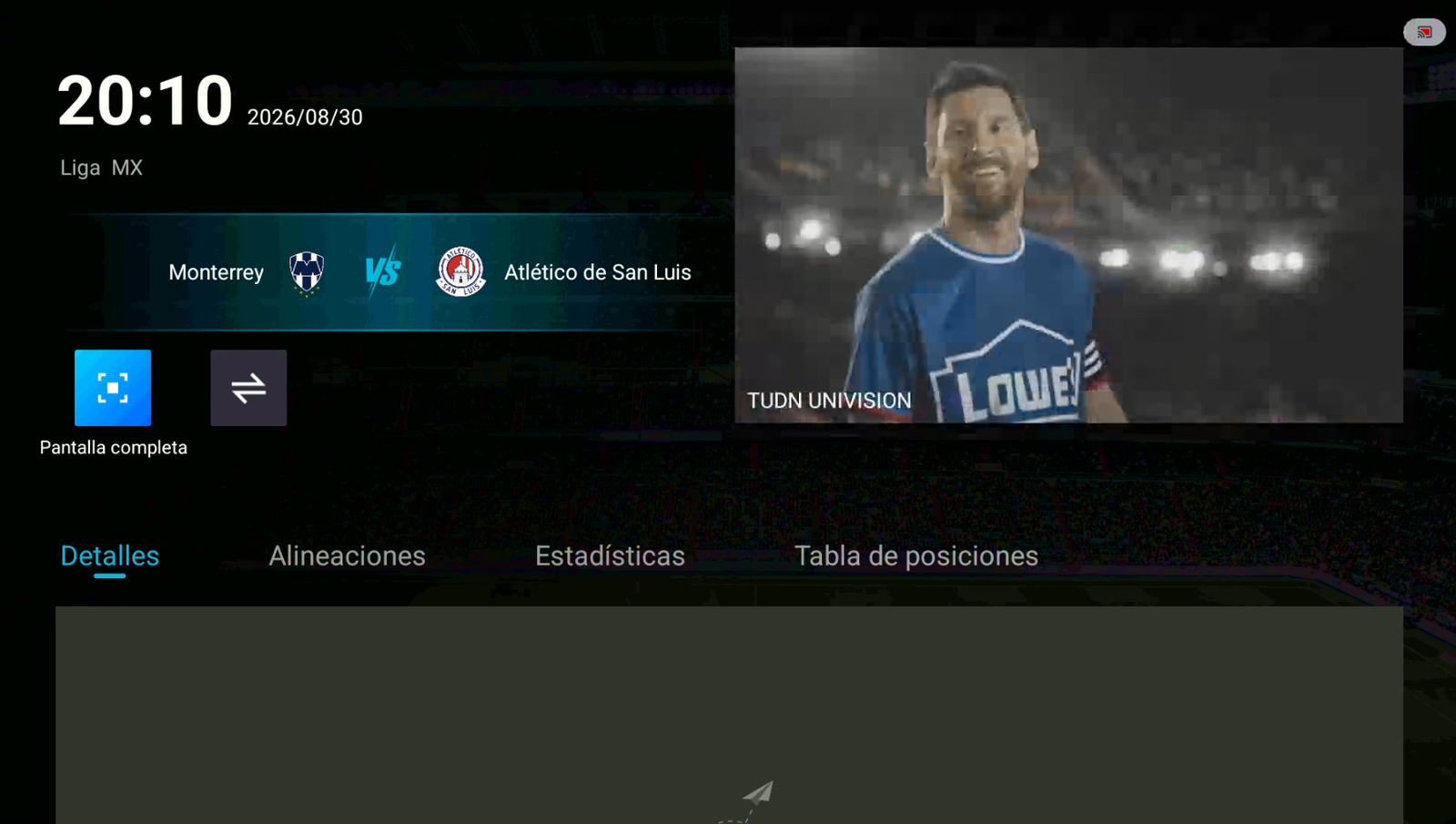
Open the match and choose how to watch. -
In Populares (Popular) you’ll find new series and movies.
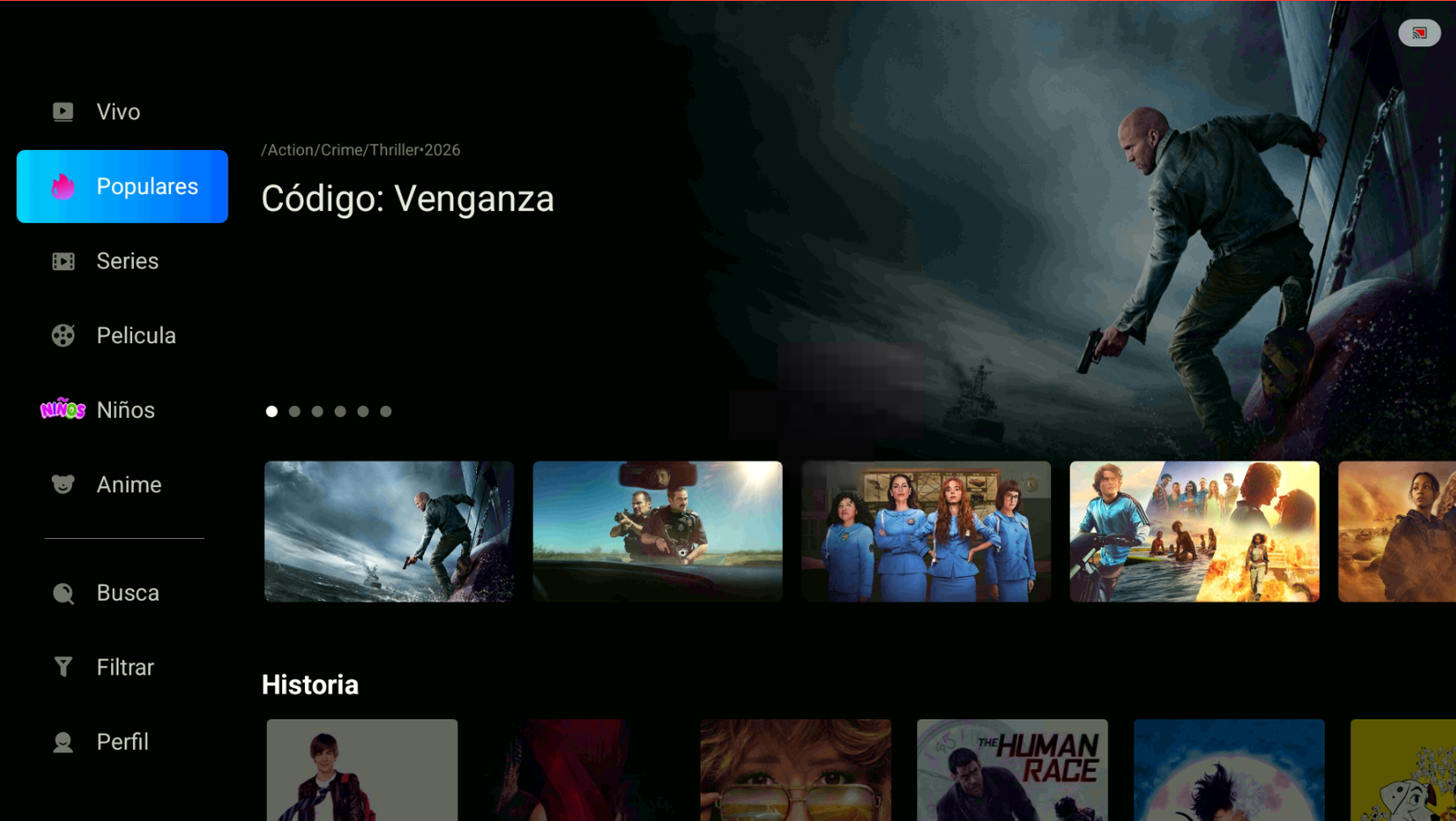
Browse Popular. -
In the Película (Movie) section there are titles from different platforms, including adult content.
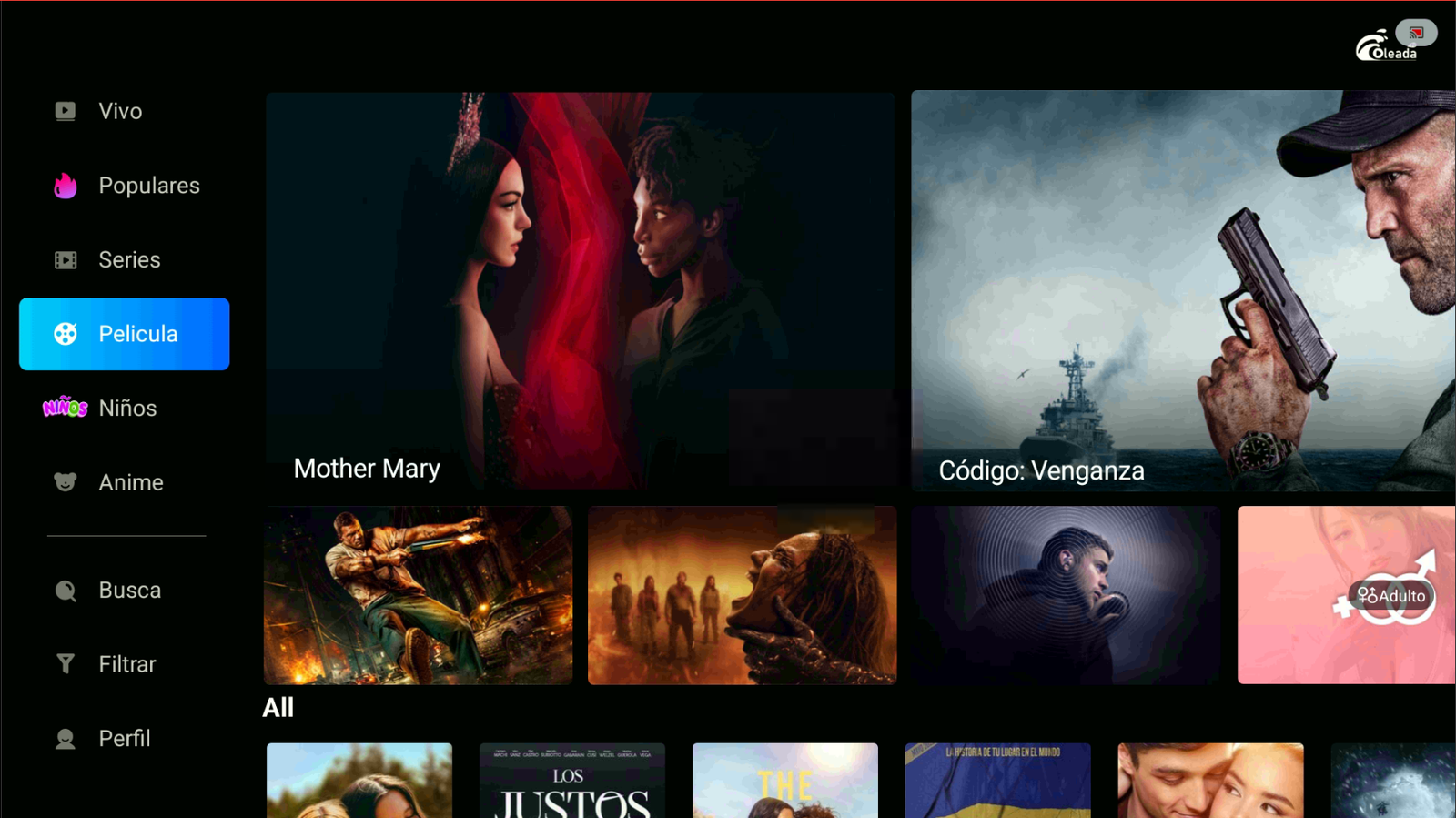
Open Movies. -
Select the Adultos (Adults) tile.
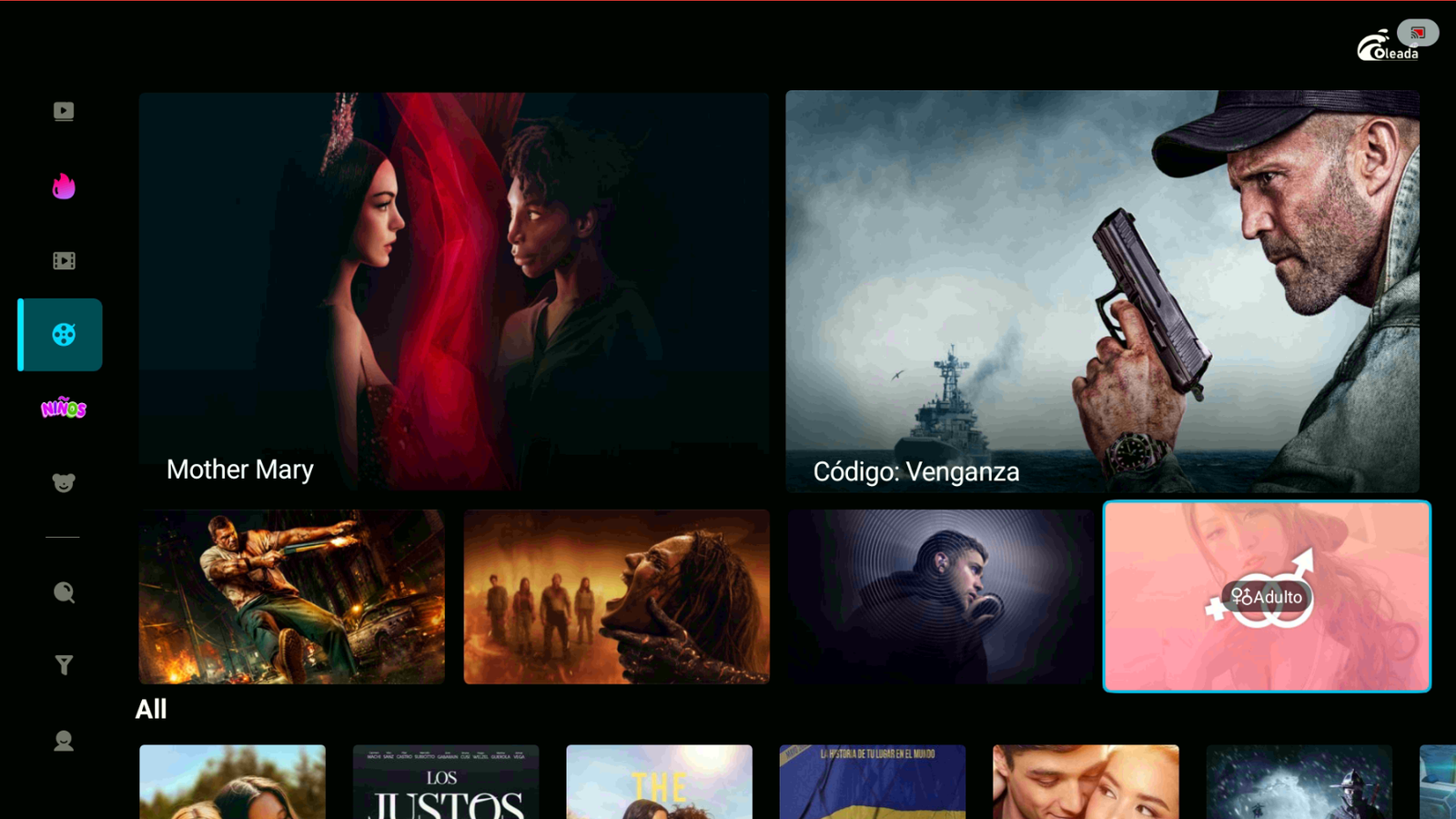
Select Adults. -
Enter PIN 1111 to unlock parental-controlled content.
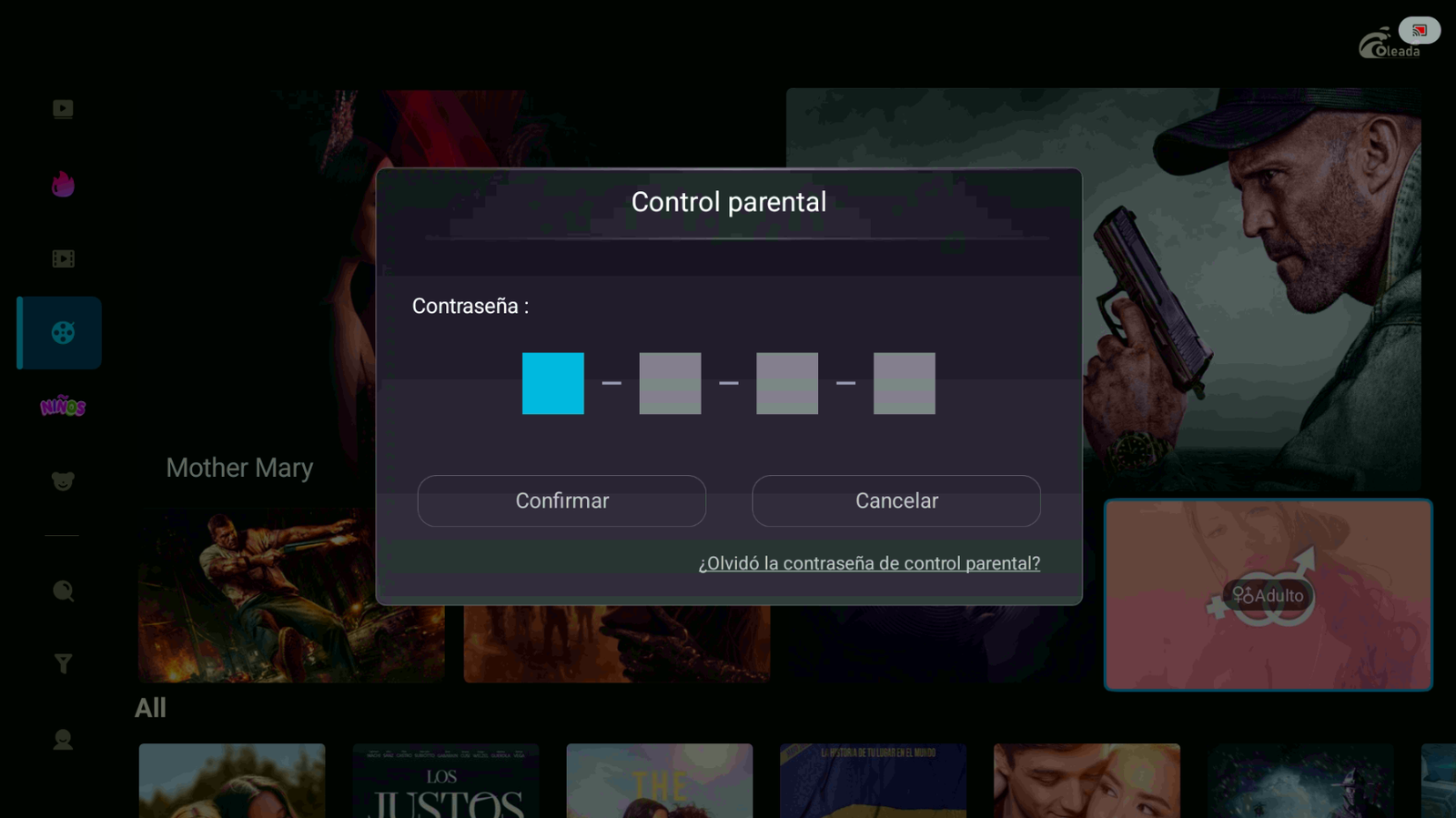
PIN: 1111 -
In the same section, Películas TS shows cinema releases.
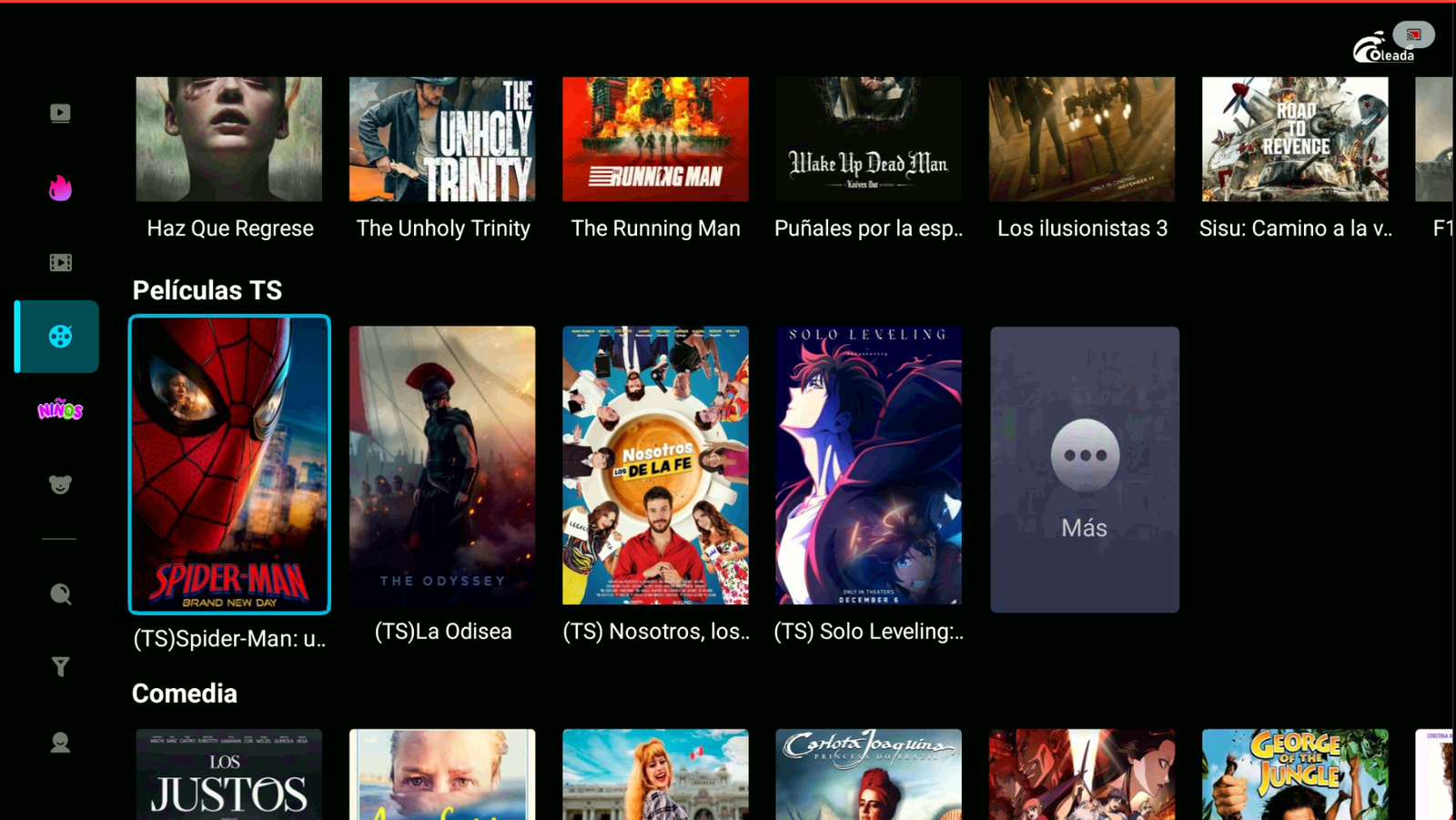
Check Películas TS. -
In the Niños (Kids) section you’ll find movies for younger viewers.
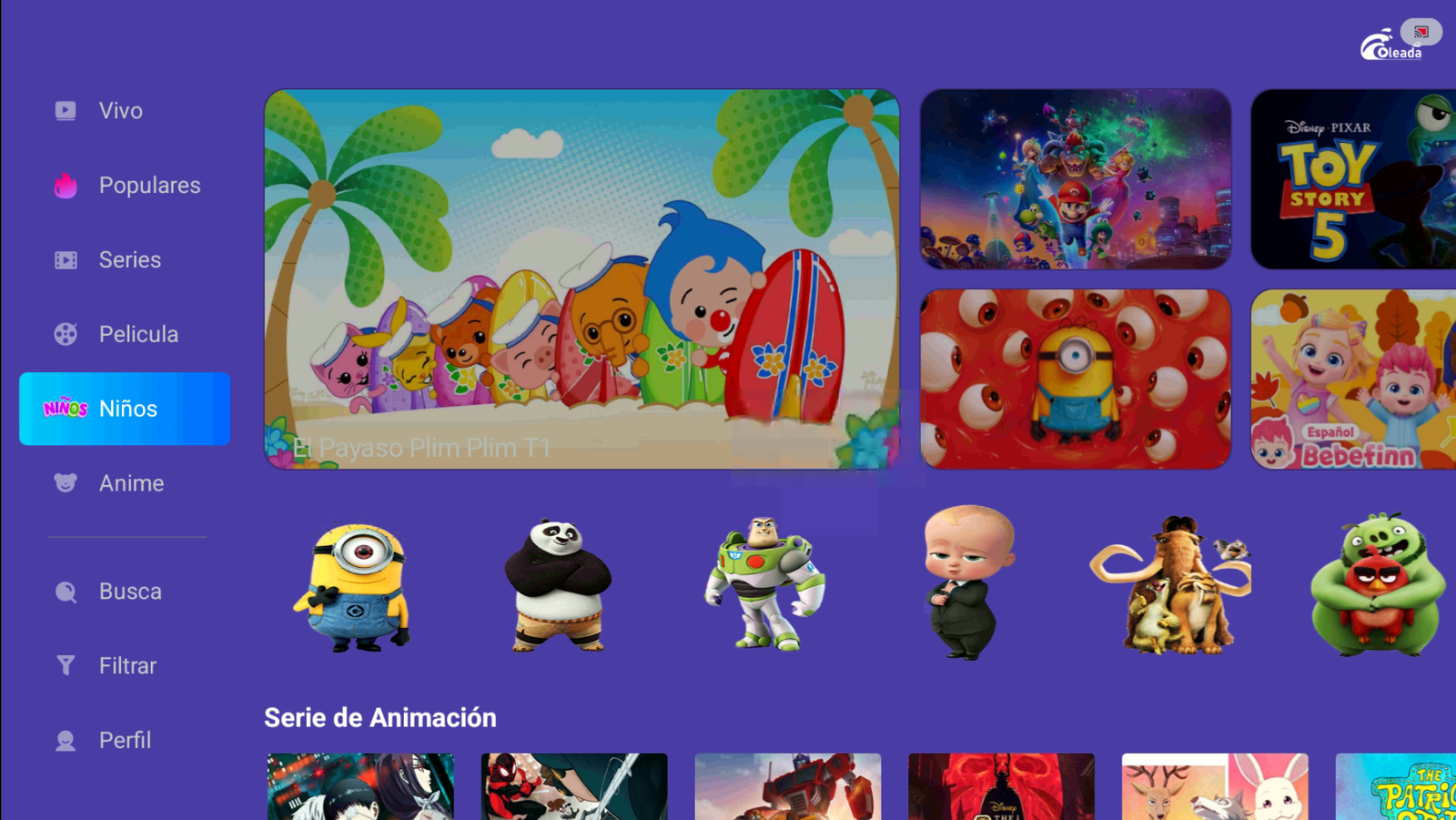
Kids content. -
Use Buscar (Search) to find your favorite content.
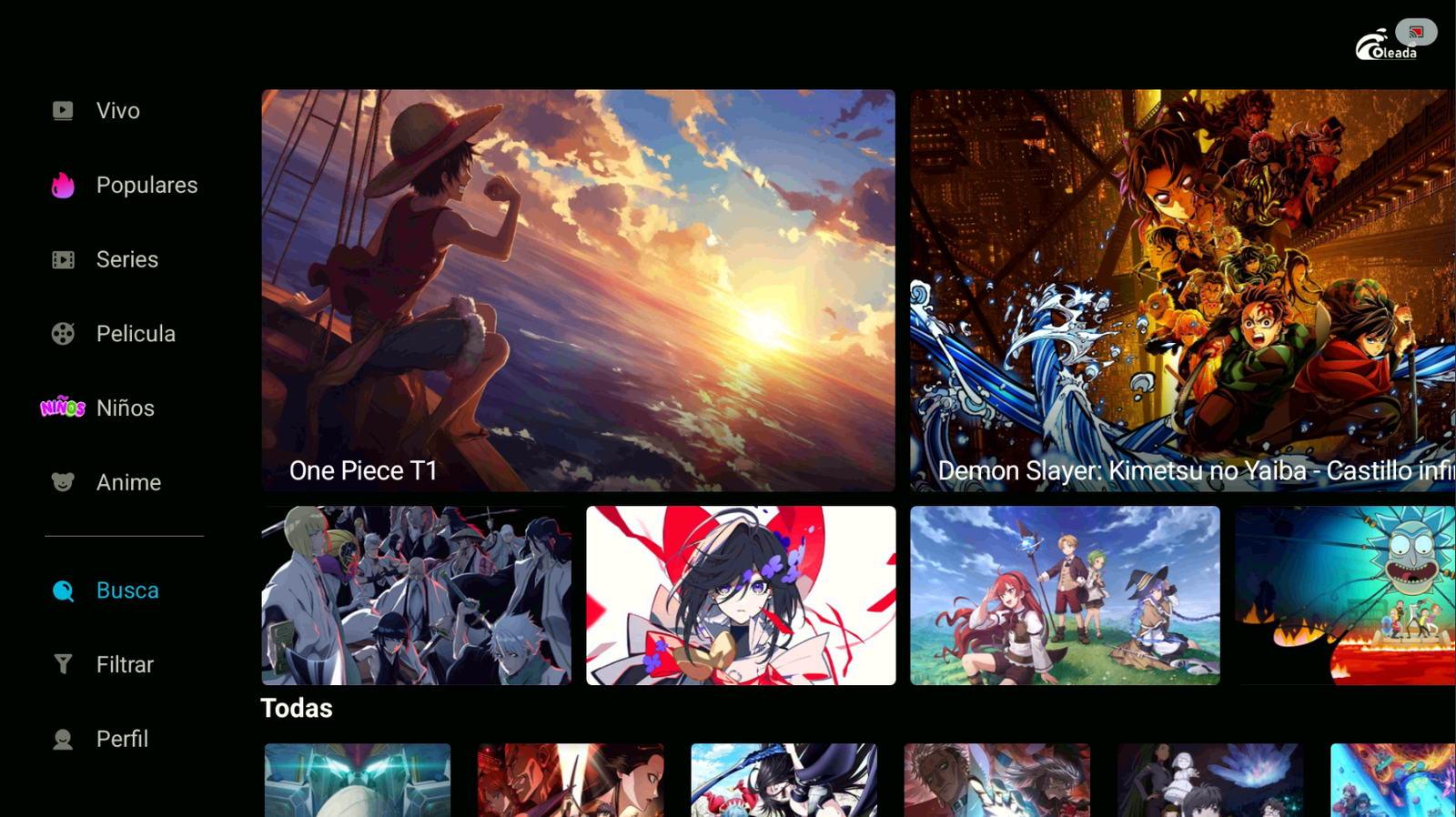
Open Search. -
Type the movie or series name. Use the exact title for better results.
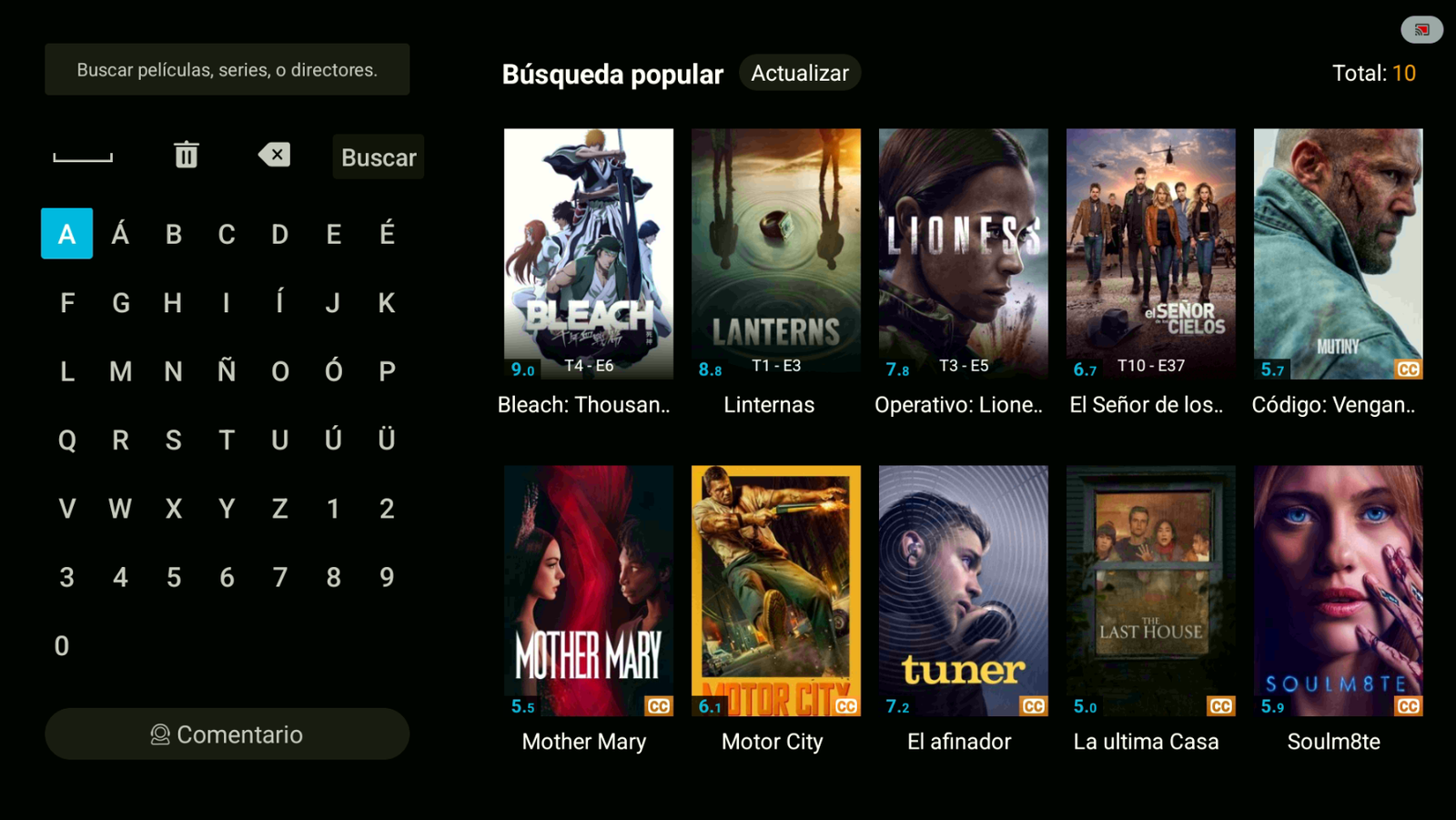
Search with the exact name. -
The TV Box also includes YouTube Premium. Open it and you can continue as a guest.
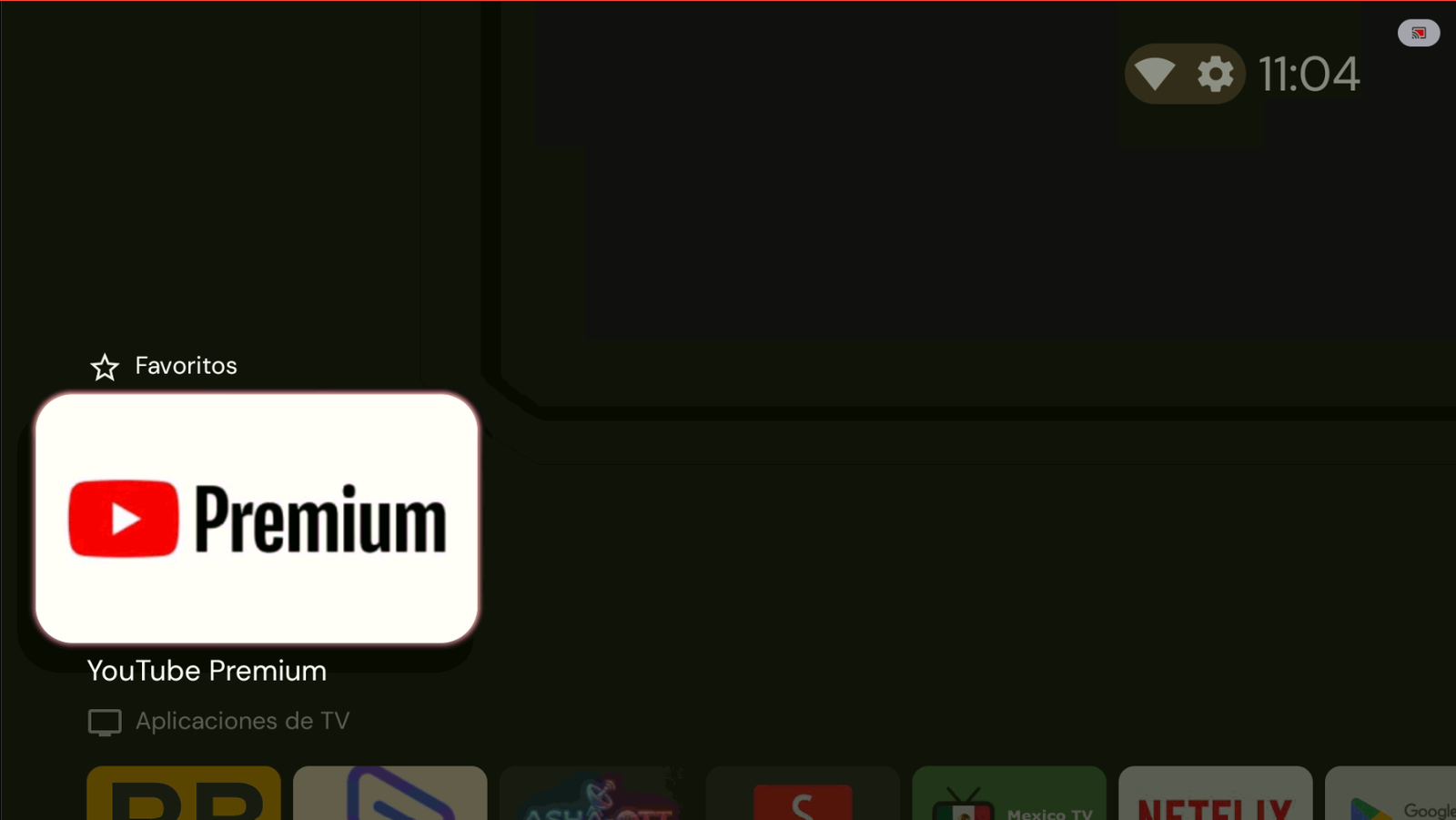
YouTube Premium. -
Apps like RBTV, SportZx, and ASHA OTT also offer more sports events.
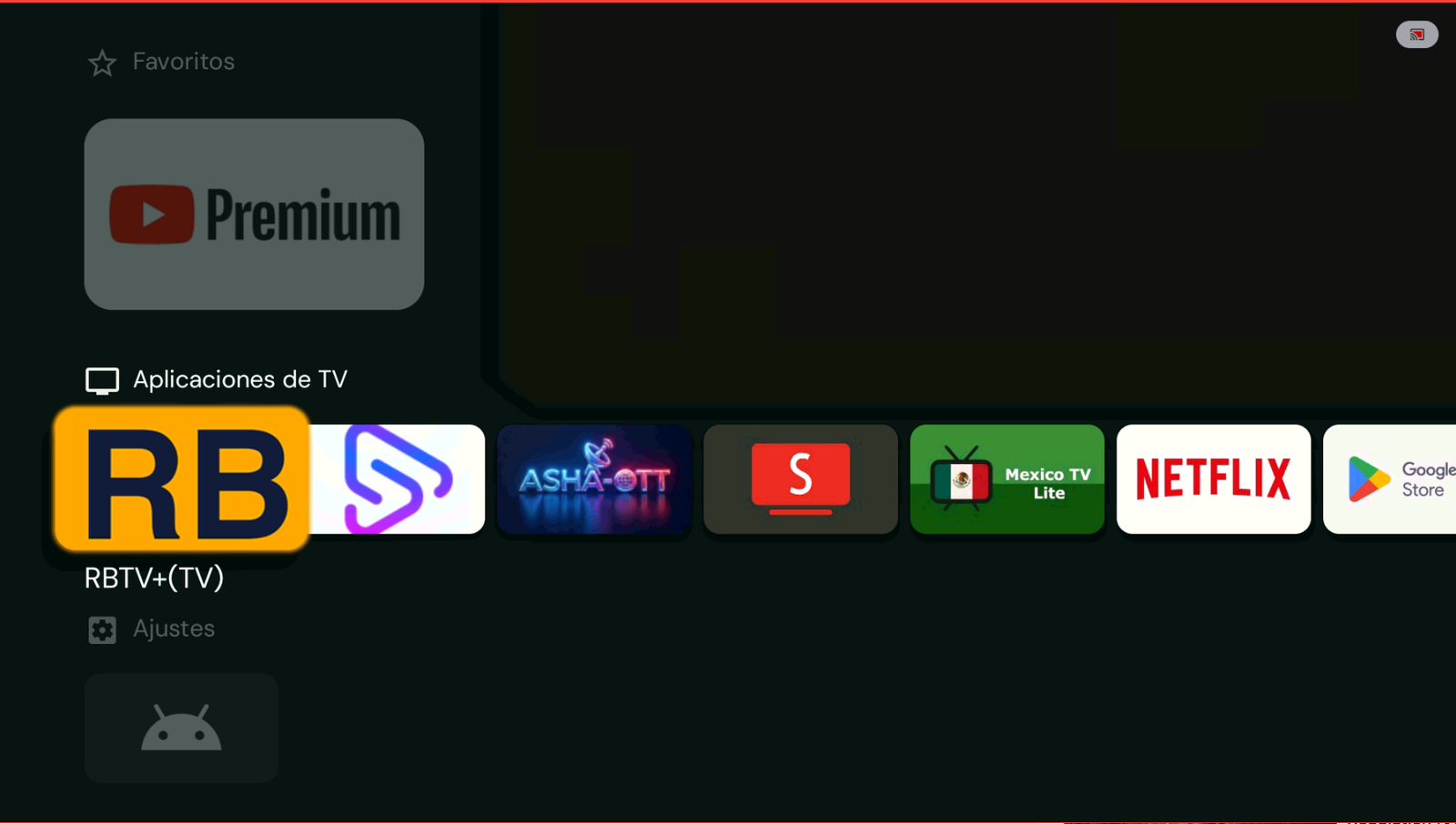
Extra sports apps.
Need help?
If something doesn’t work, check that the ONN is on the correct HDMI input, connected to Wi‑Fi, and reopen Oleada.
Contact
To buy an account or get support, WhatsApp: +52 55 2707 7840.
Comments
Comments will appear once Disqus is configured.